How to Connect to a Database with MySQL Workbench
Introduction to MySQL Workbench
MySQL Workbench is a unified visual tool for database architects, developers, and DBAs. It provides a comprehensive set of tools for database design, development, administration, and maintenance. As a graphical user interface (GUI) for MySQL, it simplifies the process of managing databases and executing SQL queries.
In real-world applications, connecting to a database is a fundamental task that allows developers to perform various operations such as data retrieval, updates, and management. MySQL Workbench streamlines these processes, making it easier to visualize database structures and relationships.
Prerequisites
Before you begin connecting to a database using MySQL Workbench, ensure that you have the following prerequisites:
- MySQL Workbench Installed: Download and install MySQL Workbench from the official MySQL website.
- Database Server: You should have access to a MySQL database server, either locally on your machine or hosted remotely.
- Connection Credentials: Make sure you have the necessary credentials, including the hostname, port, username, and password.
Steps to Connect to a Database
Follow these detailed steps to establish a connection to your database using MySQL Workbench:
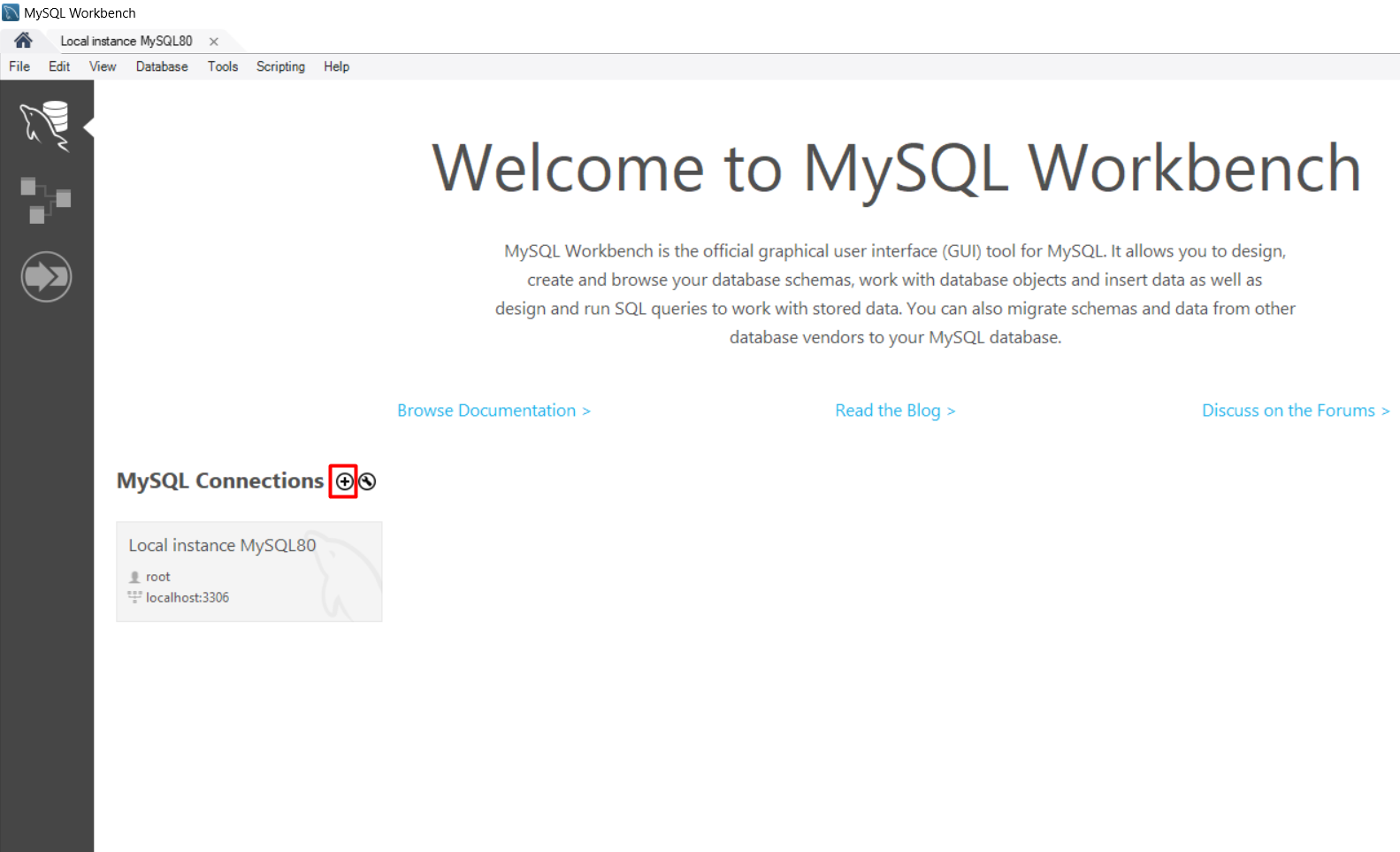
- Open MySQL Workbench: Launch the MySQL Workbench application on your computer.
- Create a New Connection: Click on the + sign next to MySQL Connections to set up a new connection.
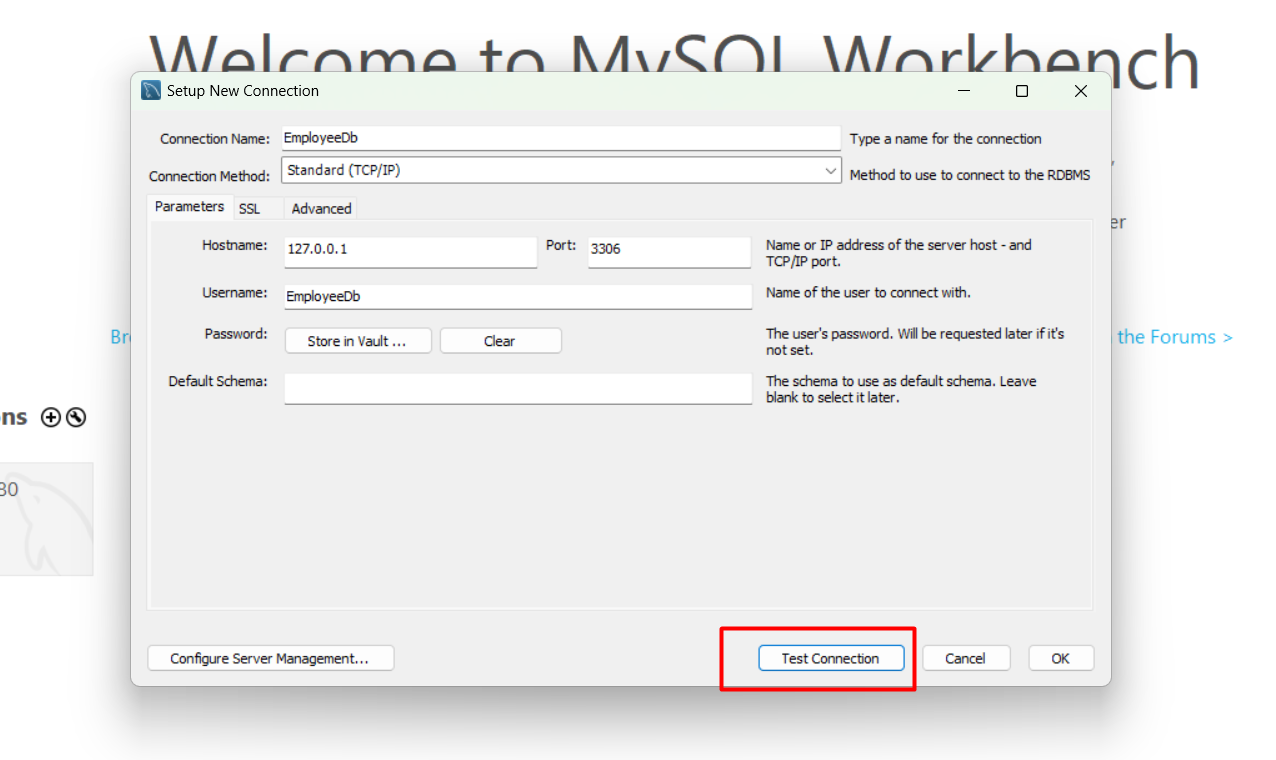
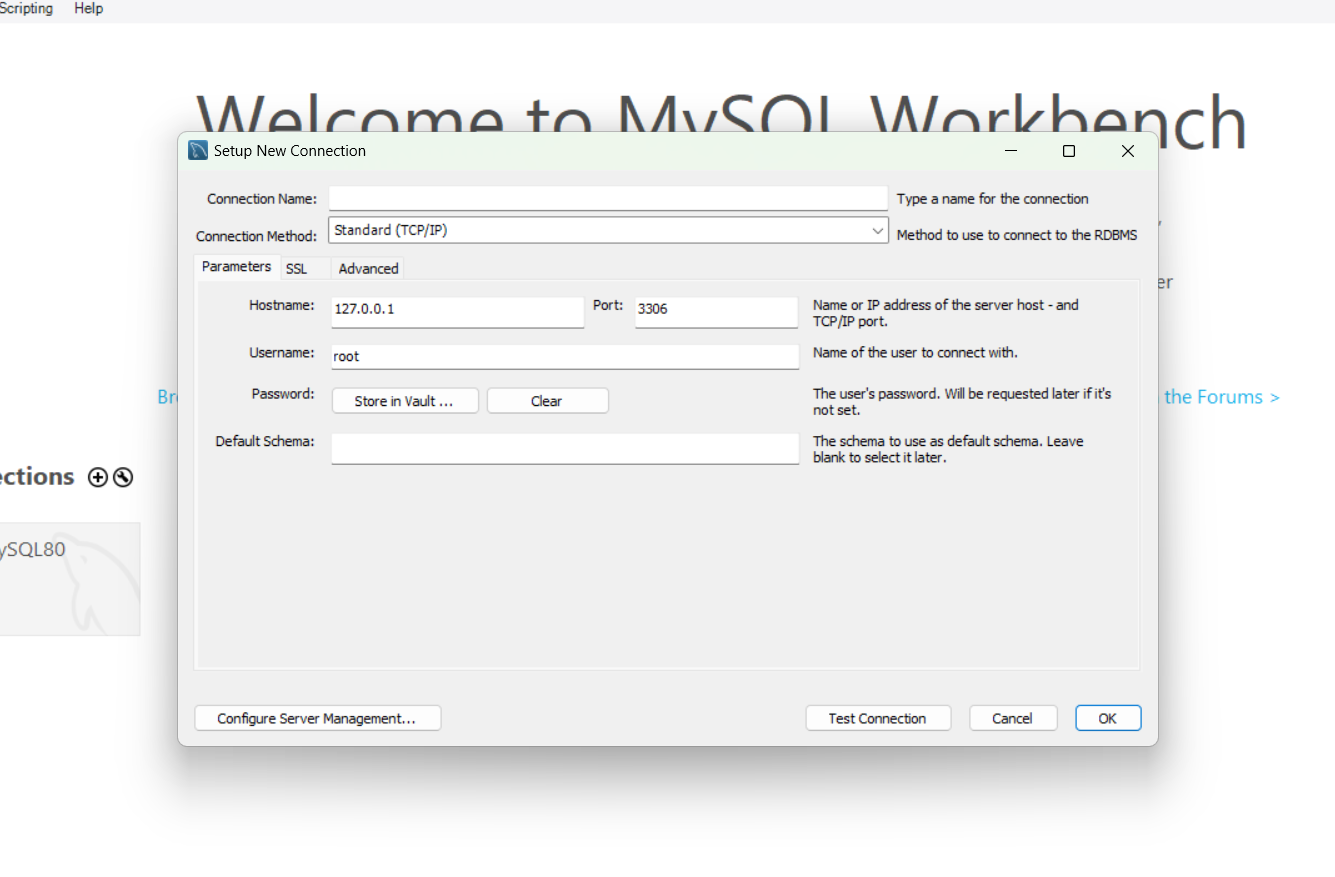
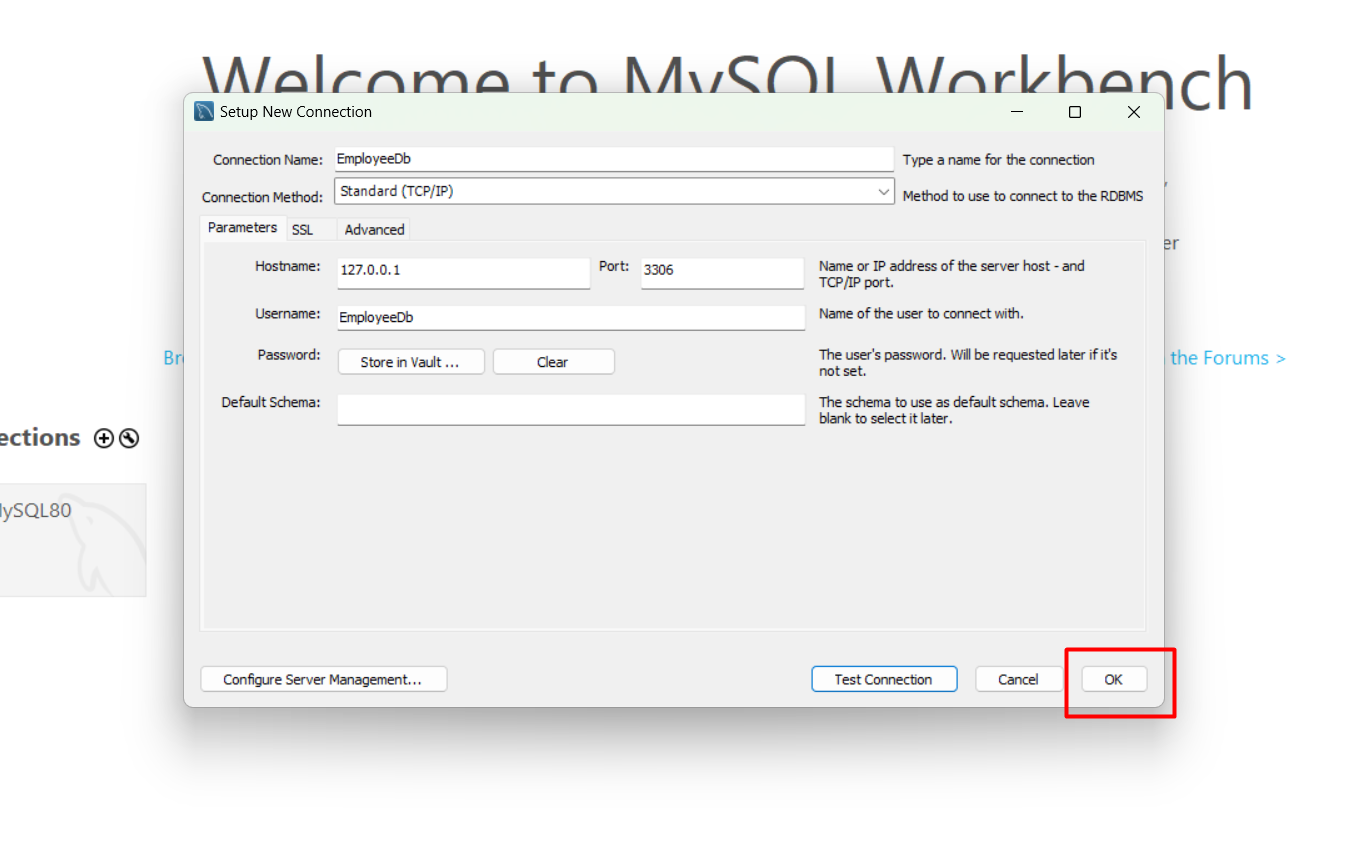
- Input Connection Details: In the Set up a New Connection dialog box, fill in your database connection credentials:
- Connection Name: Choose a name for your connection (e.g., MyDatabase).
- Connection Method: Select Standard (TCP/IP).
- Hostname: Enter your domain name or the IP address of your cPanel.
- Port: The default MySQL port is 3306.
- Username: Enter your cPanel username or the user you created for the database.
- Password: Provide the cPanel password or the password for the database user.
- Default Schema: This field can be left blank for now.
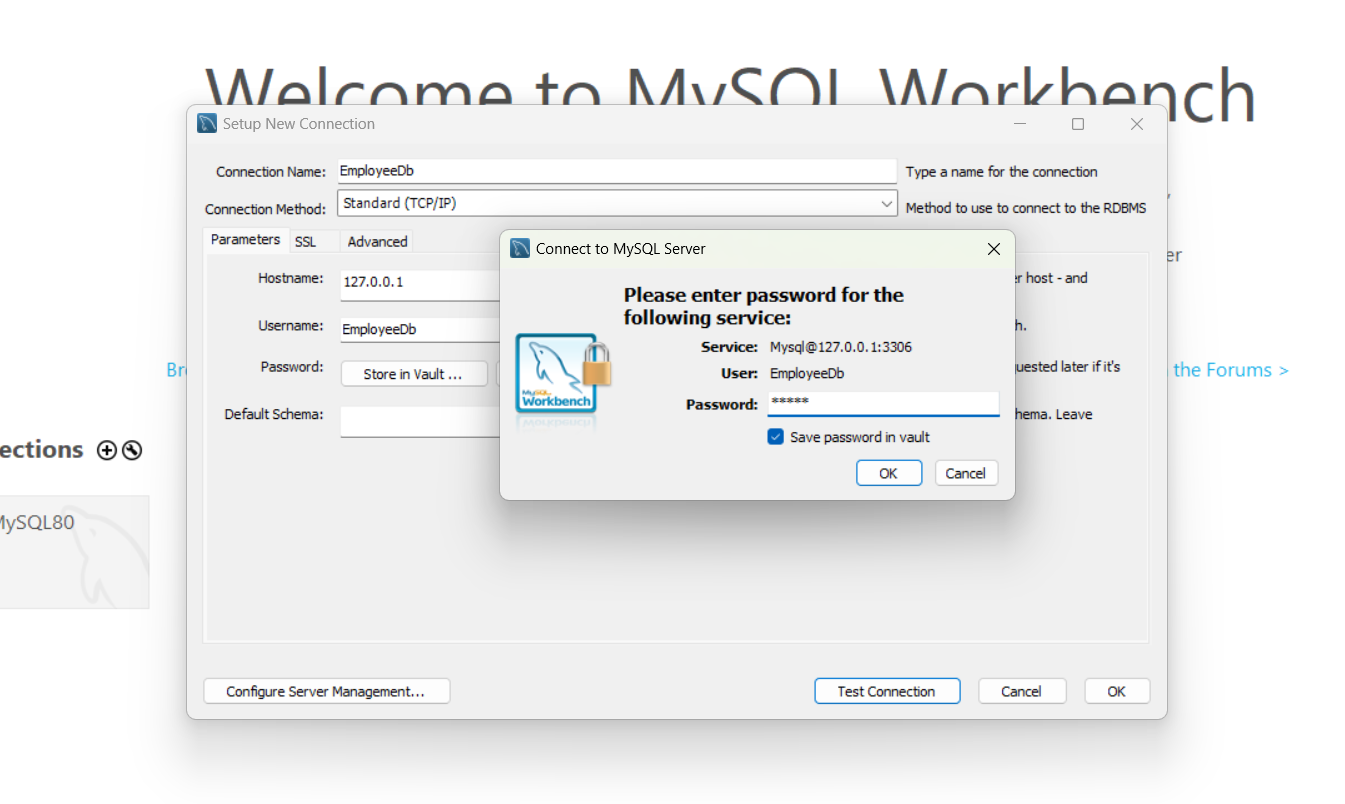
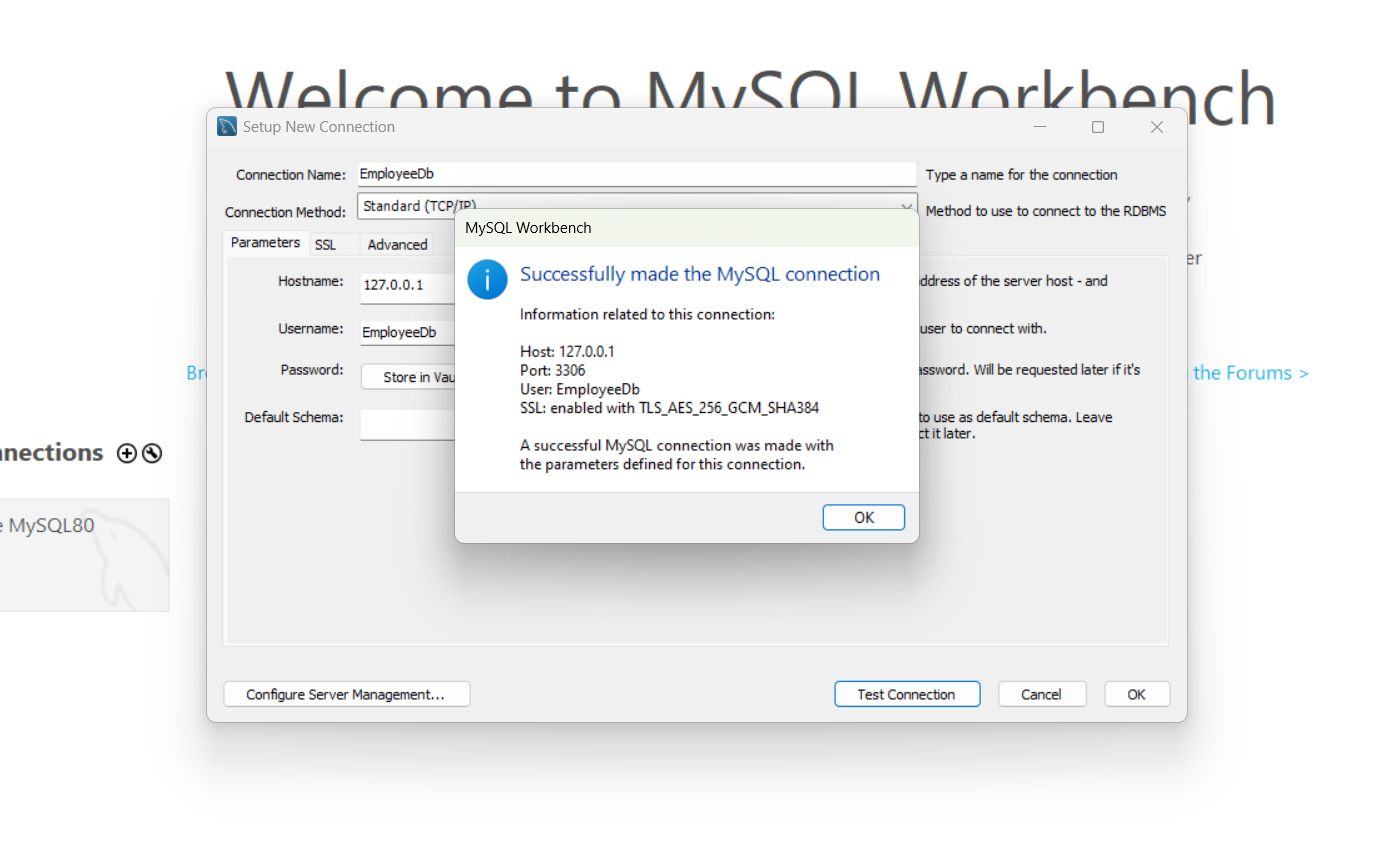
- Test the Connection: Click on Test Connection to verify your settings. If prompted, enter your password and check the Save Password in Vault option. Click OK to proceed.
- Confirm Connection Parameters: MySQL Workbench should indicate that the connection parameters are correct. Click OK to finalize your settings.
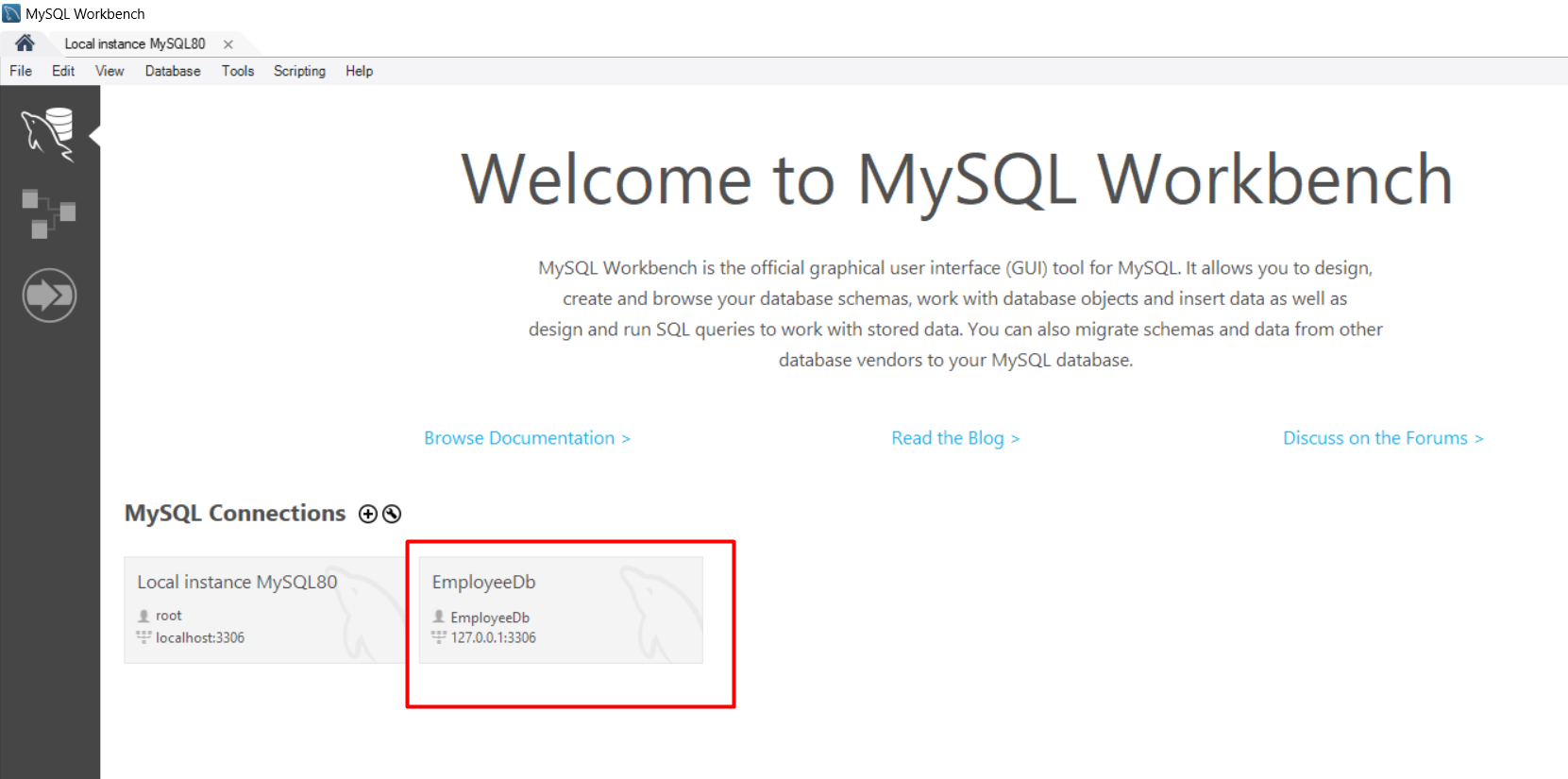
- Access the Database: After clicking OK, your new connection will appear under MySQL Connections. Double-click on the connection to open the database.
- View Database Tables: Once connected, you can view and manage your database tables in the left sidebar. To see the data, right-click on a table and select Select Rows - Limit 1000.
- Execute SQL Queries: You can execute SQL queries using the SQL editor. Click on the SQL+ icon to open a new SQL tab.
SELECT * FROM employees WHERE status = 'active';Common Connection Issues
While connecting to a MySQL database using MySQL Workbench, you may encounter some common issues. Here are a few troubleshooting tips:
- Invalid Credentials: Ensure that your username and password are correct. A simple typo can prevent a successful connection.
- Firewall Settings: If you're connecting to a remote server, check if firewall settings on the server are blocking incoming connections on port 3306.
- MySQL Service Running: Confirm that the MySQL service is running on the server. If it's not running, you won't be able to connect.
- Network Issues: Verify your network connection. A disrupted internet connection can hinder your ability to connect to remote databases.
Edge Cases & Gotchas
When working with MySQL Workbench, there are several edge cases and gotchas to be aware of:
- Multiple Users: If multiple users are accessing the same database, ensure that user permissions are set correctly to avoid conflicts.
- Database Locking: Be cautious of database locking issues, especially when performing write operations. Use transactions to manage locks effectively.
- Version Compatibility: Ensure that the version of MySQL Workbench you are using is compatible with the MySQL server version. Incompatibilities may lead to unexpected errors.
- Connection Timeouts: If you experience frequent disconnections, consider adjusting the connection timeout settings in MySQL Workbench.
Performance & Best Practices
To optimize your experience with MySQL Workbench and ensure efficient database management, consider the following best practices:
- Use Indexes: Implement indexes on frequently queried columns to improve query performance.
- Regular Backups: Schedule regular backups of your database to prevent data loss.
- Optimize Queries: Write efficient SQL queries to reduce load times and improve performance. Use EXPLAIN to analyze query performance.
- Limit Data Retrieval: When performing select operations, limit the number of rows returned to reduce load on the server. For example:
SELECT * FROM employees LIMIT 100;Conclusion
Connecting to a database using MySQL Workbench is a straightforward process that can greatly enhance your development workflow. By following the steps outlined in this article, you can efficiently manage your databases and execute SQL queries with ease.
- MySQL Workbench provides a user-friendly interface for database management.
- Ensure you have the correct connection credentials to avoid issues.
- Be aware of common connection issues and how to troubleshoot them.
- Follow best practices to optimize database performance.