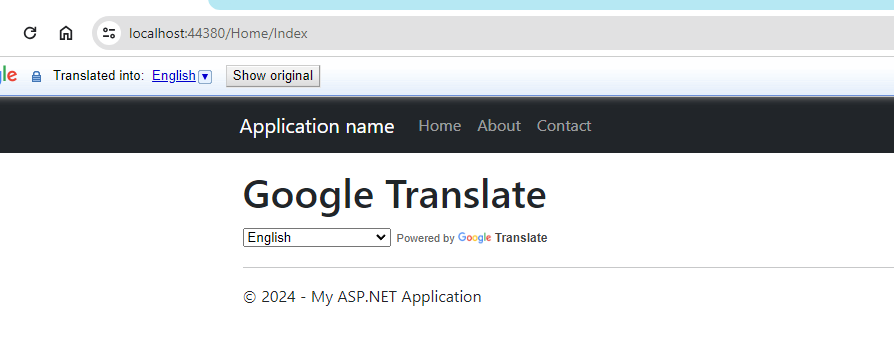
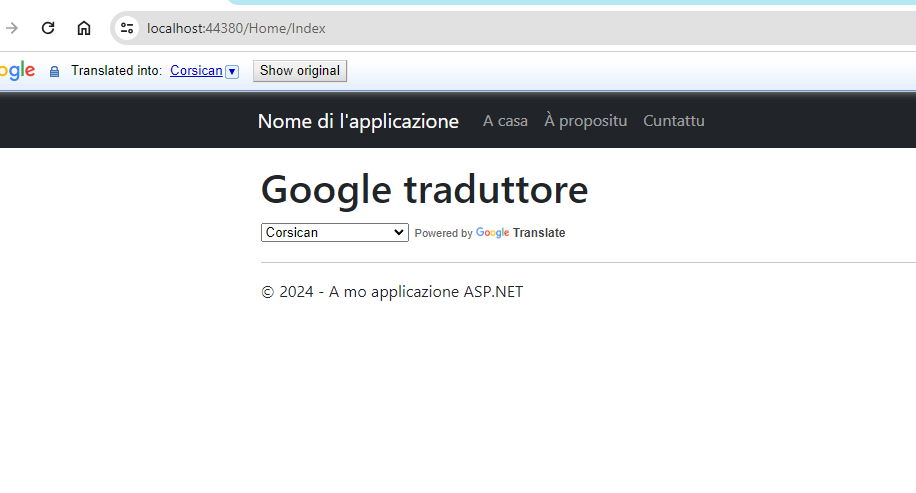
Integrating Google Translate into ASP.NET Webpage
Overview
In today's globalized world, the ability to communicate across language barriers is more important than ever. Websites that cater to a multilingual audience can significantly enhance user engagement and satisfaction. Integrating Google Translate into your ASP.NET webpage allows users to select their preferred language, making your content accessible to a broader audience.
Google Translate is a powerful tool that can translate text, documents, and even entire websites. By incorporating this functionality into your ASP.NET application, you can provide a seamless experience for users who may not be fluent in the primary language of your website.
Prerequisites
Before you begin integrating Google Translate into your ASP.NET webpage, ensure you have the following prerequisites:
- A basic understanding of ASP.NET and HTML.
- Access to a web server where your ASP.NET application is hosted.
- Internet access to load the Google Translate script.
Setting up the Google Translate Button
The first step in integrating Google Translate is to set up the Google Translate Element. This element provides a user-friendly interface for language translation. You can easily add it to your webpage by inserting the following HTML code:
<div id="google_translate_element"></div>Next, you need to initialize the Google Translate Element with JavaScript. The following script initializes the translation element and specifies the languages you want to include:
<script type="text/javascript">
function googleTranslateElementInit() {
  new google.translate.TranslateElement({
    pageLanguage: 'en',
    includedLanguages: 'af,sq,am,ar,hy,az,eu,be,bn,bs,bg,ca,ceb,ny,zh-CN,zh-TW,co,hr,cs,da,nl,en,eo,et,tl,fi,fr,fy,gl,ka,de,el,gu,ht,ha,haw,iw,hi,hmn,hu,is,ig,id,ga,it,ja,jw,kn,kk,km,ko,ku,ky,lo,la,lv,lt,lb,mk,mg,ms,ml,mt,mi,mr,mn,my,ne,no,or,ps,fa,pl,pt,pa,ro,ru,sm,gd,sr,st,sn,sd,si,sk,sl,so,es,su,sw,sv,tg,ta,te,th,tr,uk,ur,ug,uz,vi,cy,xh,yi,yo,zu',
    layout: google.translate.TranslateElement.InlineLayout.HORIZONTAL
  }, 'google_translate_element');
}
</script>
<script type="text/javascript" src="//translate.google.com/translate_a/element.js?cb=googleTranslateElementInit"></script>
Adding Google Translate Button to ASP.NET Page
To integrate the Google Translate button into your ASP.NET page, you can follow these steps:
- Open your ASP.NET project in your preferred IDE.
- Locate the page where you want to add the Google Translate button.
- Insert the Google Translate Element code snippet in the appropriate location within your HTML markup.
- Add the JavaScript initialization code at the end of your body tag to ensure it loads after the page content.
Here’s an example of how your ASP.NET page might look:
<!DOCTYPE html>
<html>
<head>
    <title>My ASP.NET Page</title>
</head>
<body>
    <h1>Welcome to My Website</h1>
    <div id="google_translate_element"></div>
    <script type="text/javascript">
    function googleTranslateElementInit() {
        new google.translate.TranslateElement({
            pageLanguage: 'en',
            includedLanguages: 'af,sq,am,ar,hy,az,eu,be,bn,bs,bg,ca,ceb,ny,zh-CN,zh-TW,co,hr,cs,da,nl,en,eo,et,tl,fi,fr,fy,gl,ka,de,el,gu,ht,ha,haw,iw,hi,hmn,hu,is,ig,id,ga,it,ja,jw,kn,kk,km,ko,ku,ky,lo,la,lv,lt,lb,mk,mg,ms,ml,mt,mi,mr,mn,my,ne,no,or,ps,fa,pl,pt,pa,ro,ru,sm,gd,sr,st,sn,sd,si,sk,sl,so,es,su,sw,sv,tg,ta,te,th,tr,uk,ur,ug,uz,vi,cy,xh,yi,yo,zu',
            layout: google.translate.TranslateElement.InlineLayout.HORIZONTAL
        }, 'google_translate_element');
    }
    </script>
    <script type="text/javascript" src="//translate.google.com/translate_a/element.js?cb=googleTranslateElementInit"></script>
</body>
</html>
Edge Cases & Gotchas
While integrating Google Translate is straightforward, there are some edge cases and potential issues to be aware of:
- Dynamic Content: If your webpage content is generated dynamically (e.g., through AJAX calls), the Google Translate button may not recognize the new content. You may need to re-initialize the translation element after content updates.
- Language Detection: Google Translate may not always detect the user's preferred language accurately. It's important to allow users to manually select their language if needed.
- Styling Issues: The default styling of the Google Translate element may clash with your website's design. You may need to apply custom CSS to align it with your site's aesthetic.
Performance & Best Practices
To ensure optimal performance and user experience when using Google Translate, consider the following best practices:
- Limit Included Languages: Only include languages that are relevant to your audience. This reduces the load time and improves the user experience.
- Test Across Browsers: Ensure that the translation feature works effectively across different browsers and devices. Browser compatibility can vary, affecting how the translation element displays.
- Accessibility Considerations: Make sure that the Google Translate button is accessible to all users, including those using screen readers. Provide alternative text for the button if necessary.
Conclusion
By incorporating Google Translate into your ASP.NET webpage, you've taken a significant step towards improving user accessibility and engagement. Users from different linguistic backgrounds can now seamlessly access and comprehend your content in their preferred language. This enhancement not only enhances the user experience but also expands the reach of your website, fostering a more inclusive online environment.
Here are some key takeaways:
- Integrating Google Translate is a simple yet effective way to cater to a multilingual audience.
- Ensure proper setup and initialization of the Google Translate Element in your ASP.NET application.
- Be mindful of edge cases and potential issues when using dynamic content.
- Follow best practices to optimize performance and ensure a seamless user experience.