
Integrating Google Sign in Asp.net MVC
Google Authentication
Google Authentication is which we use in project now a days for sign in using google account. For this we will need to create new project and Api credential in Google developer console. SO you can check in the next steps for integrating Google SignIn in Asp.Net MVC
First of all we have to login to google developer console. You will see this window
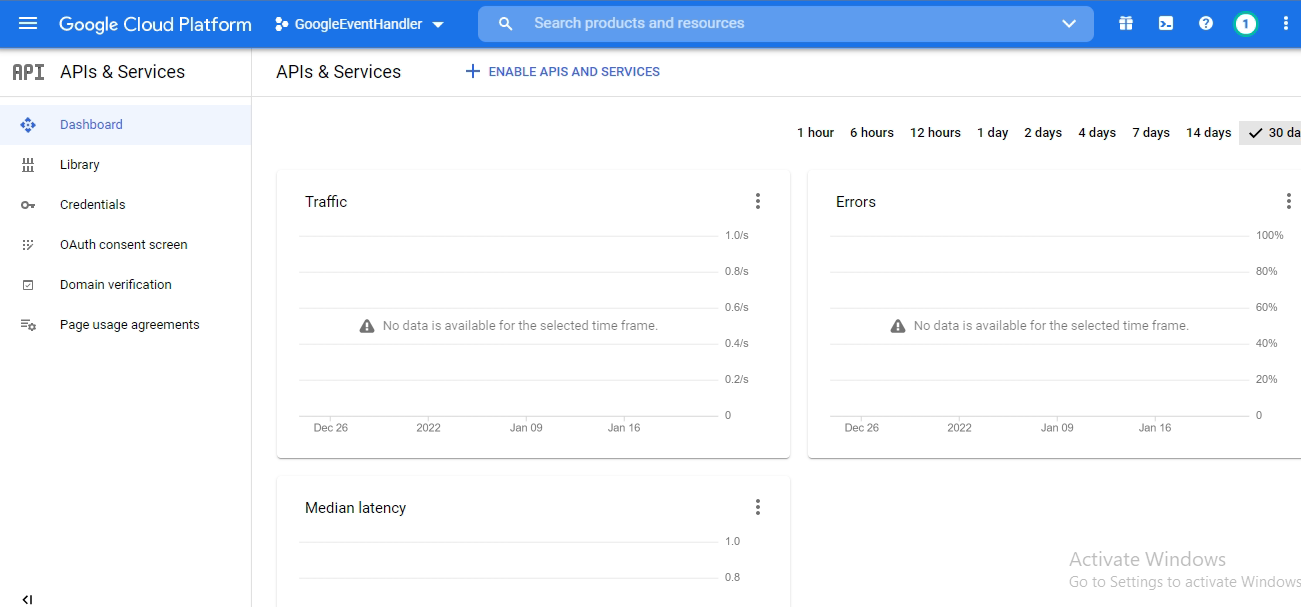 After this we have click on Enable api and services as you can see in the screenshot.For getting Api keys we also have to create a new project on Google Developer Console. You can check this in the next image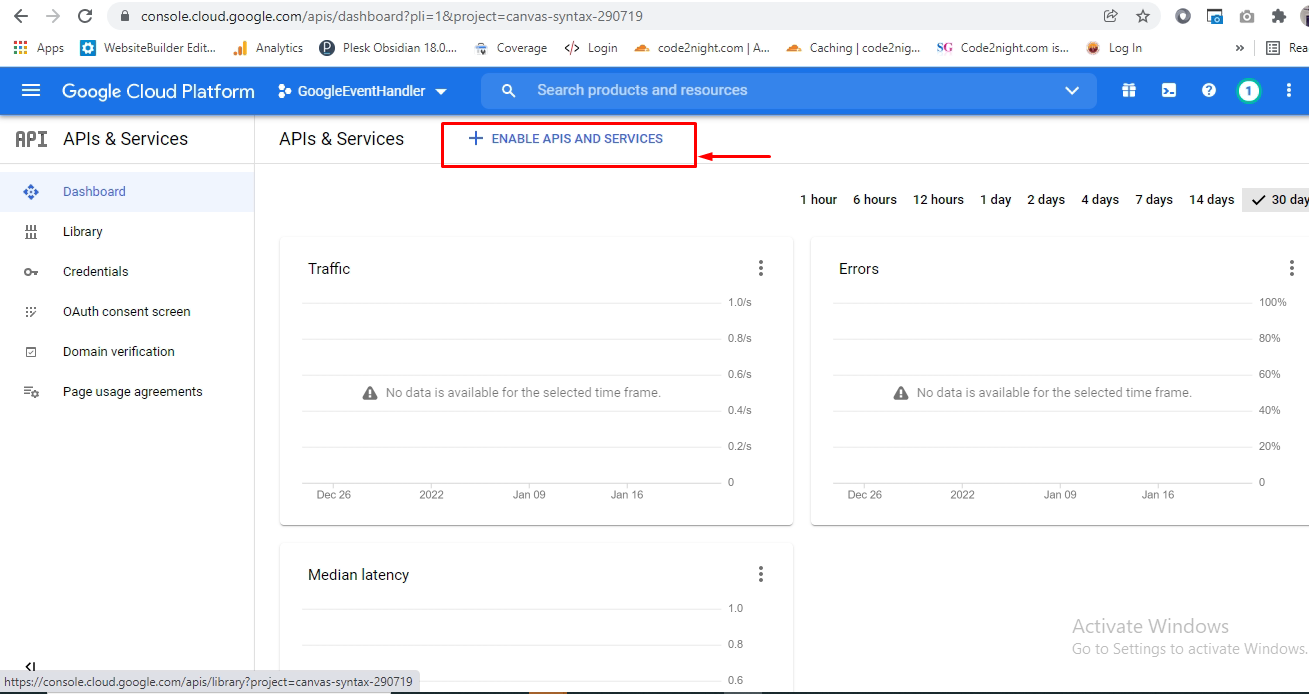
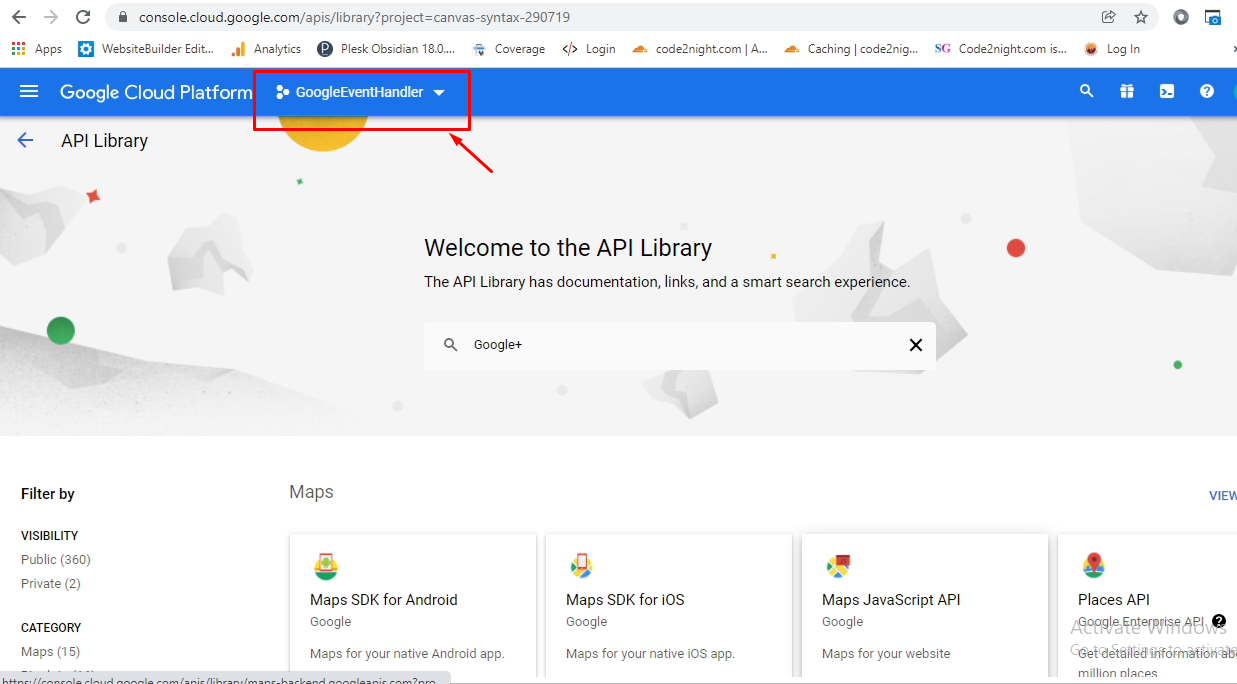
Click on the dropdown on top, as showed in the image
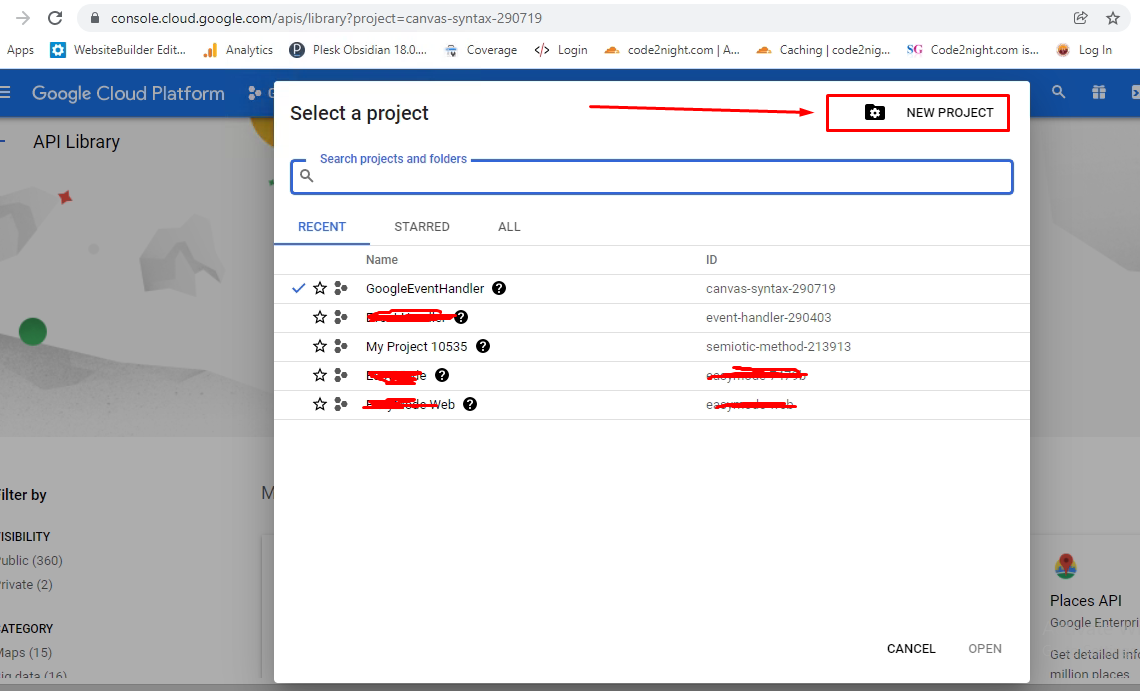
Here you will find the projects which are already created. if you want to add new project than click on new project button
For adding the new project you have to provide the Name of project and then you can click on create
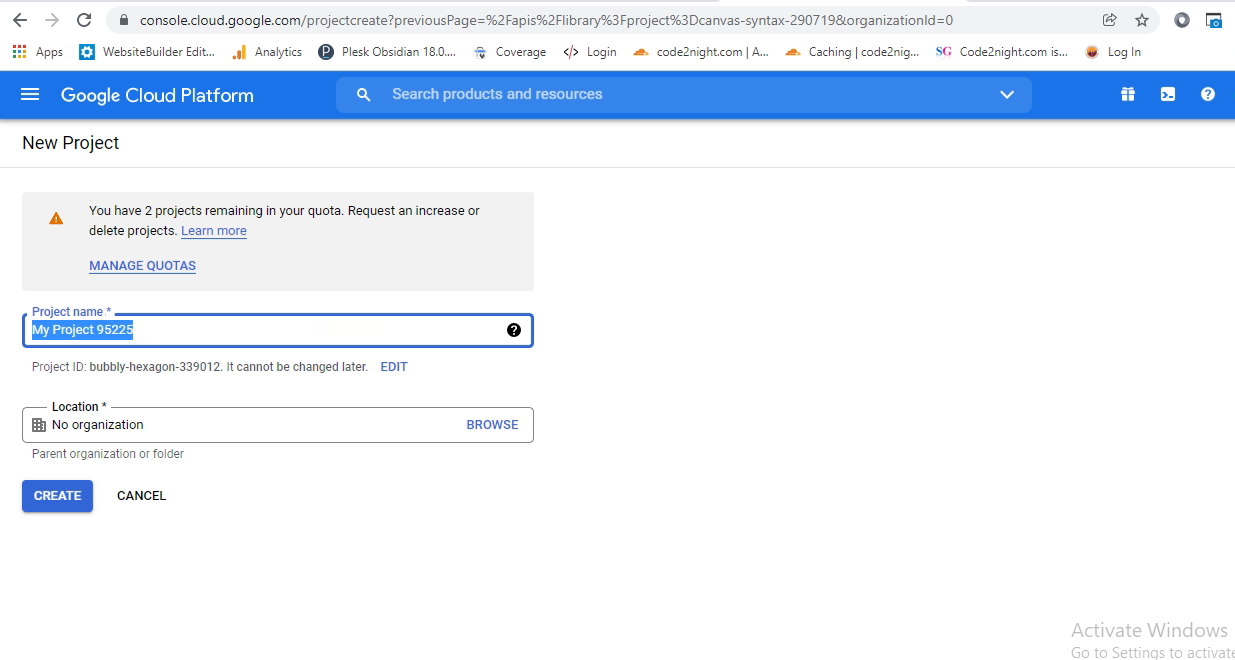
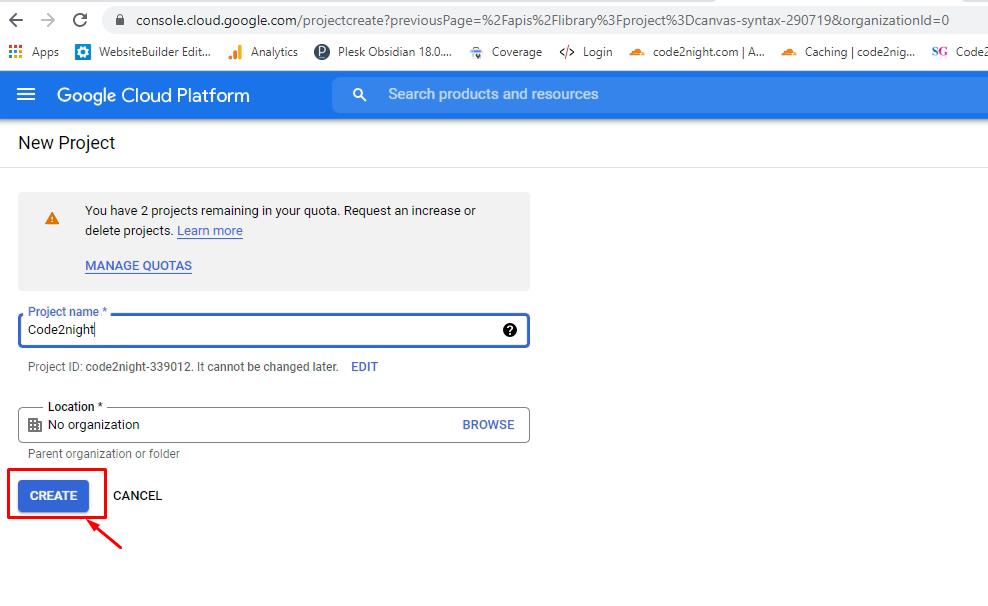
After filling the project name click on create
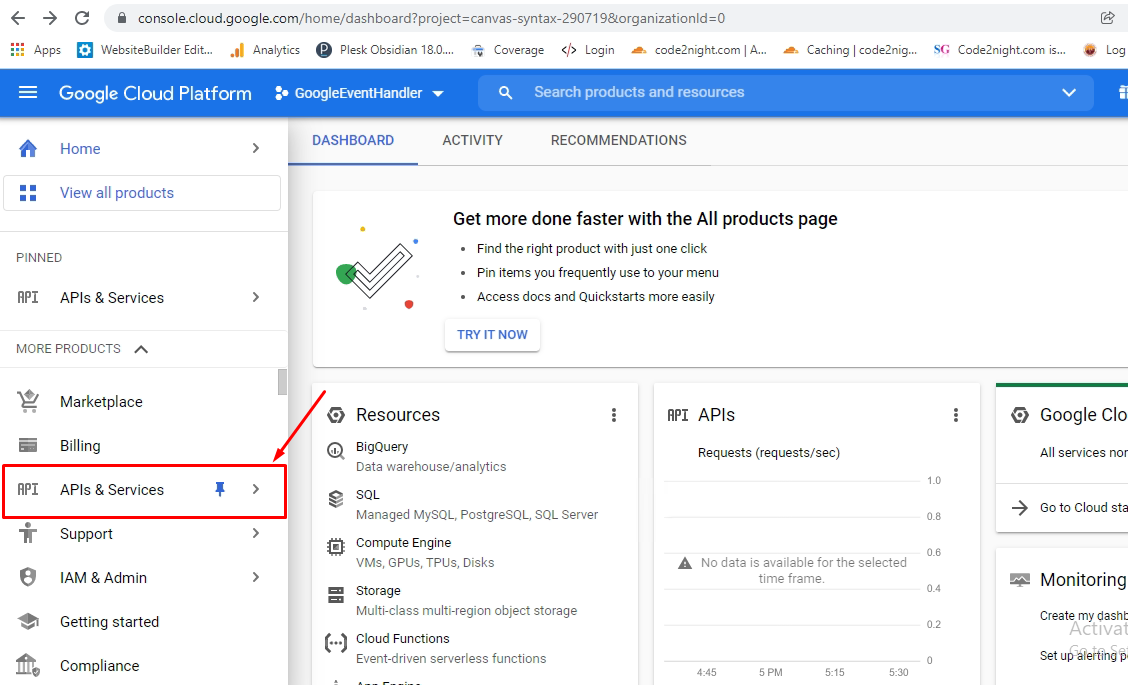
Now you have to click on Api & services and there we will enable Google + api.
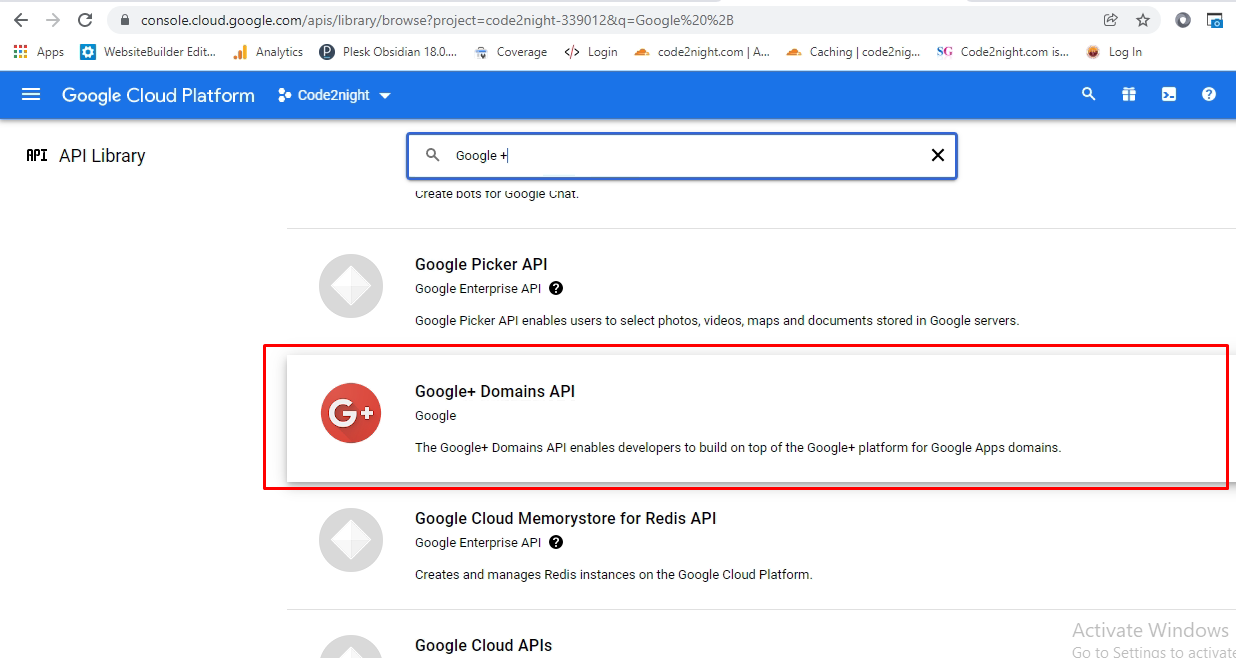
You can search the api's provided by google. We have to find out Google+ Api and click on that.
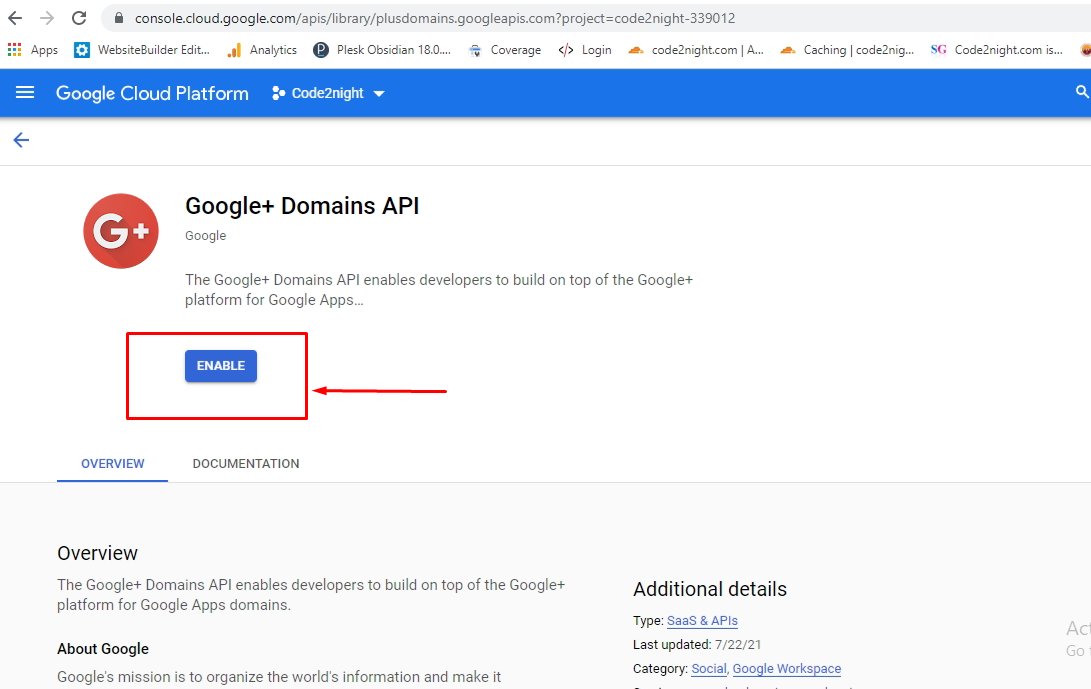
Now it will ask you to click on Enable , then this api will be added to your account and project.
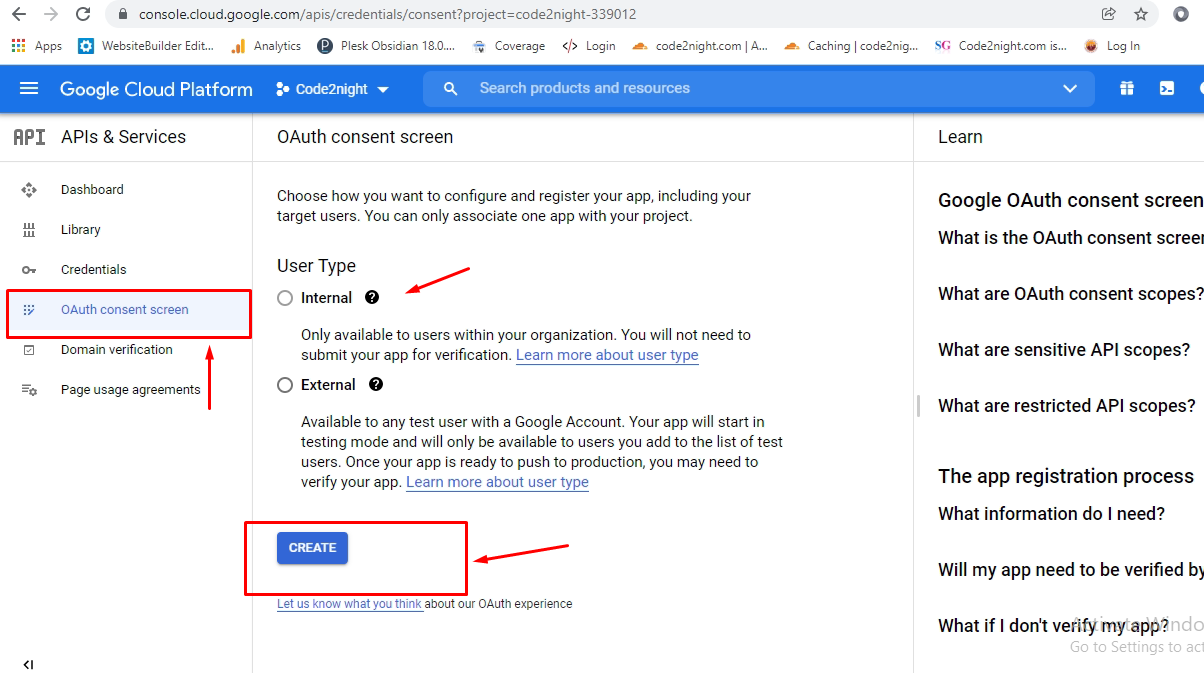
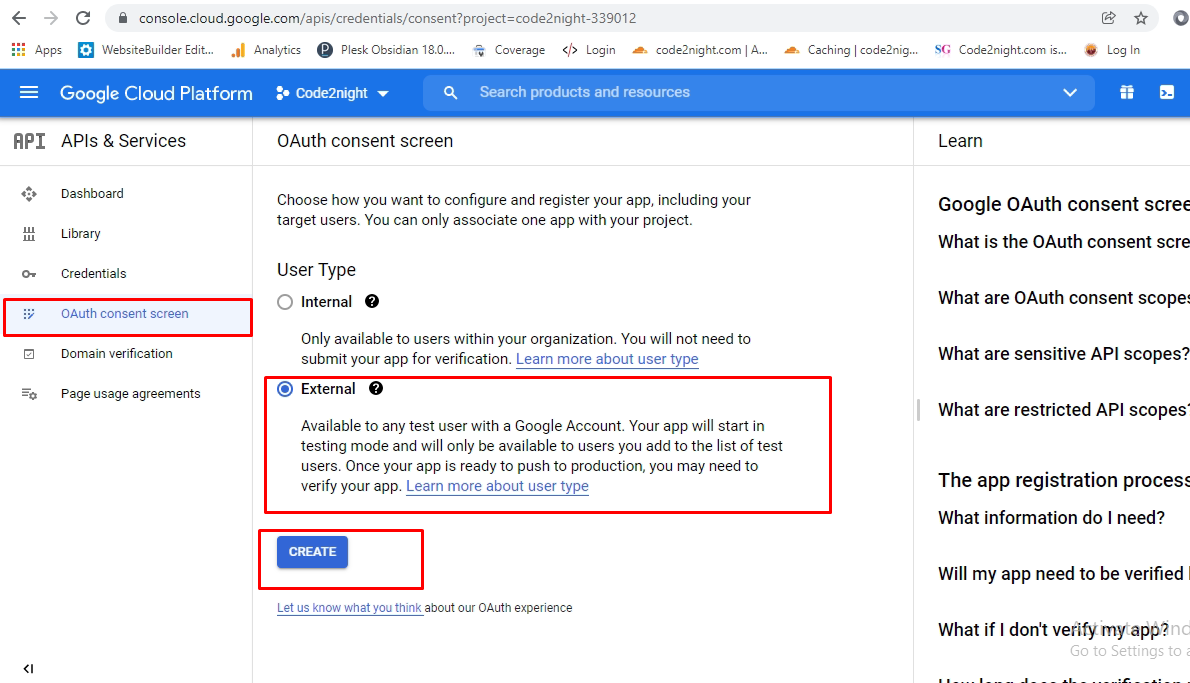
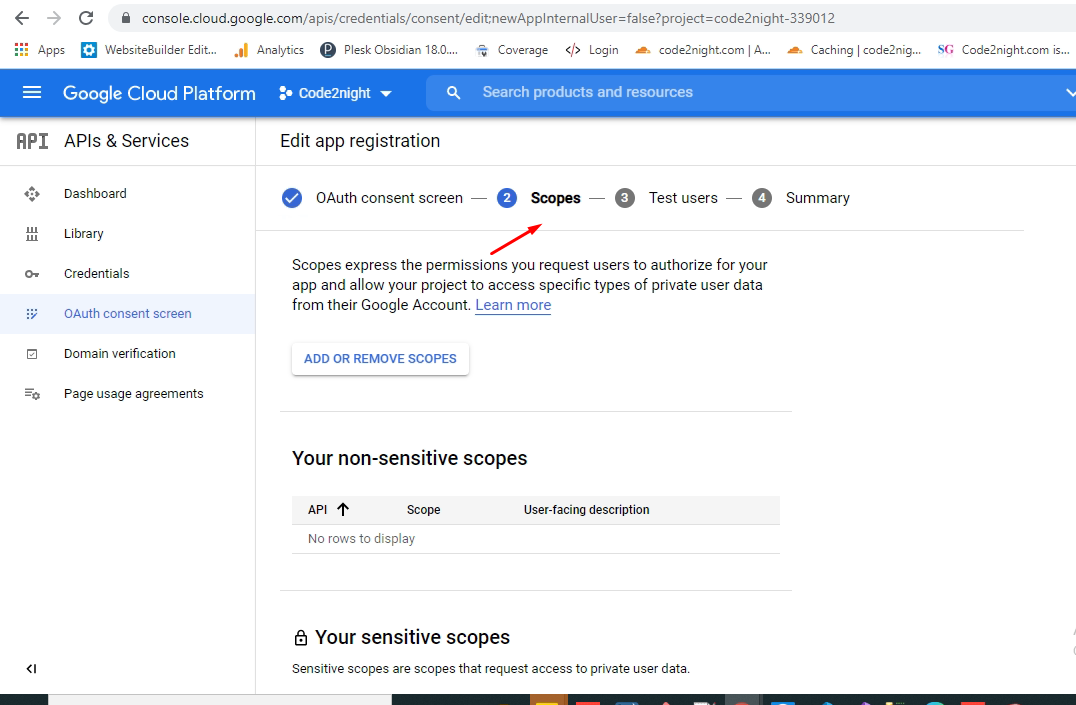
After we have enabled the Api you have to go to Oauth Consent Screen menu as you can see in next image. You have to select External in the screen and click on create
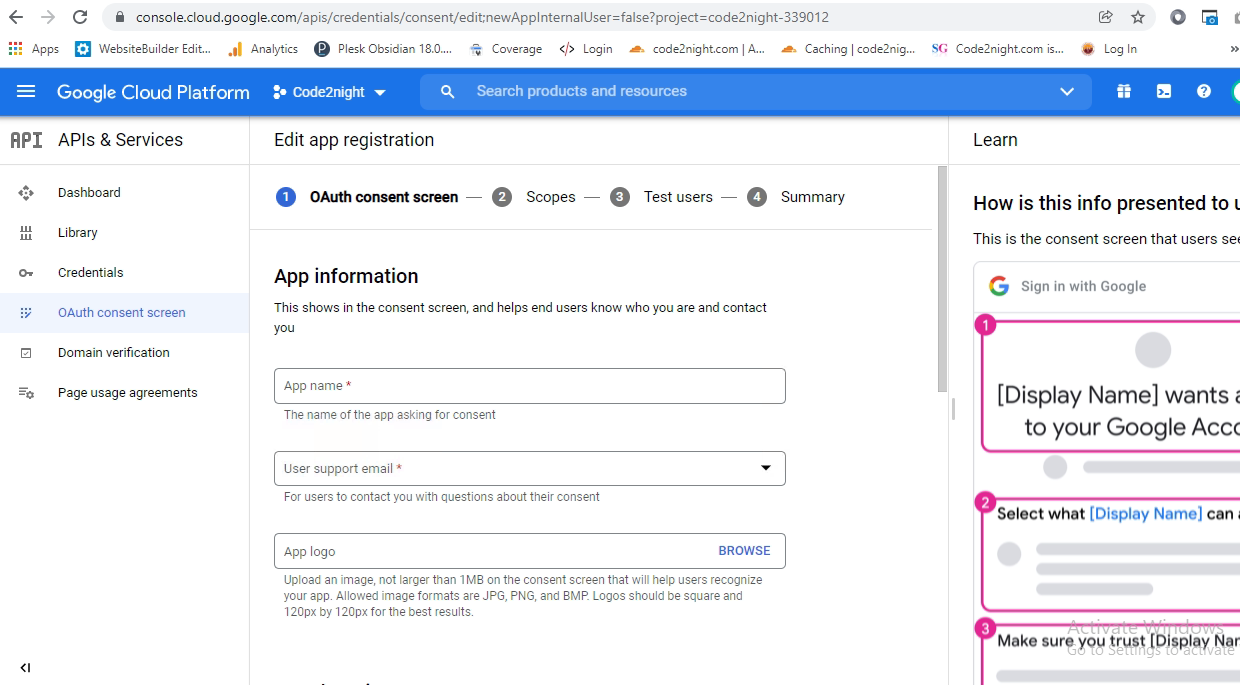
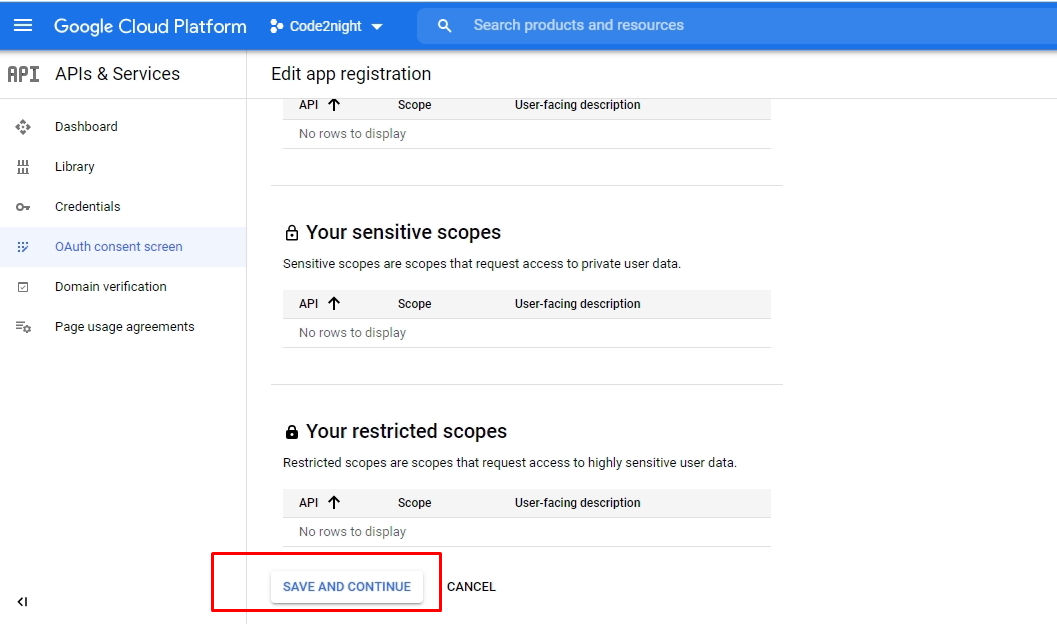
Now you will get this screen, you have to click on save and continue

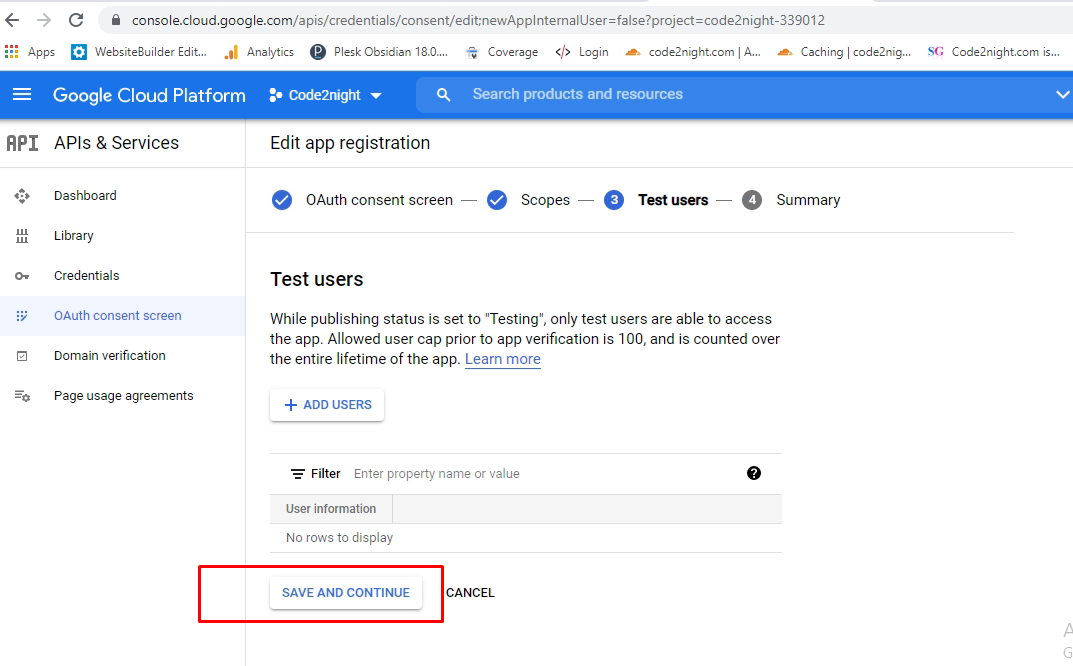
Now it will move to next step a, you can again click on Save and continue
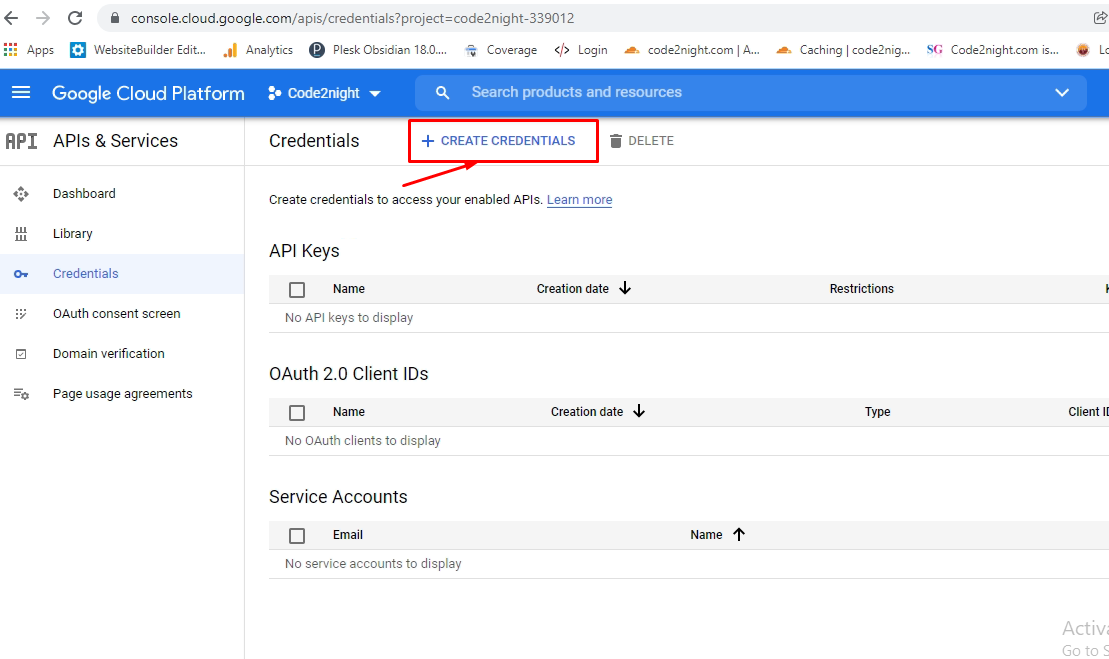
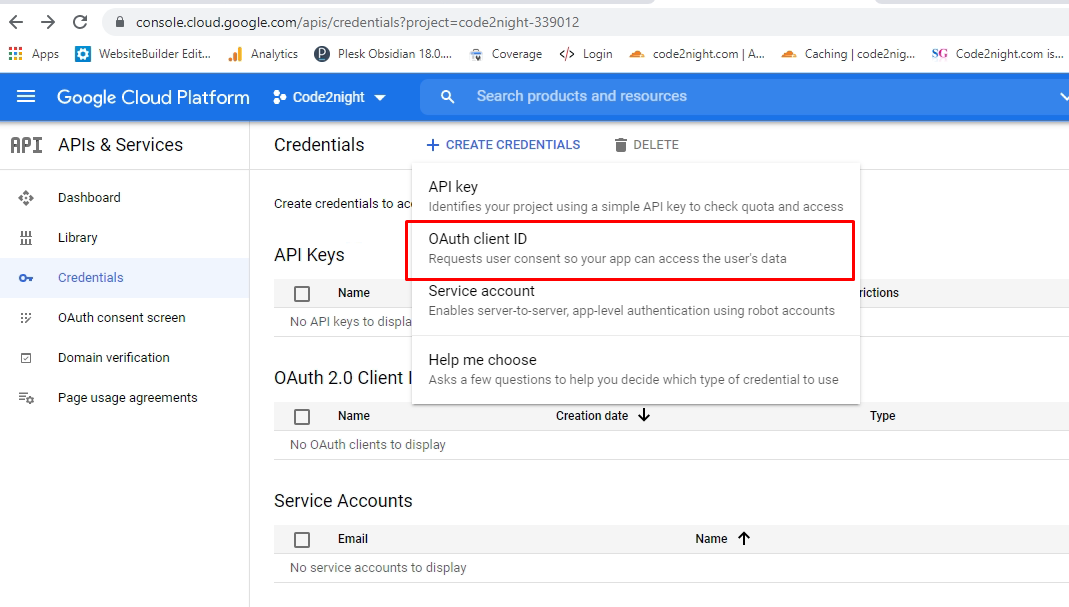
Now we have to click on Oauth Client id as showed in the image
 Now this screen will appear, here we have to set the callback you, this must be the url from project on which you will get callback after google login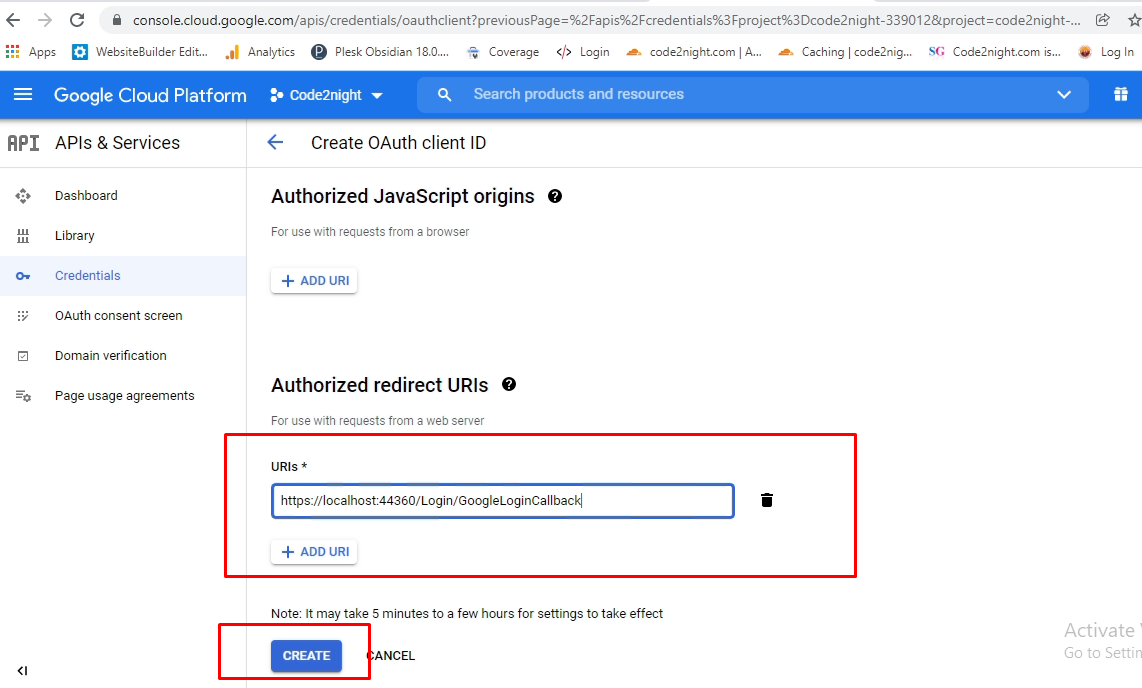
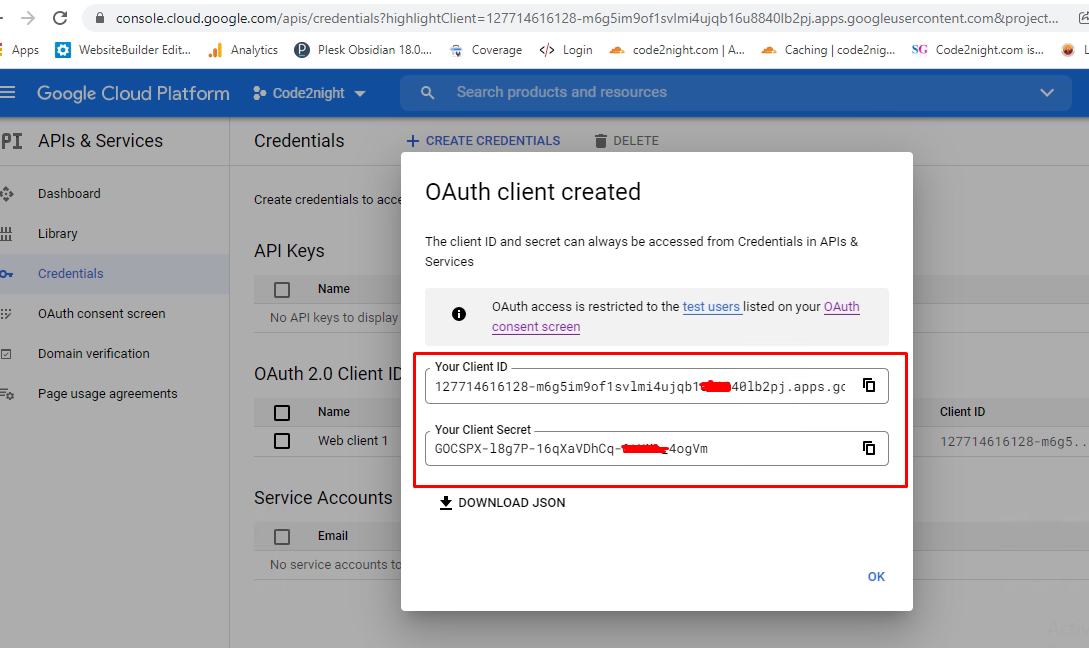
Now, you will see this window, you can copy the credential, which we will use in the project.
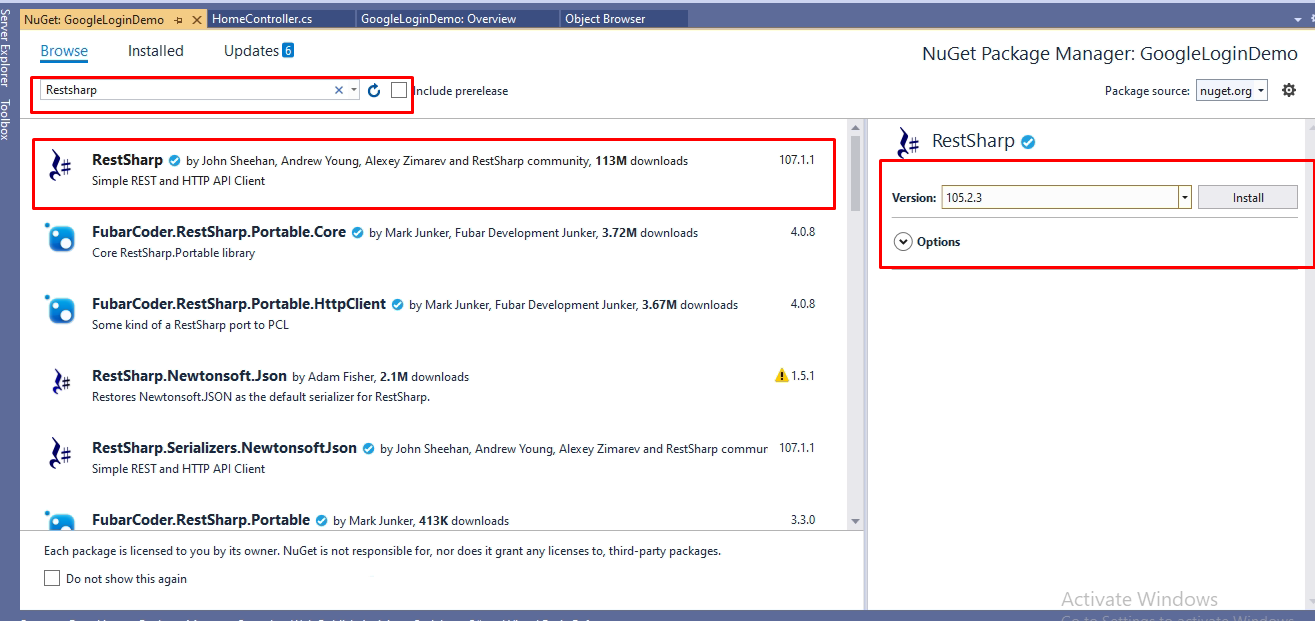
After we have got client id and client secret, we will go to our Asp.Net MVC project and add one package RestSharp as you see in the image, you have to use version 105
 public ActionResult GoogleLoginCallback(string code)
        {
            if (code != null)
            {
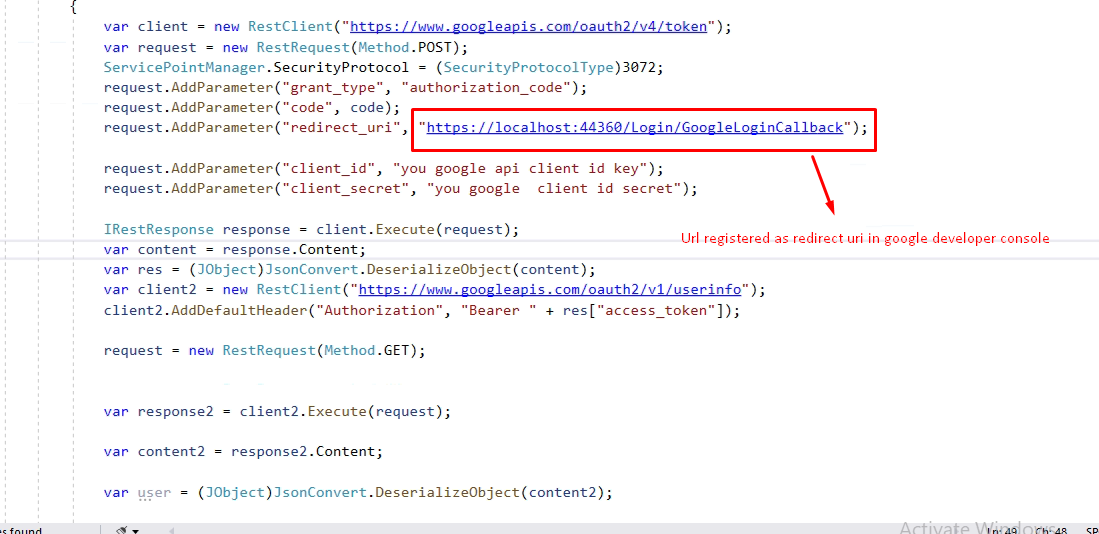
                var client = new RestClient("https://www.googleapis.com/oauth2/v4/token");
                var request = new RestRequest(Method.POST);
                ServicePointManager.SecurityProtocol = (SecurityProtocolType)3072;
                request.AddParameter("grant_type", "authorization_code");
                request.AddParameter("code", code);
                request.AddParameter("redirect_uri", "https://localhost:44375/Login/GoogleLoginCallback");

                request.AddParameter("client_id", "Enter your clientid here");
                request.AddParameter("client_secret", "Enter your client secret");

                IRestResponse response = client.Execute(request);
                var content = response.Content;
                var res = (JObject)JsonConvert.DeserializeObject(content);
                var client2 = new RestClient("https://www.googleapis.com/oauth2/v1/userinfo");
                client2.AddDefaultHeader("Authorization", "Bearer " + res["access_token"]);

                request = new RestRequest(Method.GET);


                var response2 = client2.Execute(request);

                var content2 = response2.Content;

                var user = (JObject)JsonConvert.DeserializeObject(content2);
                return RedirectToAction("Index","Home");

            }
            else
            {
                ViewBag.ReturnData = "";
            }


            return View();
        }
You have to use this code on your controller action which was mentioned in the redirect uri section on Google Developer console. And also redirect uri must be same on Action and on Google Developer console.
<a class="btn btn-default" href="https://accounts.google.com/o/oauth2/auth?client_id=127714616128-m6g5im9of1svl8840lb2pj.apps.googleusercontent.com&redirect_uri=https://localhost:44375/Login/GoogleLoginCallback&scope=https://www.googleapis.com/auth/userinfo.profile&response_type=code&state=asdafwswdwefwsdg">Goggle Log in</a>
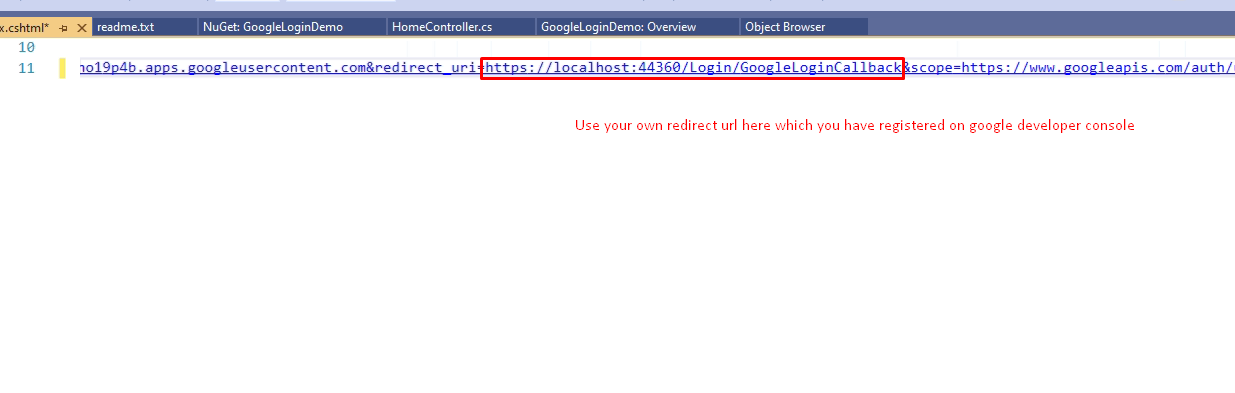
Add this button on you view, you have to modify the redirecturl and clientid on the anchor button which we have taken, as showed in the image
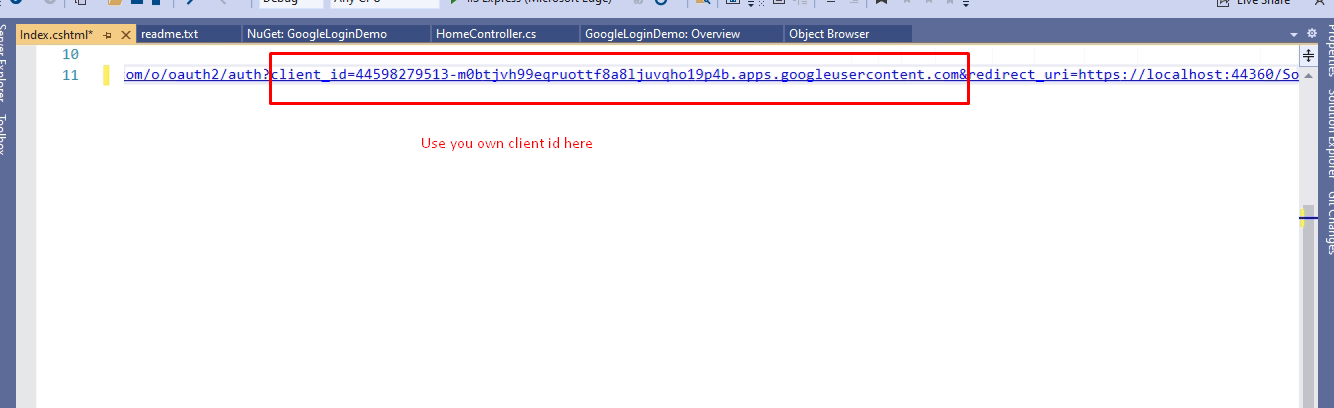
Replace these client id and redirect url, with your created credentials
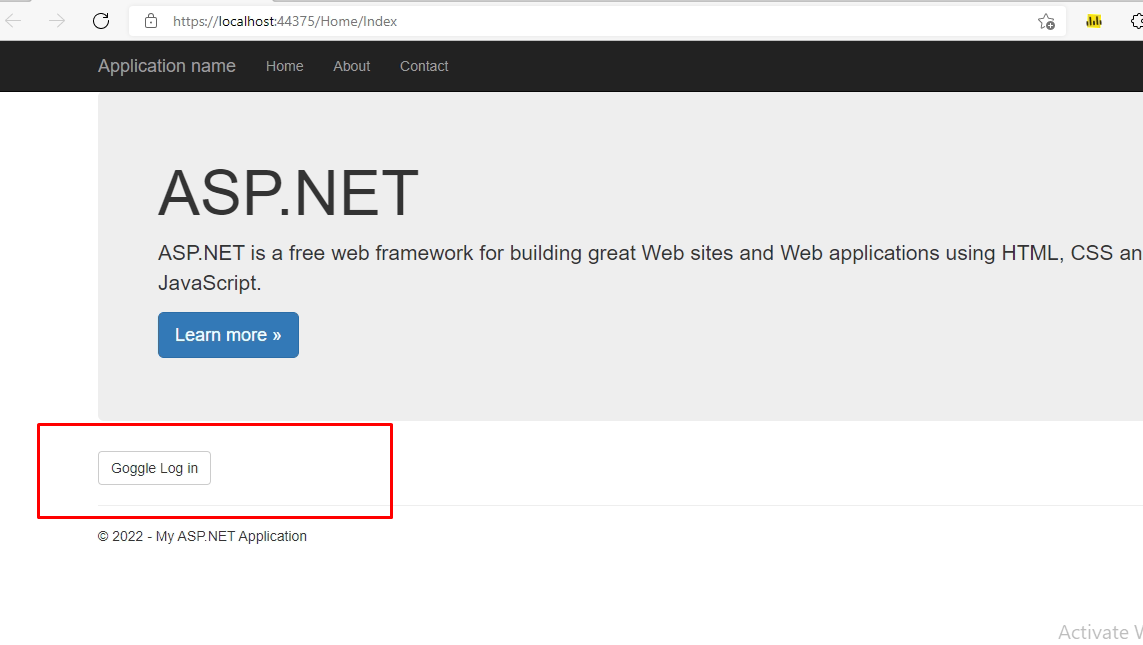
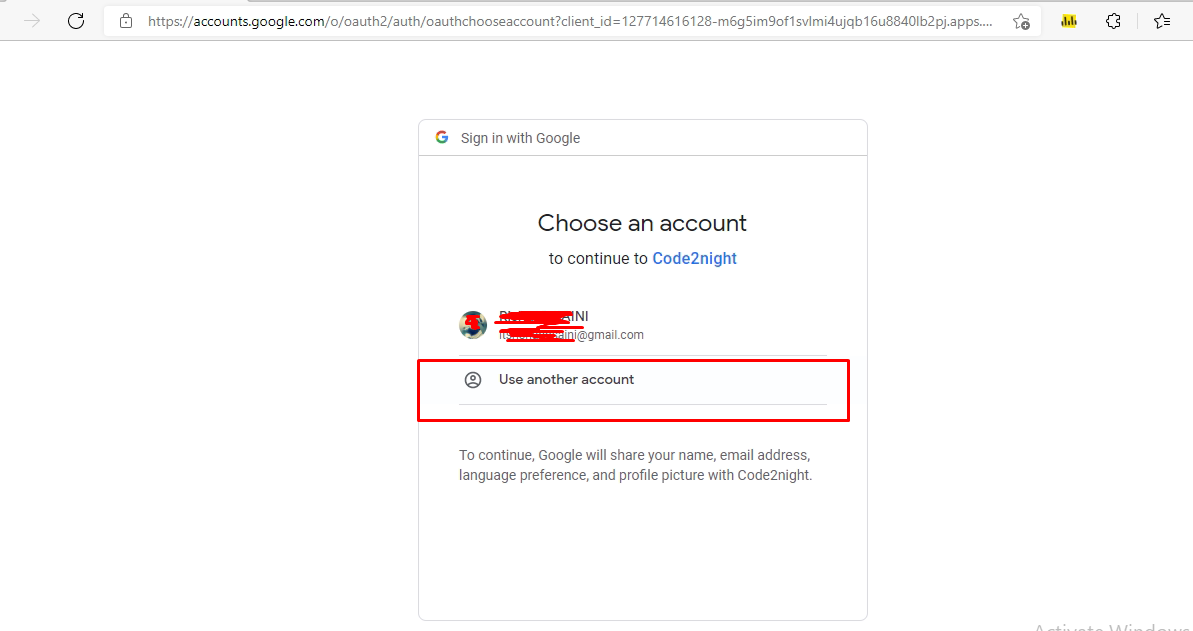
Now you can run the project and see you will see Google Login button , now on clicking that it will go to google sign in screen
This is what you will get after click on button, you can Add new google account or use existing one. On the selection, it will go to you callback method.
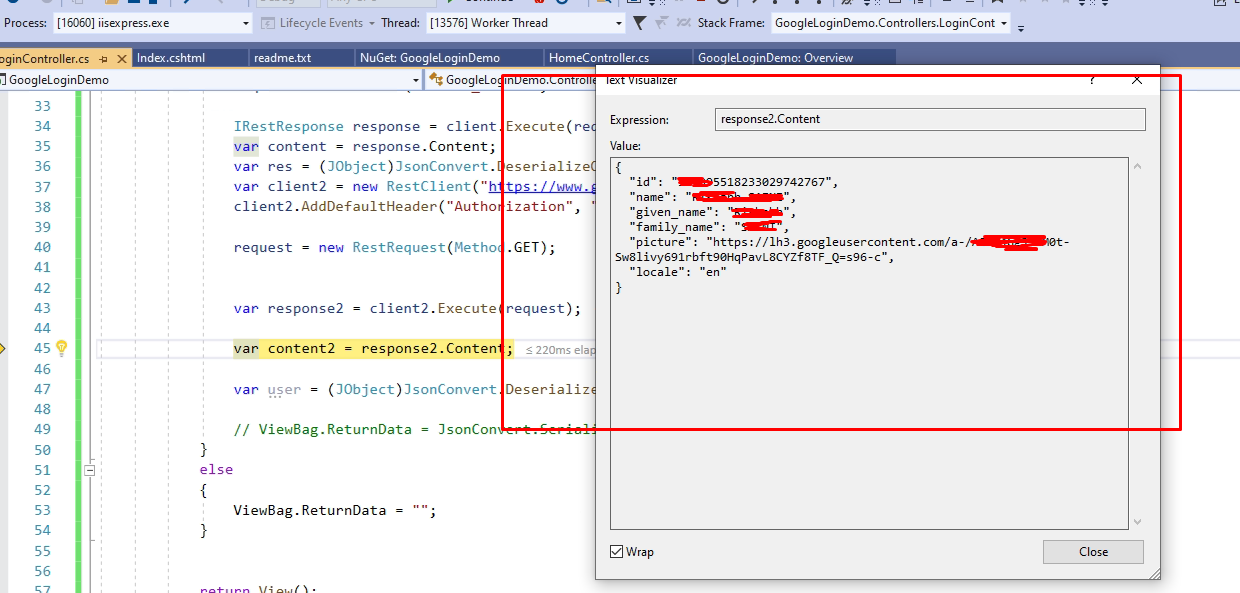
You will get the logged in user details like this in the google callback method.
You can get the complete code by download attachment. Let us know if you face any issue.
This is how we can integrate google sign in Asp.Net MVC
