Reading Values From Appsettings.json In ASP.NET Core
Understanding appsettings.json
The appsettings.json file is a key component of ASP.NET Core applications, serving as a central location for configuration settings. This file is typically structured in JSON format, making it easy to read and modify. It can contain various settings, such as connection strings, logging levels, and custom application settings.
A typical appsettings.json file might look like this:
{ "Logging": { "LogLevel": { "Default": "Information", "Microsoft.AspNetCore": "Warning" } }, "AllowedHosts": "*", "credentials": { "UserName": "Shubham", "Password": "code2night", "Email": "code2night@gmail.com" } }In this example, we have defined logging levels, allowed hosts for the application, and a credentials section containing user information. This structure allows for easy access and management of configuration settings in your application.
Creating a Model Class
To read values from the appsettings.json file, we first need to create a model class that matches the structure of the JSON data. This ensures that the data is deserialized correctly into an object that we can work with in our application.
Here’s how to create a model class for the credentials section:
public class CredSettingsModel { public string UserName { get; set; } public string Password { get; set; } public string Email { get; set; } }In this class, we define properties for UserName, Password, and Email. The property names must match the keys in the appsettings.json file to ensure proper binding.
Registering the Configuration in Program.cs
Once we have our model class, the next step is to register it in the Program.cs file. This is where we tell ASP.NET Core to bind the configuration section to our model class.
To do this, we use the Configure method from the IServiceCollection interface:
builder.Services.Configure(builder.Configuration.GetSection("credentials")); This line of code retrieves the credentials section from the configuration and binds it to the CredSettingsModel class. This allows us to inject the configuration values into our controllers or services.
Injecting the Configuration into a Controller
With the configuration registered, we can now inject it into our controllers. This is done using the IOptions interface, which provides a way to access the configured options.
Here’s an example of how to inject the configuration into a controller:
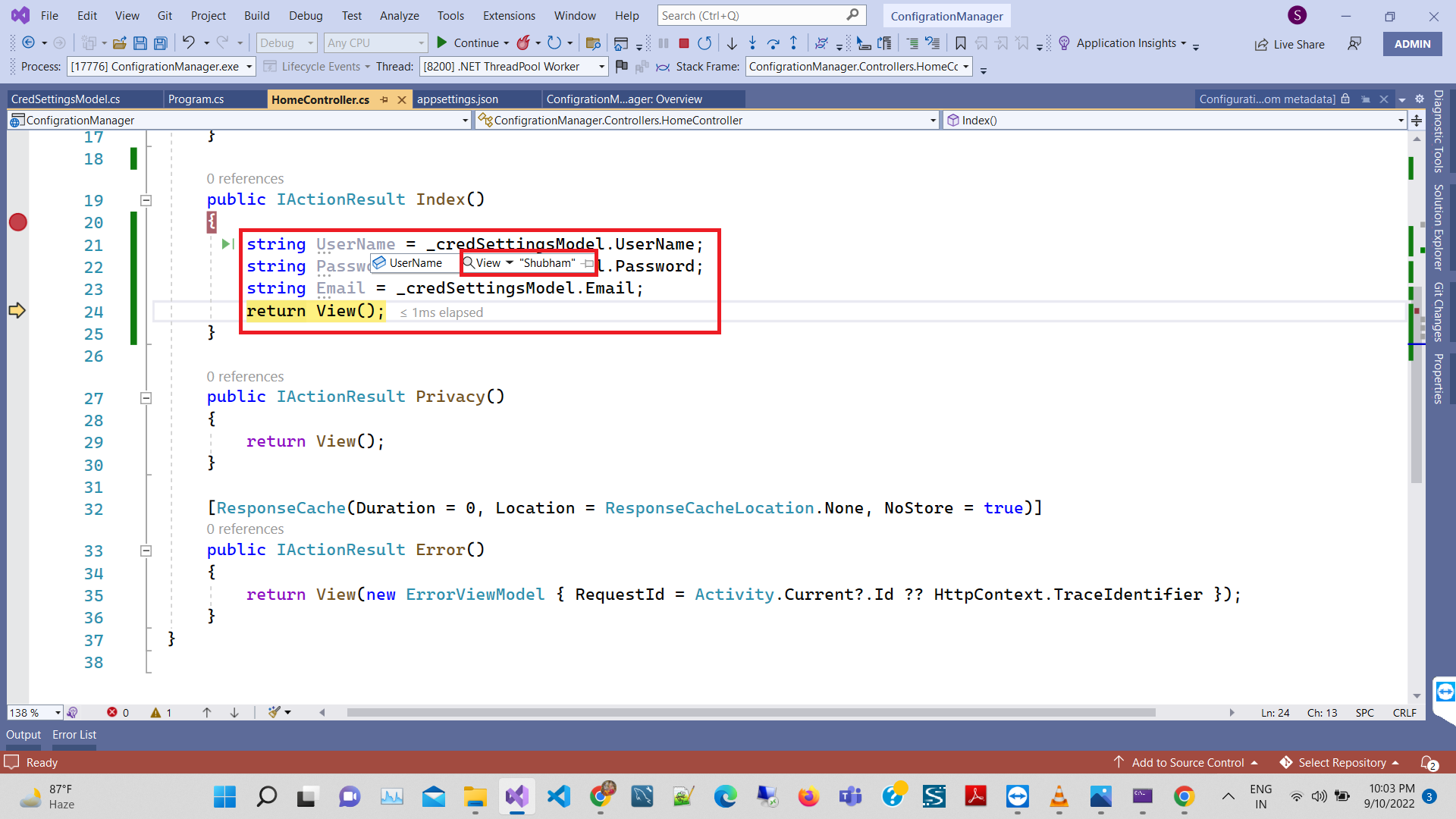
using ConfigrationManager.Models; using Microsoft.AspNetCore.Mvc; using Microsoft.Extensions.Options; using System.Diagnostics; namespace ConfigrationManager.Controllers { public class HomeController : Controller { private readonly ILogger _logger; protected readonly IConfiguration _configuration; private readonly CredSettingsModel _credSettingsModel; public HomeController(ILogger logger, IOptions options) { _logger = logger; _credSettingsModel = options.Value; } public IActionResult Index() { string UserName = _credSettingsModel.UserName; string Password = _credSettingsModel.Password; string Email = _credSettingsModel.Email; return View(); } } } In this example, we inject ILogger and IOptions into the HomeController. The _credSettingsModel variable holds the configuration values, which can be accessed in the Index method.
Using Configuration Values in Views
After successfully injecting the configuration values into the controller, you may want to display them in your views. This can be done by passing the values to the view or using ViewData.
Here’s how you can pass the username to the view:
public IActionResult Index() { string UserName = _credSettingsModel.UserName; ViewData["UserName"] = UserName; return View(); }In the corresponding view, you can access the username using:
@ViewData["UserName"]This approach allows for dynamic content rendering based on the configuration values defined in appsettings.json.
Edge Cases & Gotchas
While working with appsettings.json, there are several edge cases and gotchas to be aware of:
- Missing Configuration Sections: If a section defined in appsettings.json is missing, the application will not throw an error, but the corresponding properties in the model will be null. Make sure to handle such cases to avoid null reference exceptions.
- Environment-Specific Configurations: ASP.NET Core supports environment-specific appsettings files (e.g., appsettings.Development.json). Ensure that the correct file is being loaded based on the current environment.
- Data Types: Ensure that the data types in your model class match those in appsettings.json. Mismatches can lead to deserialization issues.
Performance & Best Practices
To ensure optimal performance when working with appsettings.json, consider the following best practices:
- Use Strongly Typed Configuration: Always use strongly typed classes for configuration settings. This makes your code easier to read and maintain.
- Limit the Size of appsettings.json: Avoid placing too many settings in appsettings.json. Consider breaking them into smaller configuration files if necessary.
- Environment Variables: For sensitive information like passwords or API keys, consider using environment variables instead of storing them in appsettings.json.
- Validate Configuration: Implement validation logic for your configuration settings to catch errors early in the application lifecycle.
Conclusion
In conclusion, reading values from appsettings.json in ASP.NET Core is a straightforward process that enhances the configurability of your applications. By following the steps outlined in this article, you can effectively manage application settings and improve maintainability.
- Understand the structure of appsettings.json.
- Create strongly typed model classes for configuration sections.
- Register configuration in Startup or Program files.
- Inject configuration into controllers and services using IOptions.
- Follow best practices for configuration management.