How to get fcm server key
Understanding Firebase Cloud Messaging (FCM)
FCM (Firebase Cloud Messaging) is a cross-platform messaging solution that lets you reliably send messages at no cost. It is a part of Firebase, a platform developed by Google for mobile and web applications. FCM allows developers to send notifications and messages to client apps, enabling real-time user engagement and communication.
Utilizing FCM can enhance user experience by notifying users about important updates, promotions, or reminders. This functionality is essential for applications that rely on user interaction and timely information delivery, such as social media platforms, e-commerce apps, and news applications.
Prerequisites
Before diving into the process of obtaining the FCM server key and sending notifications, ensure you have the following prerequisites:
- A Firebase account.
- An existing Android application or a project set up in Android Studio.
- Basic knowledge of ASP.NET Core and C#.
- Installed packages:
Newtonsoft.Jsonfor JSON serialization.
How to Get FCM Server Key
To send notifications to your Android application, you need to obtain the FCM server key from the Firebase console. Follow these detailed steps:
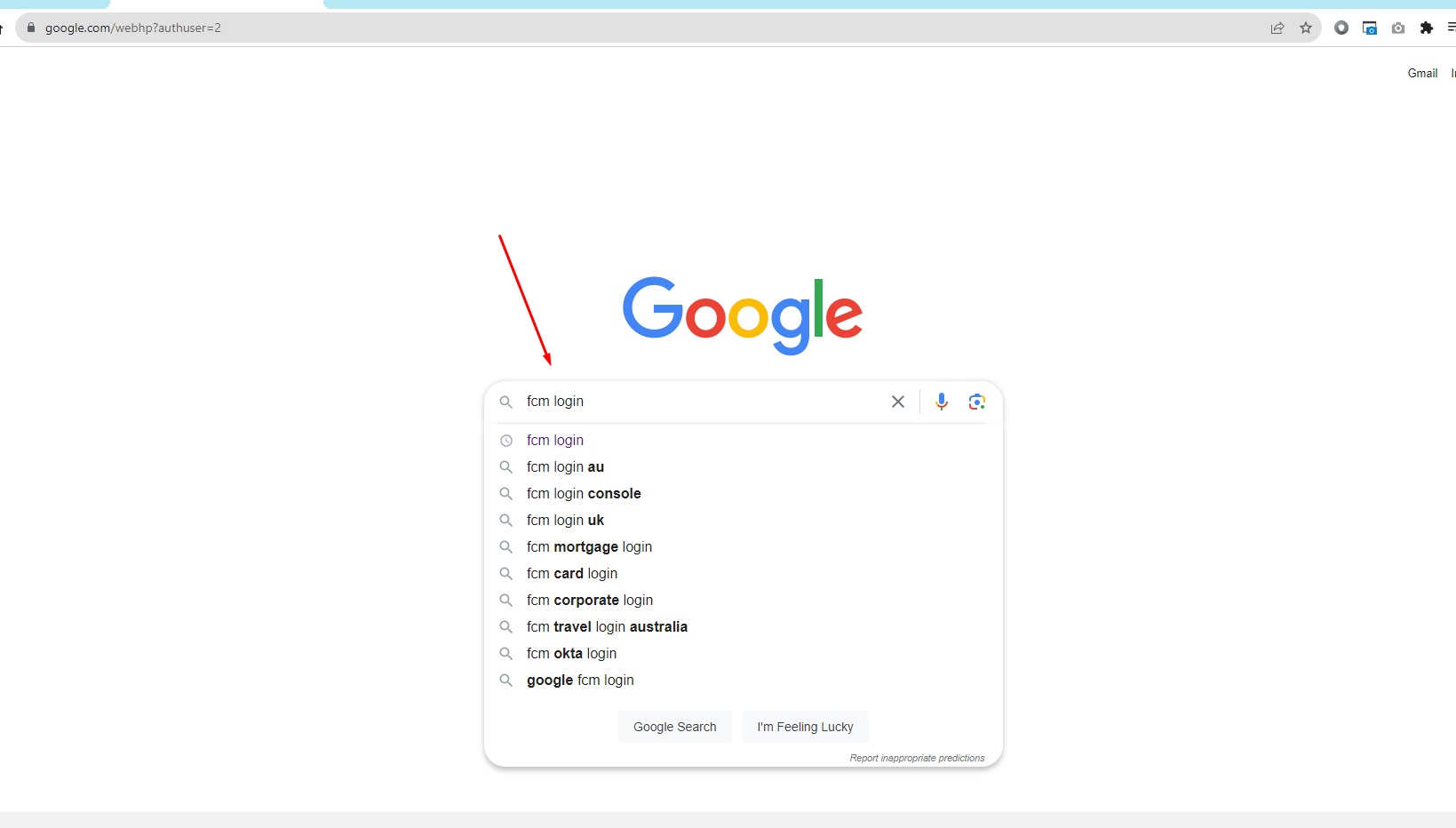
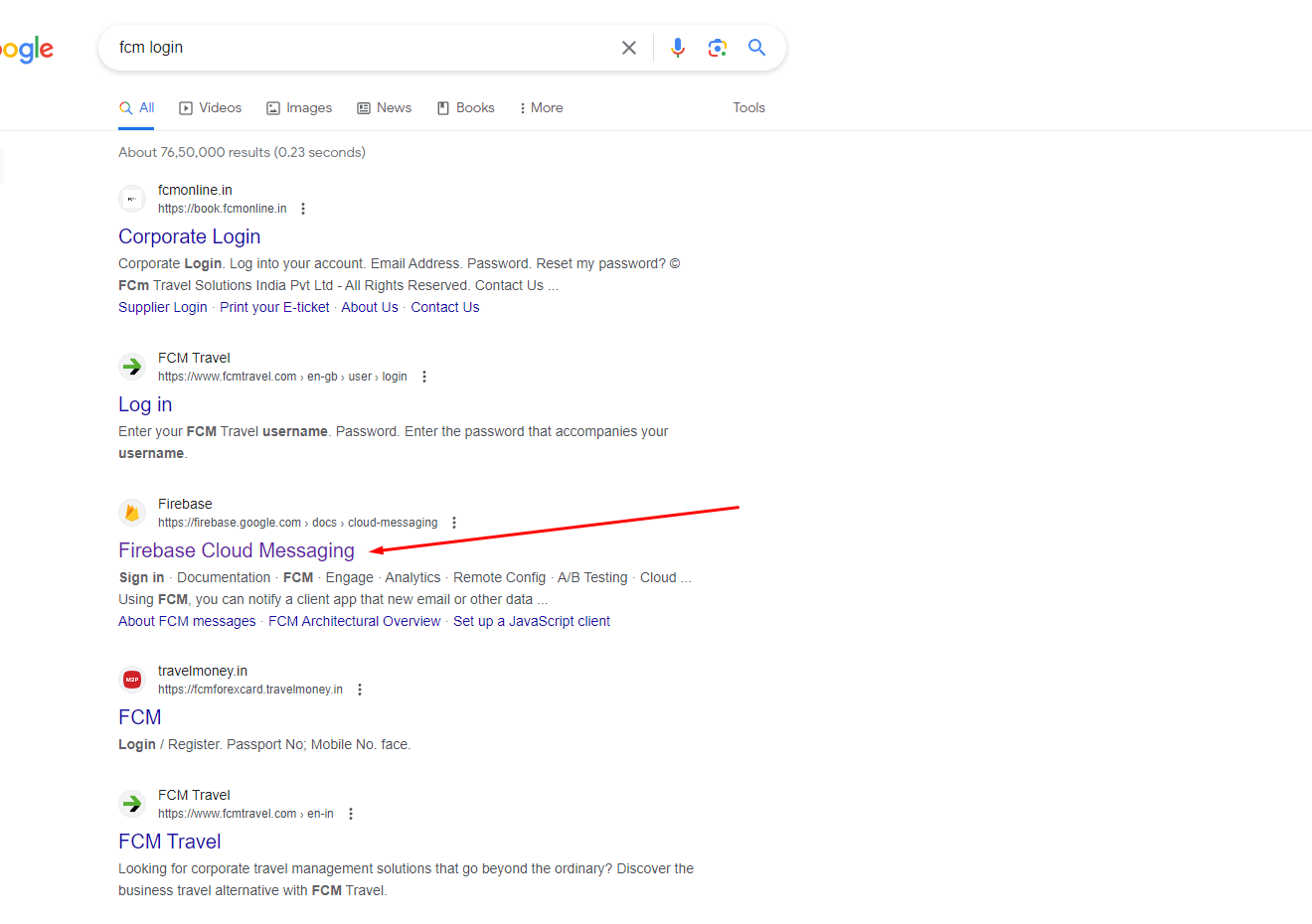
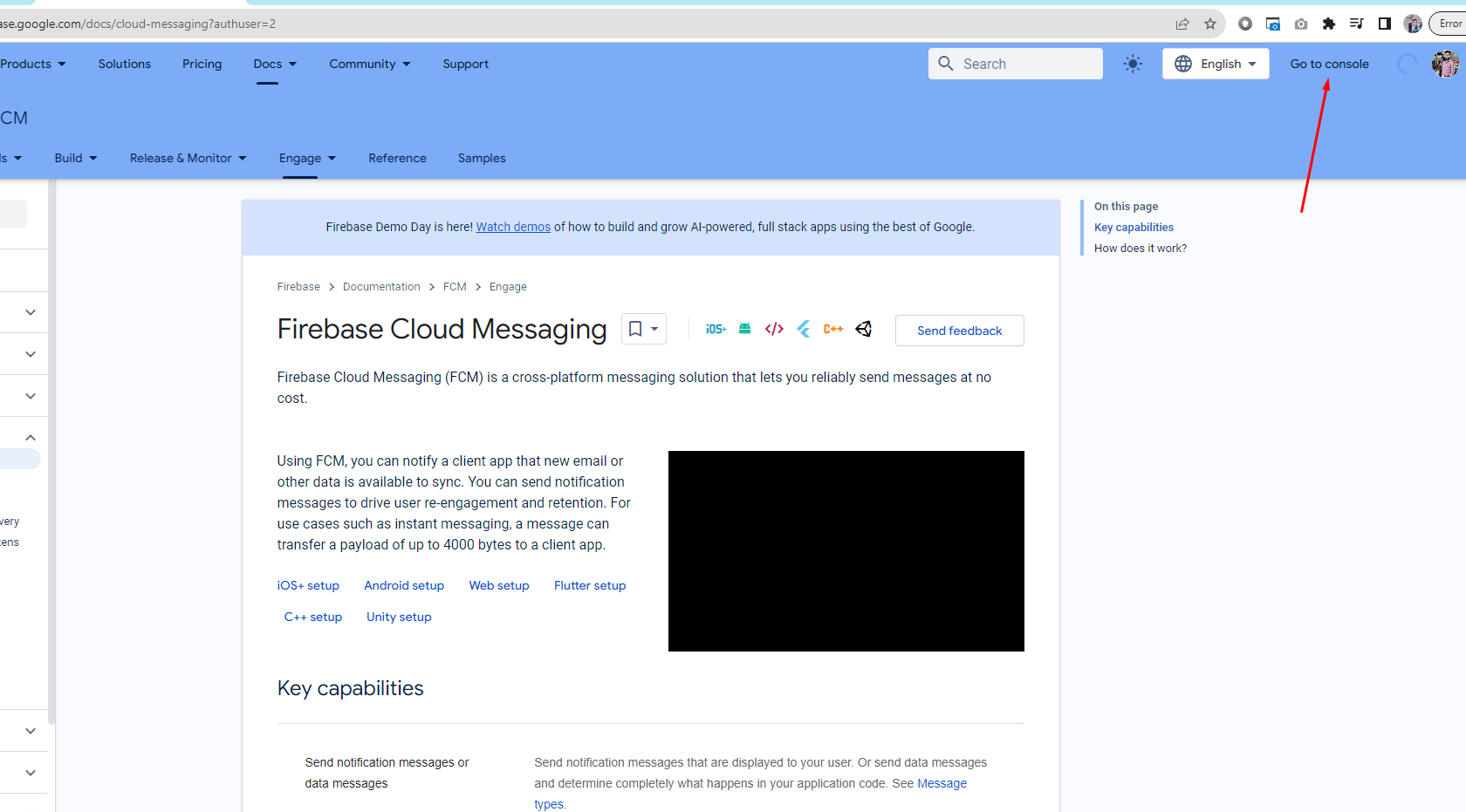
- Search for FCM login on Google and click on the Firebase Cloud Messaging link.
- Click on the Go to console option.
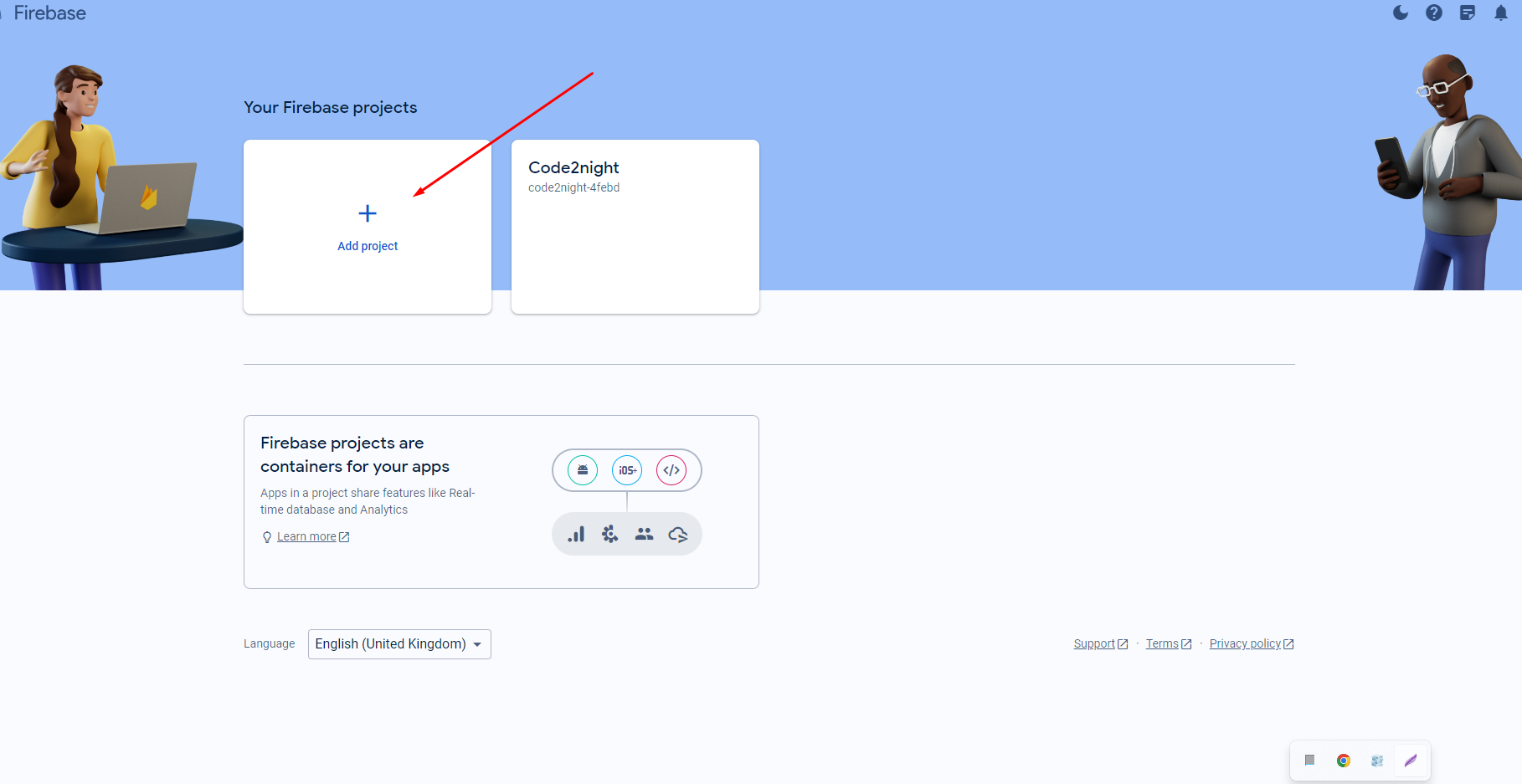
- If you do not have an existing project, click on Add project.
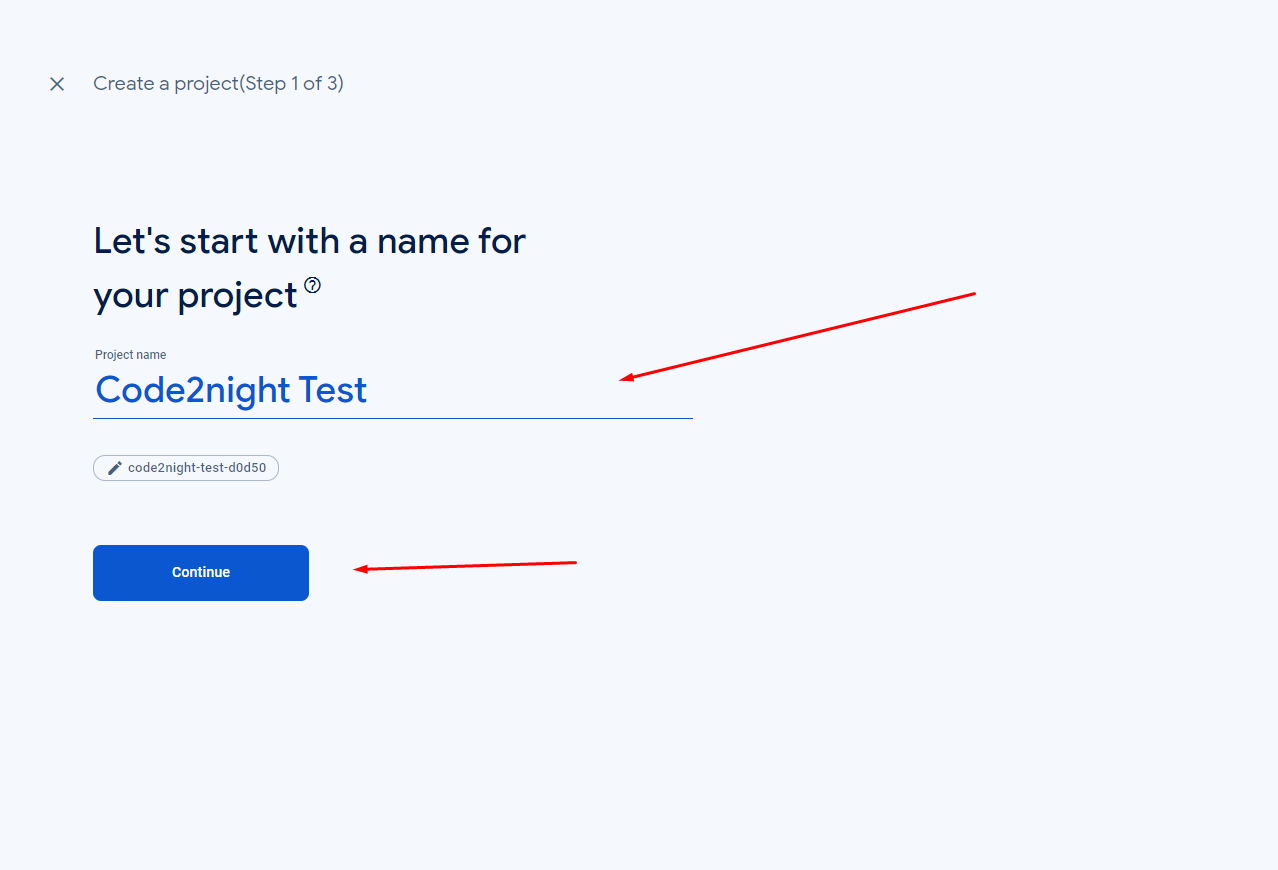
- Provide a project name and click on Continue.
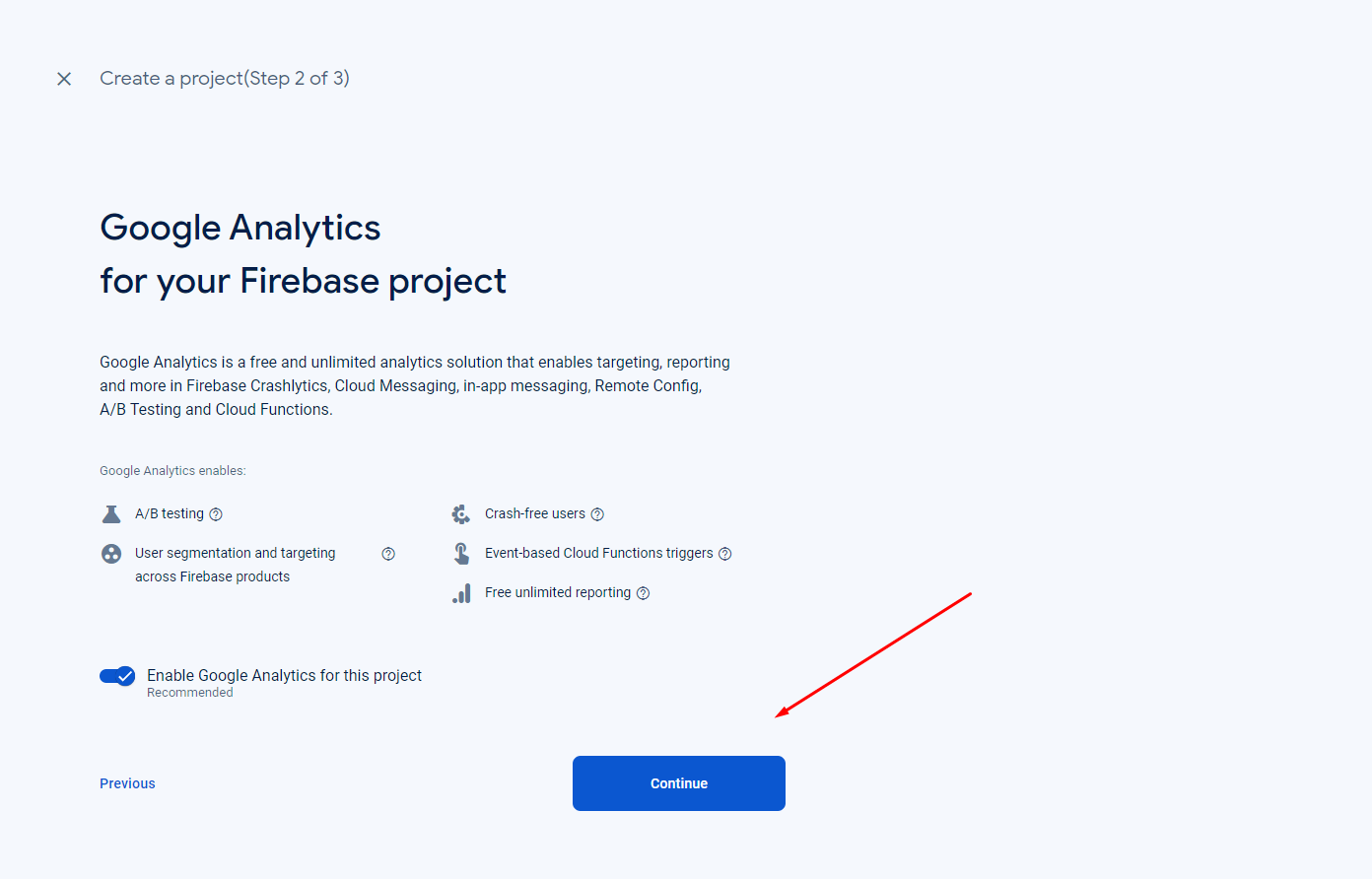
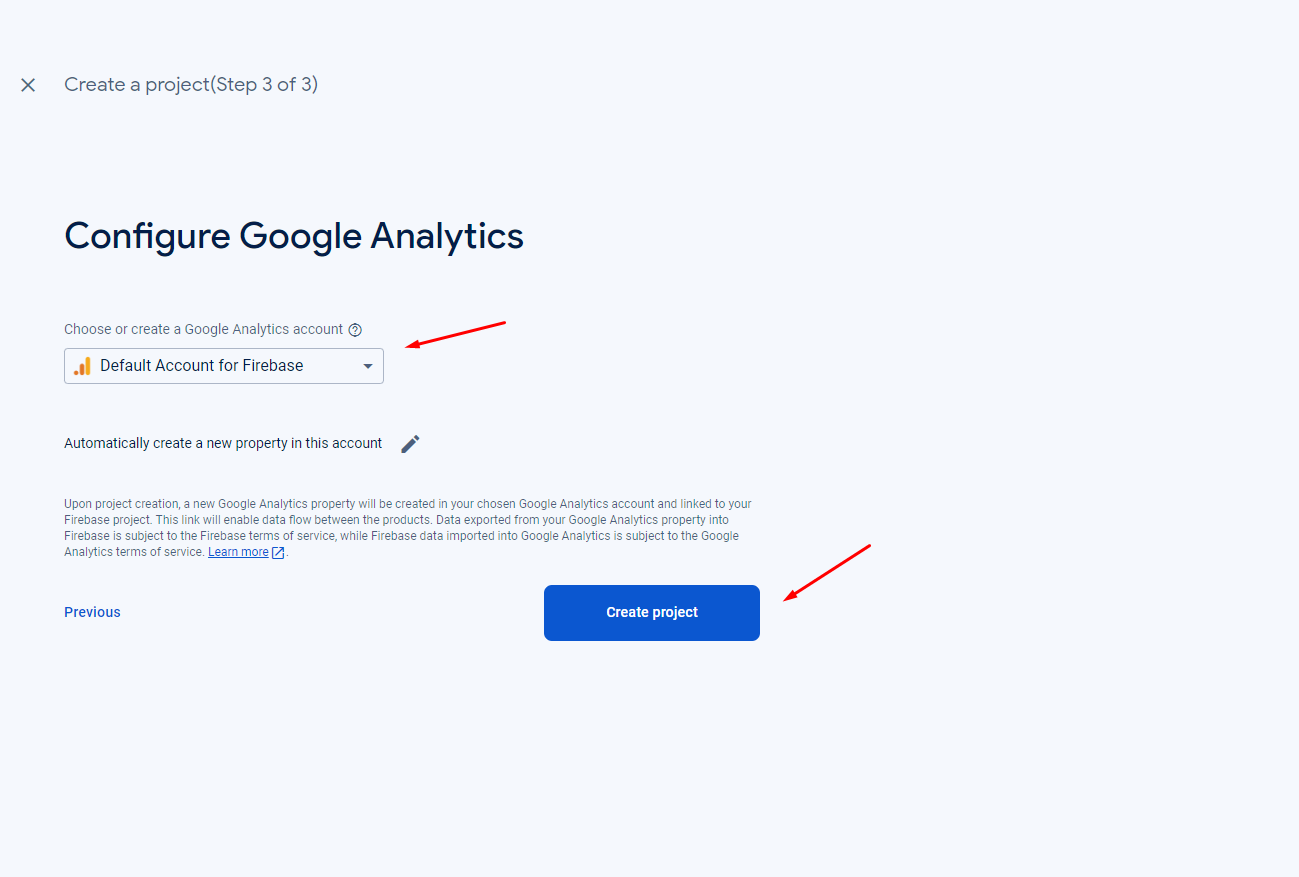
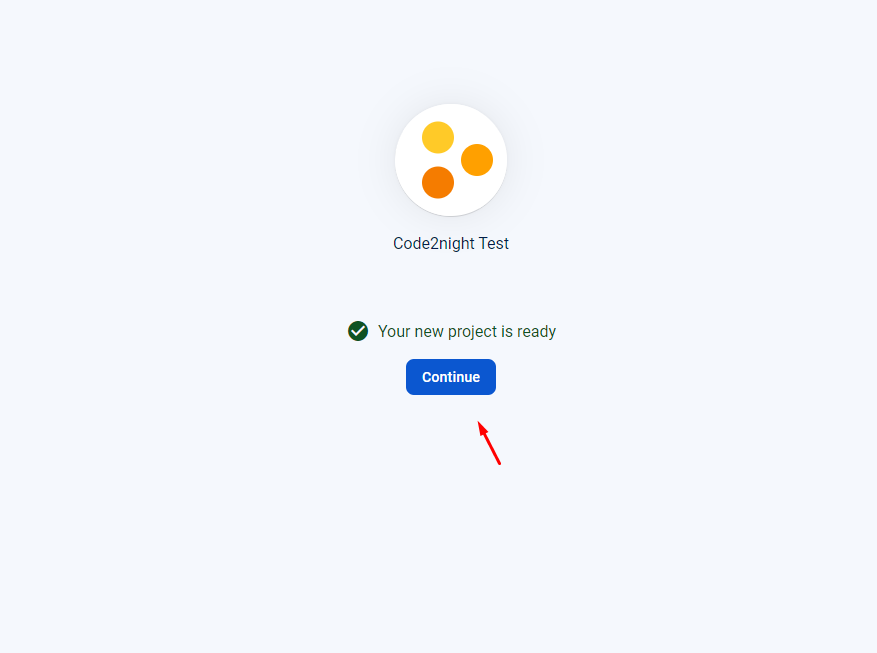
- Select a default account for Firebase and click on Create project.
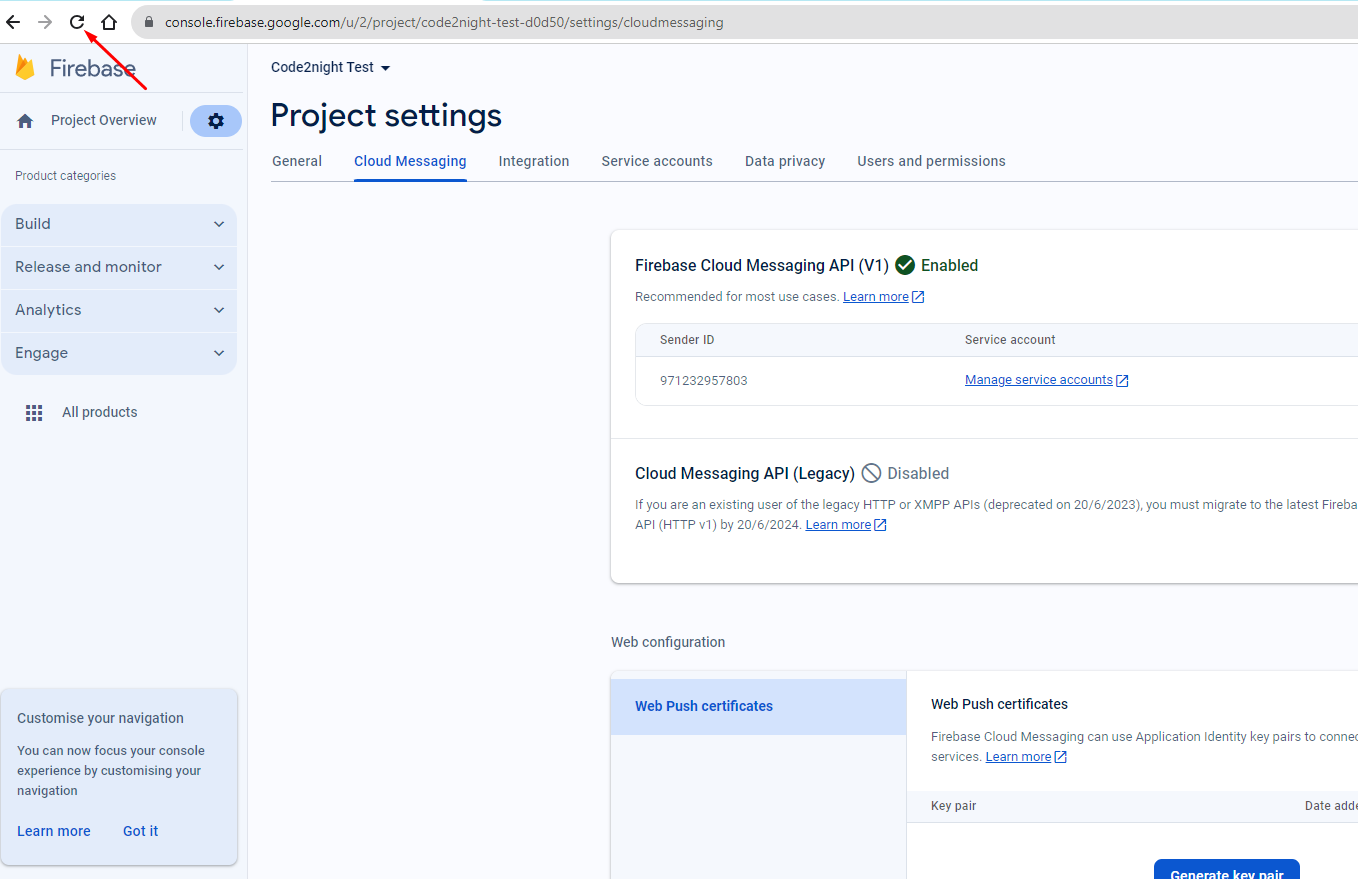
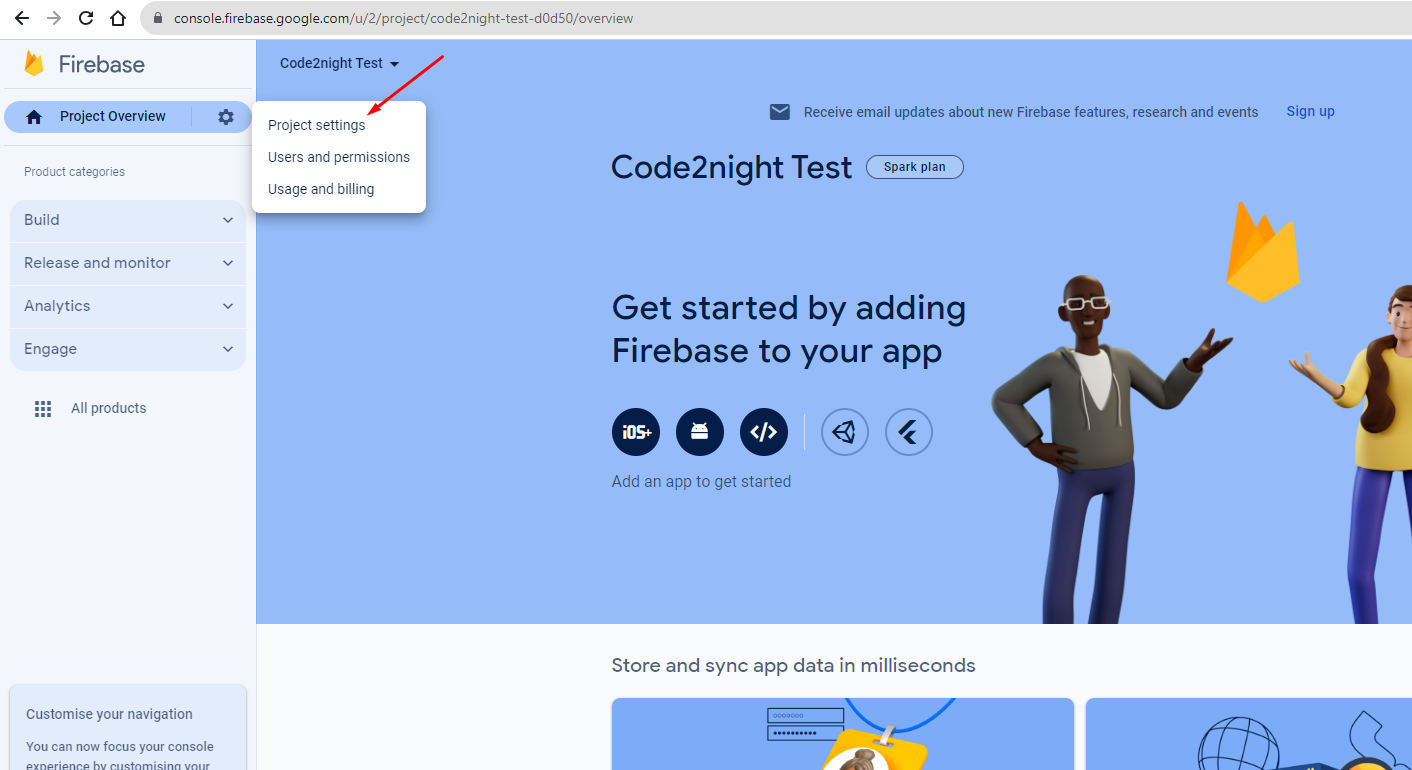
- Once the project is created, click on the settings icon and select Project settings.
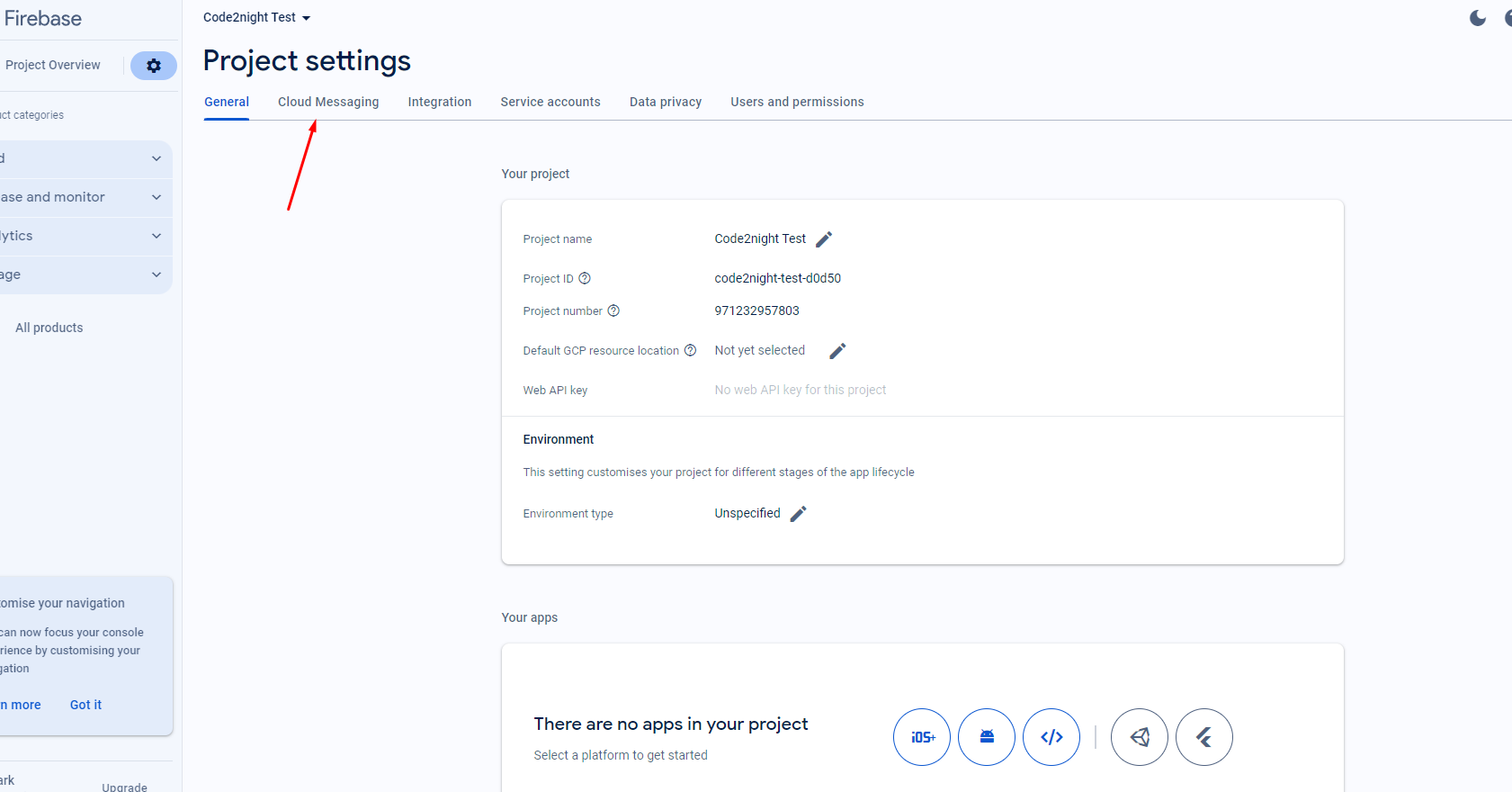
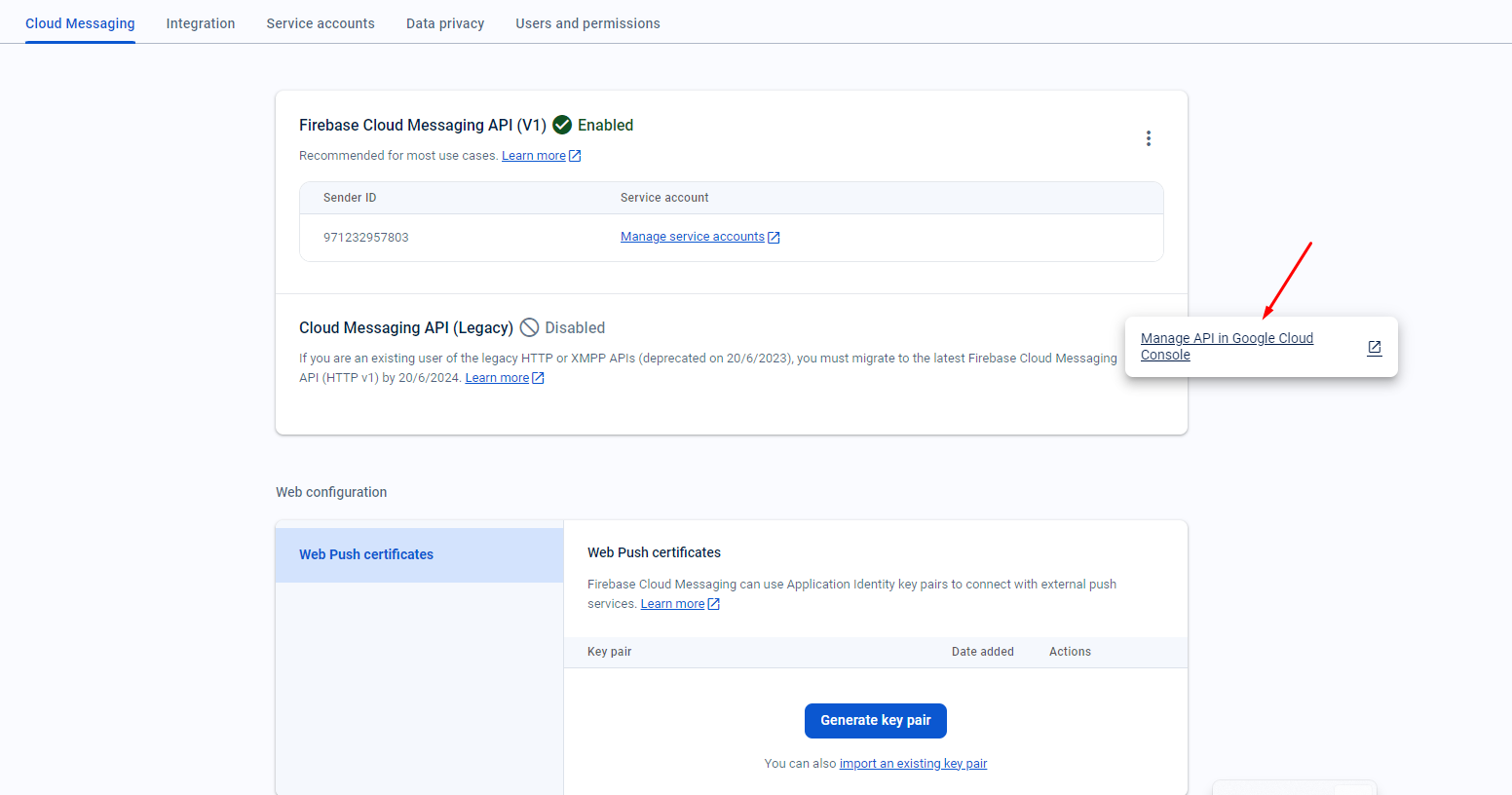
- Navigate to the Cloud Messaging tab.
- Click on the three dots and select Manage API in Google Cloud Console.
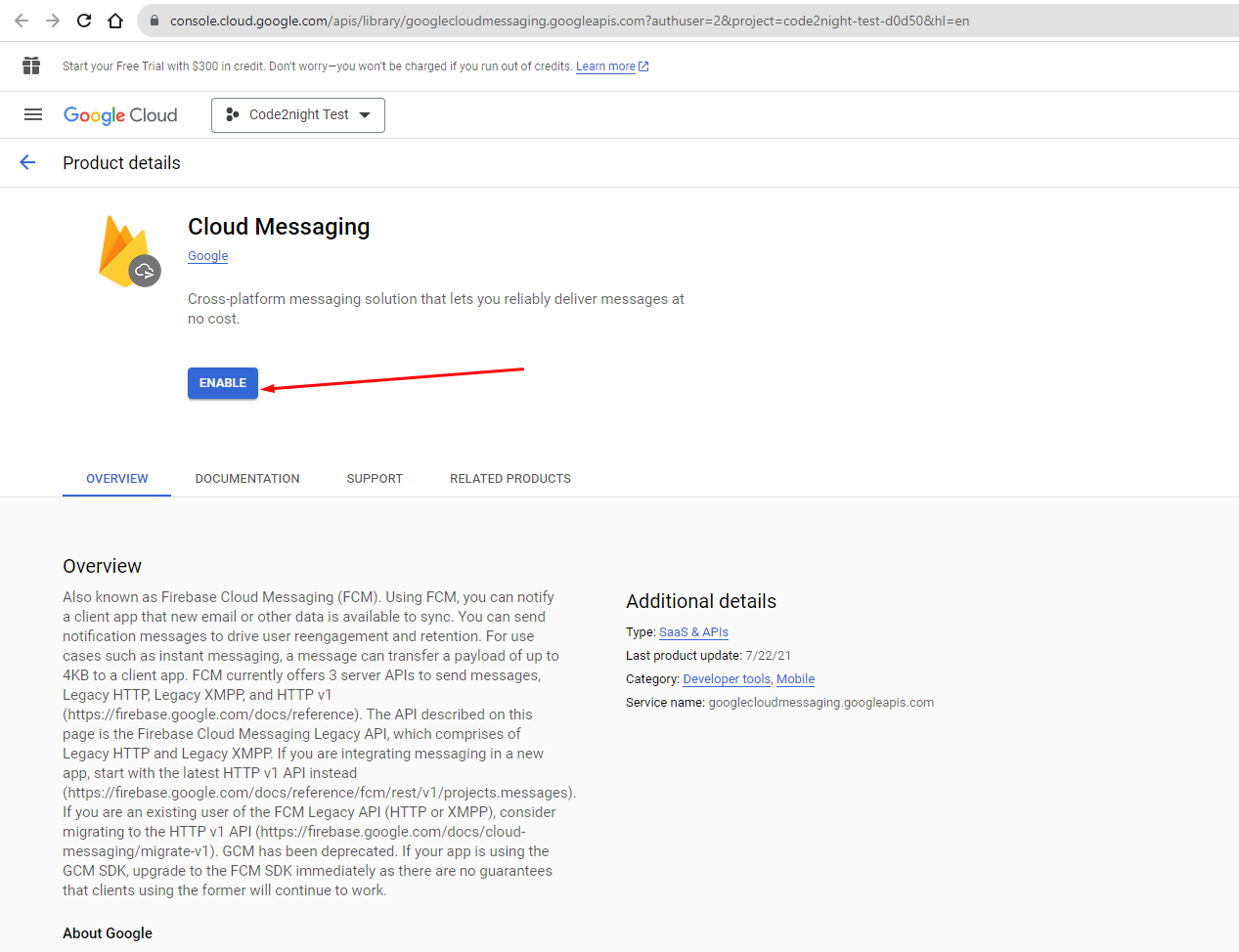
- Enable the FCM Cloud Messaging API.
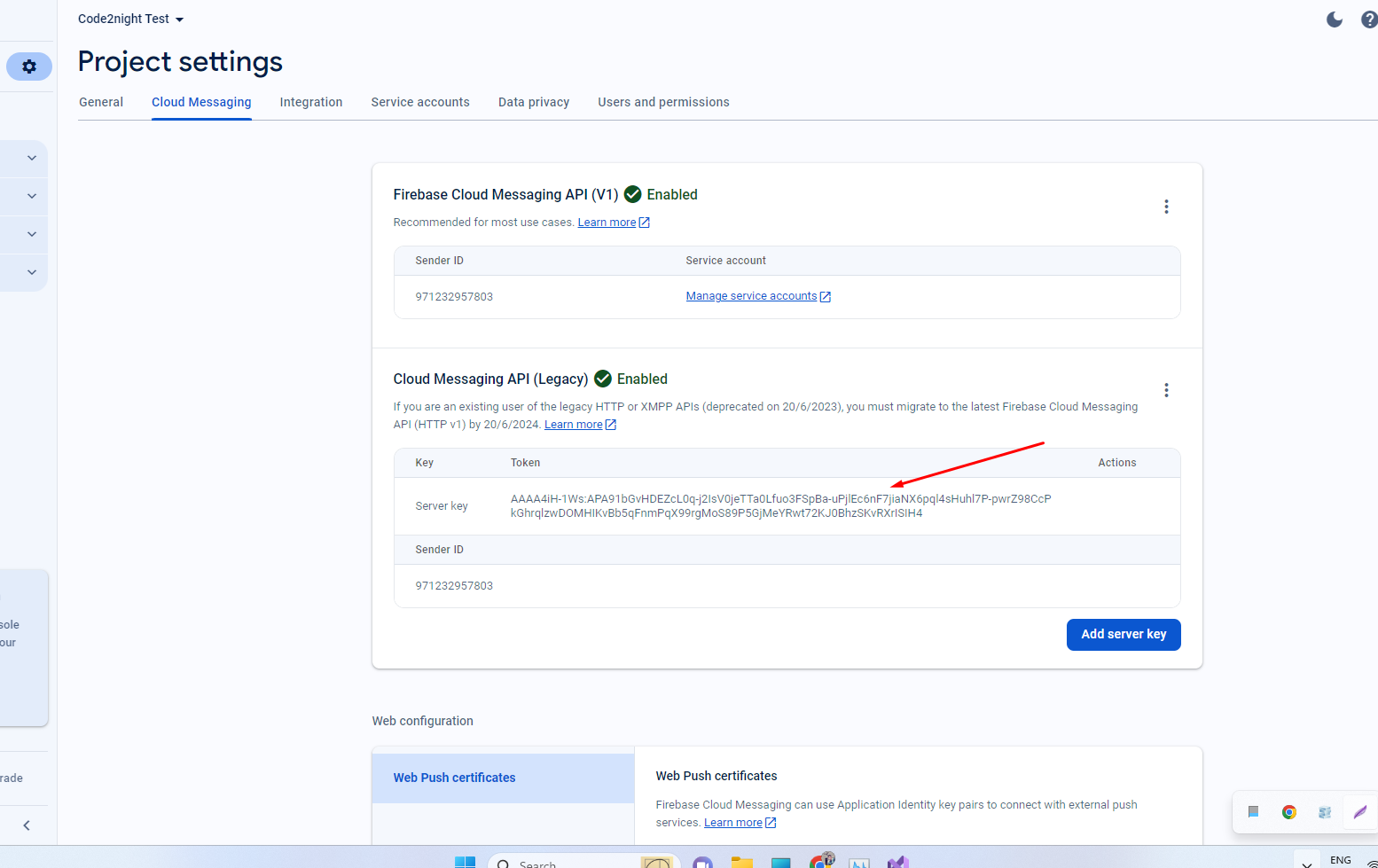
- Reload the settings page to view your server key.
- Copy the server key for use in your ASP.NET application.
- You can now use this server key to send notifications.
Sending Notifications in ASP.NET Core
After obtaining the FCM server key, you can implement the functionality to send notifications from your ASP.NET Core application. Below is a sample implementation that demonstrates how to structure your request to the FCM API.
public class FirebaseModel {
    [JsonProperty(PropertyName = "to")]
    public string To { get; set; }
    [JsonProperty(PropertyName = "data")]
    public NotificationModel Data { get; set; }
}

public class NotificationModel {
    [JsonProperty("title")]
    public string Title { get; set; }
    [JsonProperty("body")]
    public string Body { get; set; }
}

public async Task SendNotification(string deviceToken, string title, string body)
{
    var firebaseModel = new FirebaseModel();
    firebaseModel.Data = new NotificationModel();
    firebaseModel.To = deviceToken;
    firebaseModel.Data.Title = title;
    firebaseModel.Data.Body = body;

    var serverKey = "Enter your firebase server key";
    var authorizationServerKey = string.Format("key={0}", serverKey);
    HttpRequestMessage httpRequest = new HttpRequestMessage(HttpMethod.Post, "https://fcm.googleapis.com/fcm/send");
    httpRequest.Headers.TryAddWithoutValidation("Authorization", authorizationServerKey);
    var jsonBody = JsonConvert.SerializeObject(firebaseModel);
    httpRequest.Content = new StringContent(jsonBody, Encoding.UTF8, "application/json");

    using (var httpClient = new HttpClient())
    {
        var result = await httpClient.SendAsync(httpRequest);
        if (result.IsSuccessStatusCode)
        {
            Console.WriteLine("Notification sent successfully.");
        }
        else
        {
            Console.WriteLine("Error sending notification: " + result.Content.ReadAsStringAsync().Result);
        }
    }
}
Edge Cases & Gotchas
When working with FCM, you may encounter several edge cases or issues that could affect your notification delivery:
- Invalid Device Token: Ensure that the device token you are using is valid and registered with FCM. An invalid token will result in a failed notification attempt.
- Rate Limiting: FCM imposes certain limits on the number of messages you can send per second. Be mindful of these limits to avoid throttling.
- Message Size: The payload size for FCM messages is limited. Ensure that your notification data does not exceed the maximum size allowed by FCM.
- Network Issues: Ensure that the device has an active internet connection. Notifications may fail to deliver if the device is offline.
Performance & Best Practices
To ensure effective use of FCM and optimize performance, consider the following best practices:
- Use Topics: Instead of sending individual messages, consider using topics to group users. This allows you to send messages to multiple users efficiently.
- Prioritize Notifications: Use notification and data payloads effectively. Notifications are displayed in the system tray, while data payloads can be processed in the background.
- Testing: Thoroughly test your implementation on multiple devices to ensure consistent behavior across different Android versions.
- Handle Notifications in App: Implement logic in your app to handle notifications when the app is in the foreground, background, or closed.
Conclusion
In this tutorial, we explored how to obtain the FCM server key and send notifications using ASP.NET Core. Here are the key takeaways:
- FCM is a powerful tool for sending notifications to Android devices.
- Obtaining the FCM server key involves creating a project in the Firebase console and managing API settings.
- Implementing notification sending in ASP.NET Core requires proper structuring of the request and handling responses.
- Be aware of edge cases and follow best practices to optimize your FCM implementation.