Visual studio not refreshing changes in browser on reload
Understanding the Issue with .NET Core 3.1
The problem of Visual Studio not refreshing changes in the browser is particularly prevalent when working with .NET Core 3.1. This issue can stem from various factors, including the lack of appropriate runtime compilation for Razor views. In earlier versions of .NET Core, the behavior may differ, which is why it's essential to apply the correct fixes for version 3.1 specifically.
When you modify client-side files, the expected behavior is for the browser to automatically reflect these changes upon a simple reload. However, without the proper setup, developers may find themselves needing to manually refresh their browsers or, in some cases, restart their applications altogether. This not only disrupts the workflow but can also lead to frustration.
Prerequisites
Before diving into the solutions, ensure that you have the following prerequisites in place:
- Visual Studio 2019 or later: Make sure you are using a compatible version of Visual Studio that supports .NET Core 3.1.
- ASP.NET Core 3.1 SDK: Verify that you have the .NET Core 3.1 SDK installed on your machine.
- Basic Knowledge: Familiarity with ASP.NET Core project structure and usage of NuGet packages will be helpful.
Fixing the Issue by Adding a NuGet Package
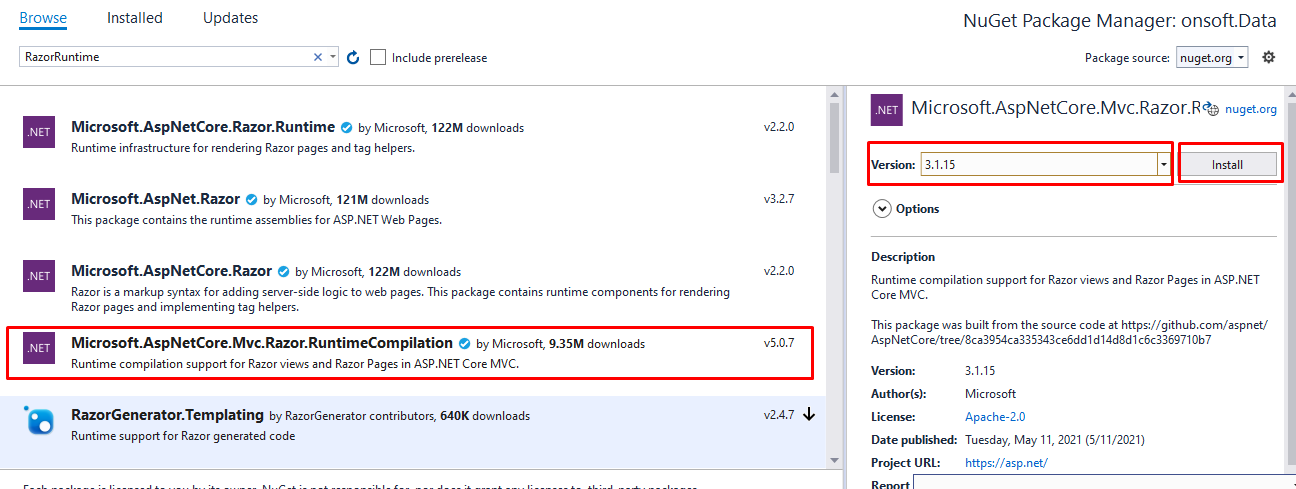
The first step to resolving the refresh issue involves adding a necessary NuGet package to your project. This package, Microsoft.AspNetCore.Mvc.Razor.RuntimeCompilation, enables runtime compilation of Razor views, allowing changes to be reflected immediately in the browser.
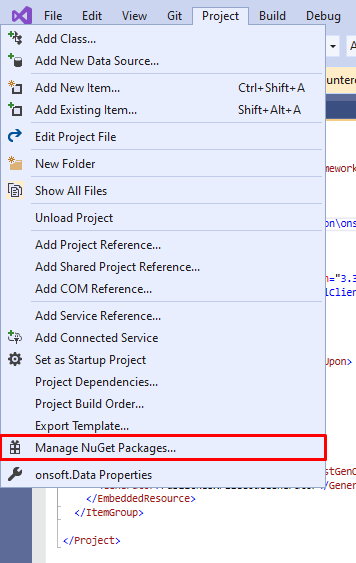
To add this package, navigate to Project -> Manage NuGet Packages. Search for Microsoft.AspNetCore.Mvc.Razor.RuntimeCompilation as shown in the image below:
For compatibility reasons, it is advisable to select a slightly older version of the package, such as version 3.0. A stable version ensures fewer issues during runtime. Once you select the version, click on Install.
Configuring Your Startup.cs
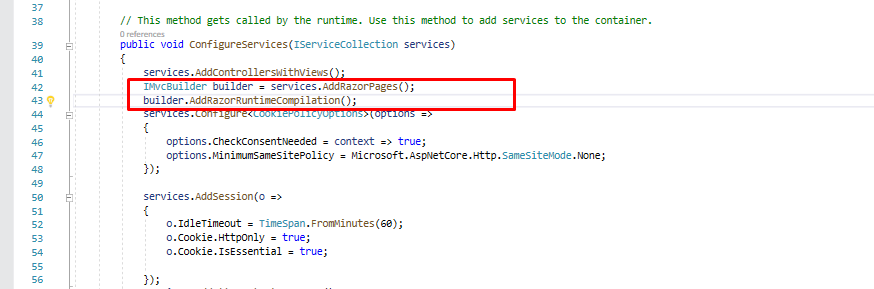
After successfully installing the NuGet package, the next step is to configure your Startup.cs file. This configuration is critical as it enables the runtime compilation feature.
Locate the ConfigureServices method within your Startup.cs file. You will need to add the following lines of code:
public void ConfigureServices(IServiceCollection services) {
    IMvcBuilder builder = services.AddRazorPages();
    builder.AddRazorRuntimeCompilation();
}
These lines add the Razor pages services and enable runtime compilation. After making these changes, rebuild your project and run it again. This time, your changes should reflect in the browser upon reload.
Testing Your Changes
To ensure that everything is functioning correctly, make a simple change to one of your HTML, CSS, or JavaScript files. Save the changes and refresh your browser. You should see the updates without needing to restart your application.
If the changes are still not reflecting, double-check that you have followed all the steps correctly and that the package is installed properly. Sometimes, clearing the browser cache can also help in reflecting the latest changes.
Edge Cases & Gotchas
While the above solution works for most scenarios, there are certain edge cases and gotchas to be aware of:
- Browser Caching: Browsers tend to cache files aggressively. If you're not seeing changes, try clearing the cache or using incognito mode.
- File Watcher Limit: On some operating systems, there may be a limit on how many file watchers can be created. If you have many projects open, this could cause issues with file change detection.
- Framework Compatibility: Ensure that your project is fully compatible with .NET Core 3.1. Sometimes, other packages or settings may interfere with the runtime compilation.
- Development vs. Production: Remember that runtime compilation is intended for development purposes. For production environments, it's better to pre-compile your views for performance reasons.
Performance & Best Practices
While enabling runtime compilation can significantly improve your development workflow, it's essential to follow some best practices:
- Use Environment Variables: Ensure that runtime compilation is enabled only in development environments. You can check the environment using
if (env.IsDevelopment())in your Startup.cs. - Limit File Changes: Try to minimize the number of changes made to the same file rapidly. Frequent changes can lead to performance issues and slow down the file watcher.
- Monitor Performance: Keep an eye on the performance of your application. If you notice slowdowns, consider disabling runtime compilation temporarily to diagnose the issue.
- Pre-compile for Production: Always pre-compile your views before deploying to production to enhance performance and reduce load times.
Conclusion
In conclusion, resolving the issue of Visual Studio not refreshing changes in the browser when working with ASP.NET Core 3.1 can significantly enhance your development experience. By following the steps outlined in this blog post, you can ensure that changes are reflected immediately, allowing for a more efficient workflow.
- Ensure you have the required prerequisites before starting.
- Add the Microsoft.AspNetCore.Mvc.Razor.RuntimeCompilation NuGet package to your project.
- Configure your Startup.cs file to enable runtime compilation.
- Test your changes to confirm they are reflected in the browser.
- Be aware of edge cases and best practices to optimize your development process.