
The report definition is not valid or is not supported by this version of reporting
Understanding the Issue The report definition has an invalid target namespace 'http://schemas.microsoft.com/sqlserver/reporting/2016/01/reportdefinition' which cannot be upgraded
The exception ReportProcessingException indicates that the report definition you are trying to use is not compatible with the current version of the reporting services. The specific message you might encounter is: The report definition has an invalid target namespace 'http://schemas.microsoft.com/sqlserver/reporting/2016/01/reportdefinition' which cannot be upgraded. This generally happens when an older RDLC report, created with a previous version of Reporting Services, is used in a newer environment.
As reporting services evolve, newer versions may introduce changes to the report schema, which can lead to compatibility issues with older reports. This is particularly relevant for developers who maintain legacy systems or who have recently upgraded their reporting services.
To effectively address this issue, it’s crucial to understand the underlying structure of RDLC files and the importance of the target namespace. The target namespace defines the version of the schema that the report adheres to, and when this does not match the expected version, the report cannot be processed.
Prerequisites
Before proceeding with the solutions outlined in this article, ensure you have the following:
- Visual Studio installed with the appropriate extensions for reporting services.
- Access to the old RDLC report that is causing the issue.
- NuGet Package Manager to install necessary packages.
Identifying the Root Cause
When you encounter the ReportProcessingException, the first step is to verify the current target namespace in your RDLC file. Open the RDLC file in a text editor and look for the xmlns attribute in the root Report element. It will look something like this:
<Report xmlns="http://schemas.microsoft.com/sqlserver/reporting/2016/01/reportdefinition" ... >If the namespace reflects an older version, you will need to take corrective actions. It’s important to note that simply changing the namespace in the XML will not suffice, as it will revert back to the original upon any modifications made in the report designer.
Installing the Necessary NuGet Package
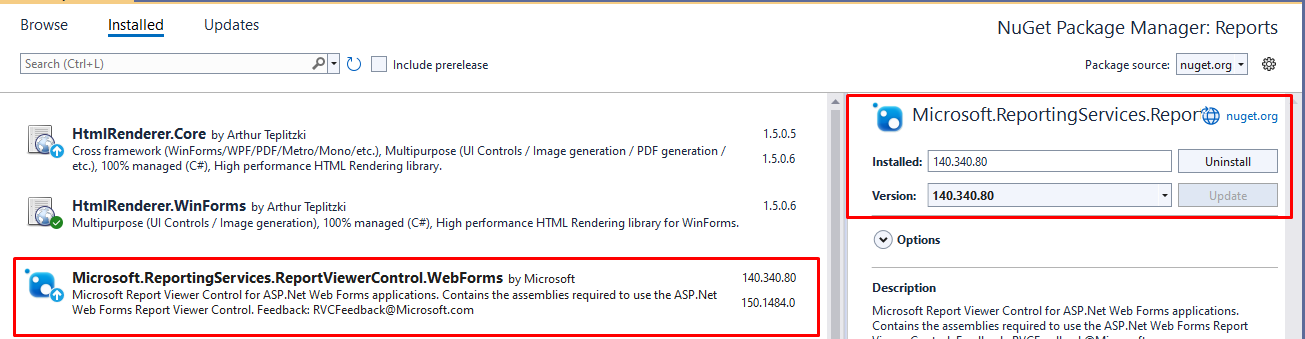
To resolve the incompatibility, you must install the appropriate NuGet package that corresponds to the version of the reporting services you are using. For most scenarios, you will want to install the package Microsoft.ReportingServices.ReportViewerControl.WebForms. The recommended version as of the time of writing is 140.340.80. You can install this package via the NuGet Package Manager Console with the following command:
Install-Package Microsoft.ReportingServices.ReportViewerControl.WebForms -Version 140.340.80After the installation, rebuild your project and attempt to run the RDLC report again. This should resolve the namespace issue and allow your report to process correctly.
Testing Your RDLC Reports
Once you have made the necessary changes, it's essential to thoroughly test your RDLC reports. This includes checking for any data binding issues, layout problems, or rendering errors that may arise due to the update. Here are some steps to ensure your reports function correctly:
- Run the report in the Visual Studio report designer to check for any immediate errors.
- Deploy the report to your reporting server and access it through the web interface.
- Verify that all data sources are correctly configured and that the report renders as expected.
Edge Cases & Gotchas
While the solution provided should work for most scenarios, there are some edge cases and gotchas to be aware of:
- If your RDLC report uses custom code or expressions, ensure that these are still valid and compatible with the new version of Reporting Services.
- Be cautious of any third-party libraries or components used in your reports, as these may also require updates.
- Check for any deprecated features in the new version that may affect your report's functionality.
Performance & Best Practices
To ensure optimal performance and maintainability of your RDLC reports, consider the following best practices:
- Regularly update your NuGet packages to stay aligned with the latest versions of Reporting Services.
- Document any changes made to RDLC reports, including updates to the target namespace and dependencies.
- Utilize report caching and snapshots where appropriate to improve performance, especially for reports with complex data processing.
- Test reports in a staging environment before deploying to production to catch any issues early.
Conclusion
In conclusion, encountering the ReportProcessingException when working with RDLC reports is a common issue that can be resolved by ensuring compatibility with the current reporting services version. By following the steps outlined in this article, you can effectively update your reports and avoid similar issues in the future. Here are the key takeaways:
- Understand the significance of the target namespace in RDLC files.
- Install the correct NuGet package to resolve compatibility issues.
- Thoroughly test your reports after making changes.
- Stay updated with best practices for report development and maintenance.
