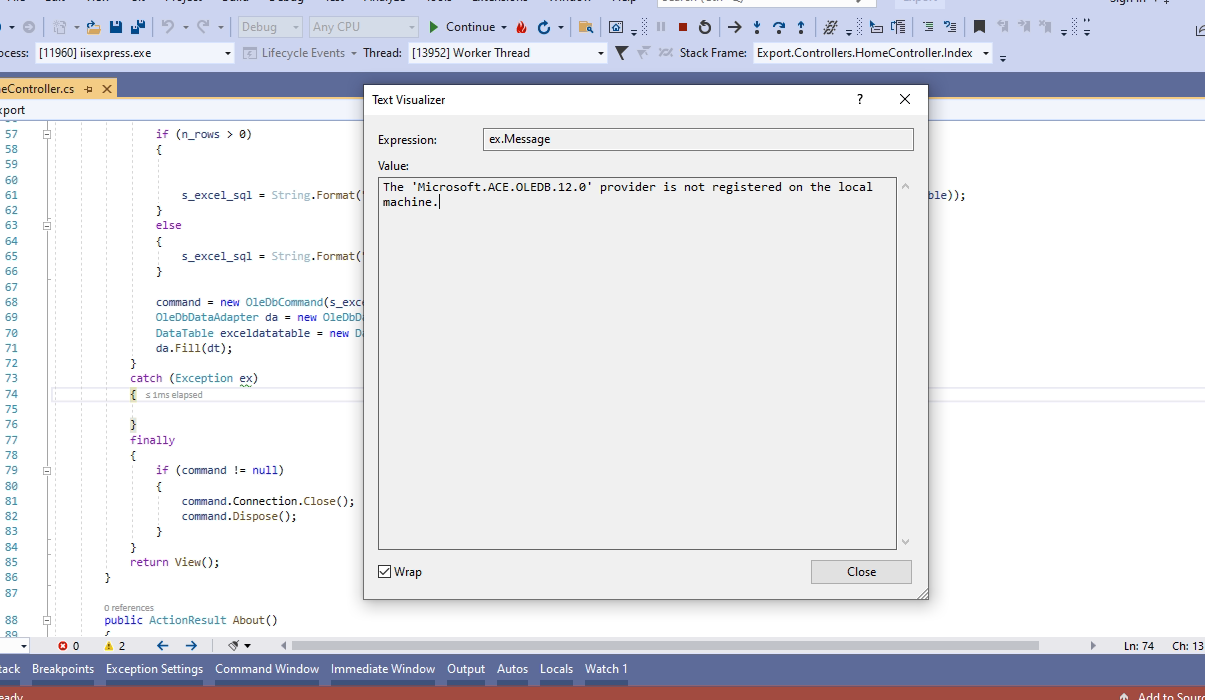
The 'Microsoft.ACE.OLEDB.12.0' provider is not registered on the local machine.
Overview of The 'Microsoft.ACE.OLEDB.12.0' provider is not registered on the local machine and Its Importance
OLE DB (Object Linking and Embedding, Database) is a Microsoft technology that allows access to data in a variety of formats. It is particularly useful for applications that need to interact with different data sources, such as relational databases, spreadsheets, and text files. In the context of ASP.NET MVC applications, OLE DB is often used to import data from Excel spreadsheets, which are a common format for data exchange in business environments.
The error message 'The Microsoft.ACE.OLEDB.12.0 provider is not registered on the local machine' indicates that the necessary OLE DB provider for accessing Excel files is not installed on your system. This can prevent your application from loading and processing Excel data, potentially disrupting business workflows that rely on this functionality.
Prerequisites
Before attempting to resolve the OLE DB provider issue, ensure that you have the following:
- A Windows operating system (the solutions provided are primarily for Windows environments).
- Administrator access to install software on your machine.
- Visual Studio or another IDE set up for ASP.NET development.
Understanding the Error
This error typically occurs when the OLE DB provider is not installed or is not properly registered in the Windows registry. The most common reasons for this include:
- The Microsoft Access Database Engine is not installed.
- You are using a 32-bit application on a 64-bit system without the appropriate drivers.
- The application pool settings in IIS are misconfigured.
It is essential to understand that the version of the OLE DB provider you install must match the architecture of your application. For instance, if your application is built for 64-bit, you must install the 64-bit version of the provider.
Solution 1: Installing the Microsoft Access Database Engine
The first step in resolving this error is to install the Microsoft Access Database Engine. This driver allows applications to connect to Microsoft Access databases and Excel spreadsheets.
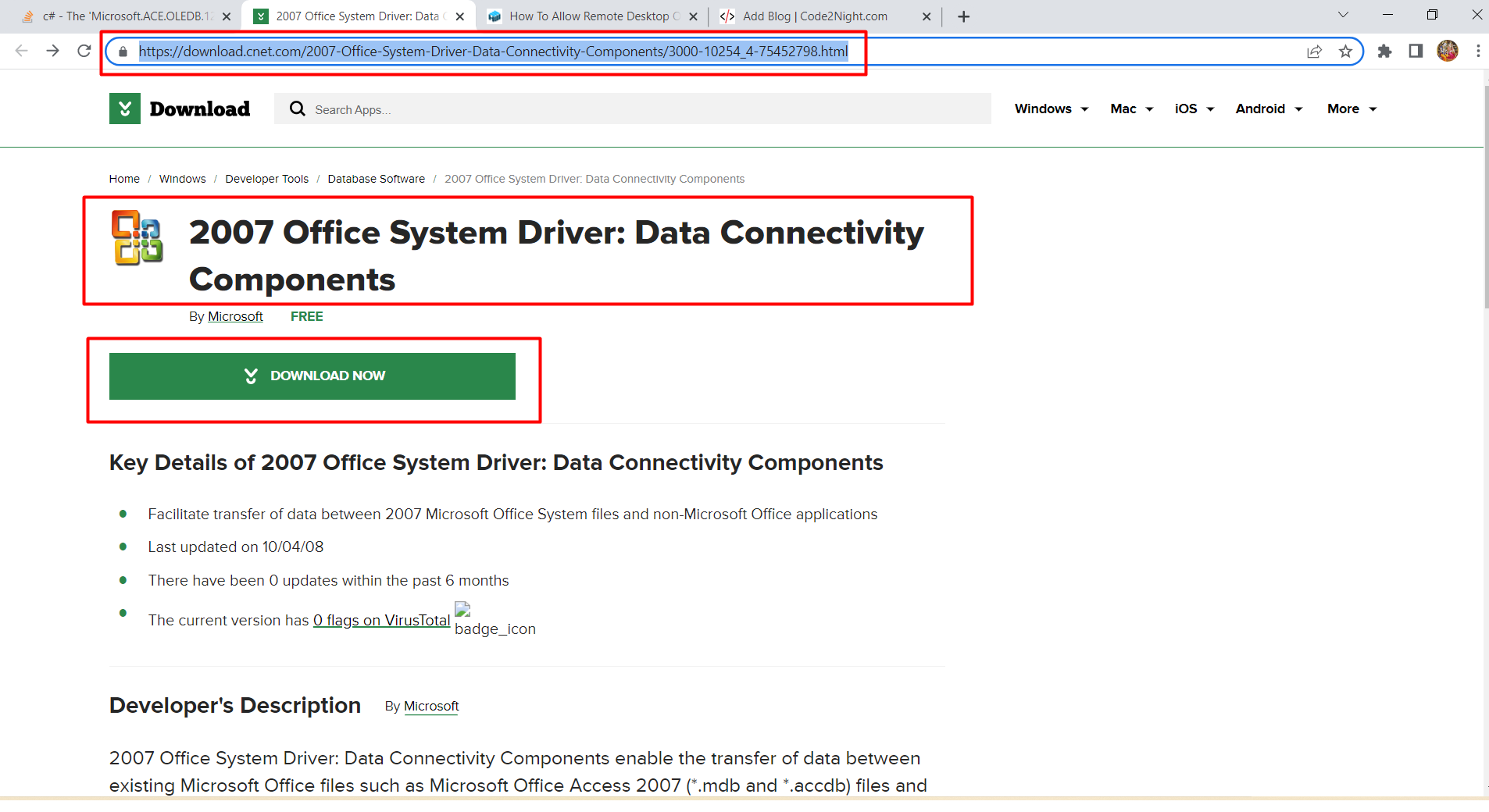
You can download the driver from the following link:
2007 Office System Driver: Data Connectivity Components
After downloading, follow these steps:
- Run the installer and follow the prompts to complete the installation.
- Restart your application and check if the error persists.
Solution 2: Installing the 2016 Access Database Engine Redistributable
If the first solution does not resolve the issue, you may need to install the 2016 version of the Access Database Engine. This version is compatible with newer Office formats and is essential for applications that need to work with Excel files.
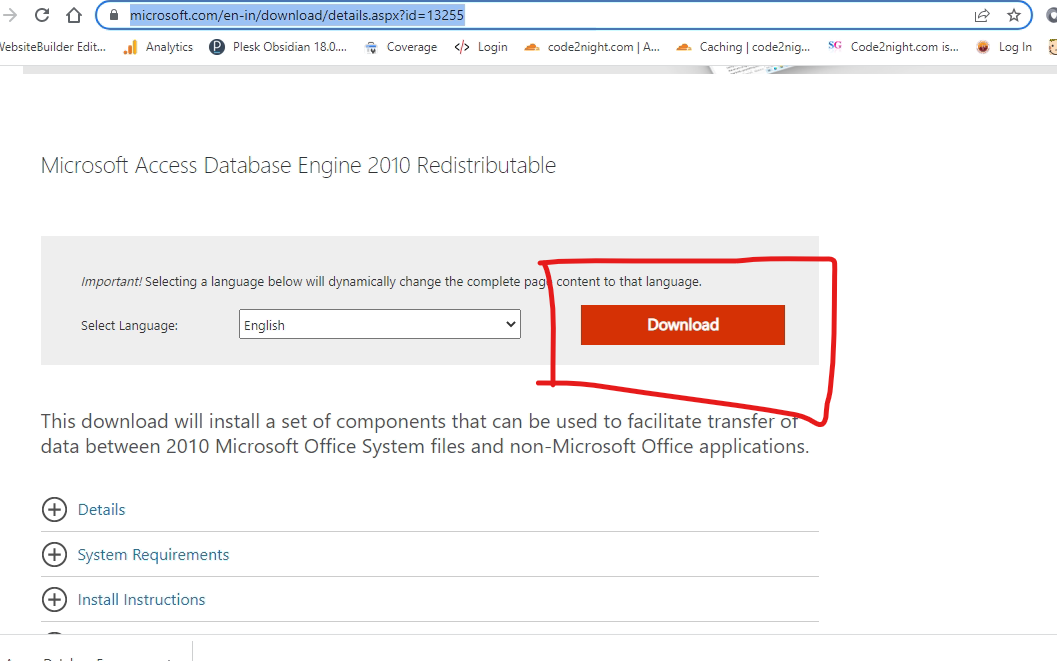
Download the 2016 Access Database Engine Redistributable from:
Microsoft Access Database Engine 2016 Redistributable
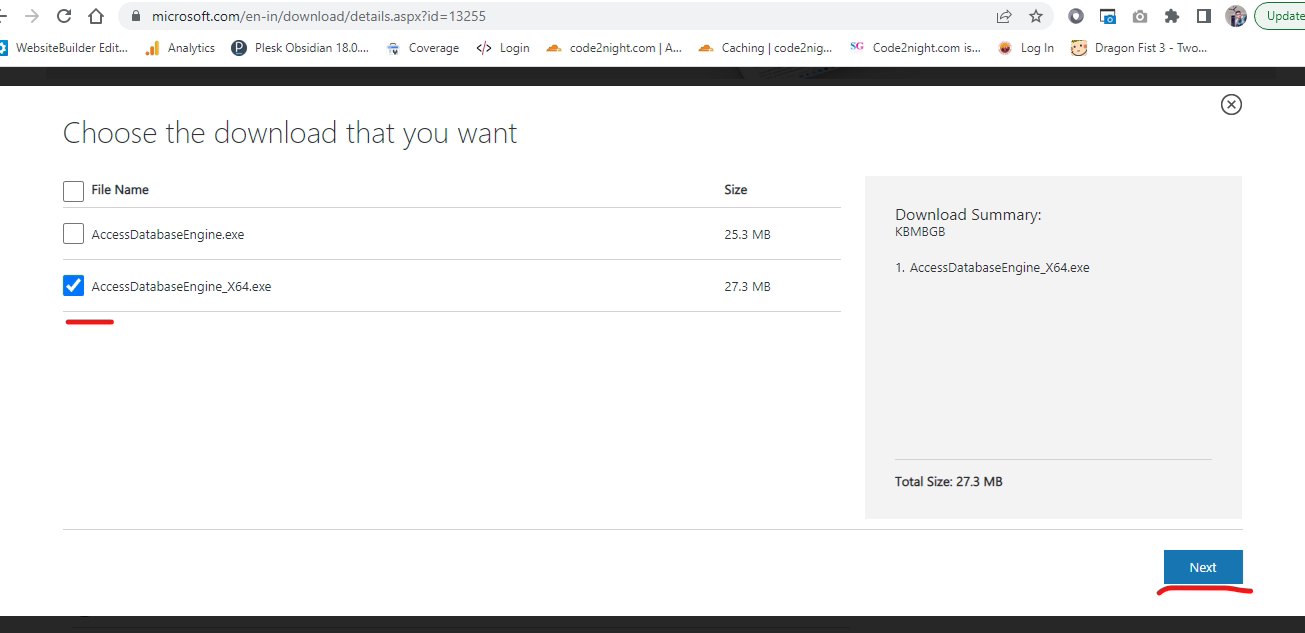
During installation, you will see two checkboxes for the 32-bit and 64-bit versions. Make sure to select the appropriate version based on your application's architecture:
- Select the 64-bit version if your application is running in a 64-bit environment.
- Choose the 32-bit version for 32-bit applications.
After installation, restart your system to ensure the changes take effect. You should then be able to run your application without encountering the error.
Configuring IIS Application Pool Settings
In some cases, the error can be caused by incorrect application pool settings in IIS. If your application is set to run in a different bitness than the installed OLE DB provider, it can lead to this issue.
To check and configure the application pool settings:
- Open IIS Manager.
- Locate your application pool under the 'Application Pools' section.
- Right-click on the application pool and select 'Advanced Settings.'
- Set the 'Enable 32-Bit Applications' option to 'True' if you are using the 32-bit version of the OLE DB provider.
After making these changes, restart the application pool and try running your application again.
Edge Cases & Gotchas
While the solutions provided above should resolve the majority of cases, there are some edge cases to be aware of:
- If you are using a 64-bit version of Office, ensure that your application is also configured to run in 64-bit mode. Mixing 32-bit and 64-bit components can lead to compatibility issues.
- Check for any existing versions of the Access Database Engine that might conflict with the installation. Uninstalling older versions may be necessary.
- In some environments, group policies may restrict the installation of drivers. Ensure you have the required permissions.
Performance & Best Practices
When working with OLE DB and Excel imports, consider the following best practices to enhance performance and reliability:
- Use Bulk Operations: For large data imports, consider using bulk operations instead of row-by-row inserts to improve performance.
- Handle Exceptions Gracefully: Implement proper error handling to catch and log exceptions during the import process to aid in troubleshooting.
- Validate Input Data: Before importing data from Excel, validate the data format to ensure it meets application requirements, reducing the chances of runtime errors.
- Optimize Excel Files: Minimize the size of Excel files by removing unnecessary formatting and data, which can speed up the import process.
Conclusion
In this blog post, we have explored the common error 'The Microsoft.ACE.OLEDB.12.0 provider is not registered on the local machine' and provided several solutions to resolve it. By ensuring that the correct OLE DB provider is installed and configured properly, you can successfully import Excel data into your ASP.NET applications.
- Key Takeaways:
- OLE DB is essential for importing Excel data into ASP.NET applications.
- The error typically indicates that the necessary provider is not installed or registered.
- Ensure that the installed provider matches your application's architecture (32-bit or 64-bit).
- Properly configure IIS application pool settings to avoid compatibility issues.
- Follow best practices to enhance performance and reliability during data imports.