Publish in local folder
Overview of Publishing in .NET
Publishing in .NET involves compiling your project and preparing it for deployment. This process transforms your code into a format that can be run on a server or distributed to users. The main goal of publishing is to ensure that all necessary files, dependencies, and configurations are correctly set up so that your application functions as intended in a production environment. Understanding how to publish your application effectively can save time and reduce errors during deployment.
Real-world applications often require multiple environments (development, staging, production), and the ability to publish to local folders allows developers to test their applications locally before moving to a live environment. This step is crucial for ensuring that all features work as expected and that any potential issues are resolved before users encounter them.
Prerequisites
Before you begin the publishing process, ensure that you have the following prerequisites:
- Visual Studio: Ensure you have the latest version of Visual Studio installed on your machine.
- .NET SDK: Make sure you have the appropriate .NET SDK installed that matches your project requirements.
- Project Setup: Your .NET project should be fully developed and tested in the development environment.
Step 1: Rebuild and Set Publish Location
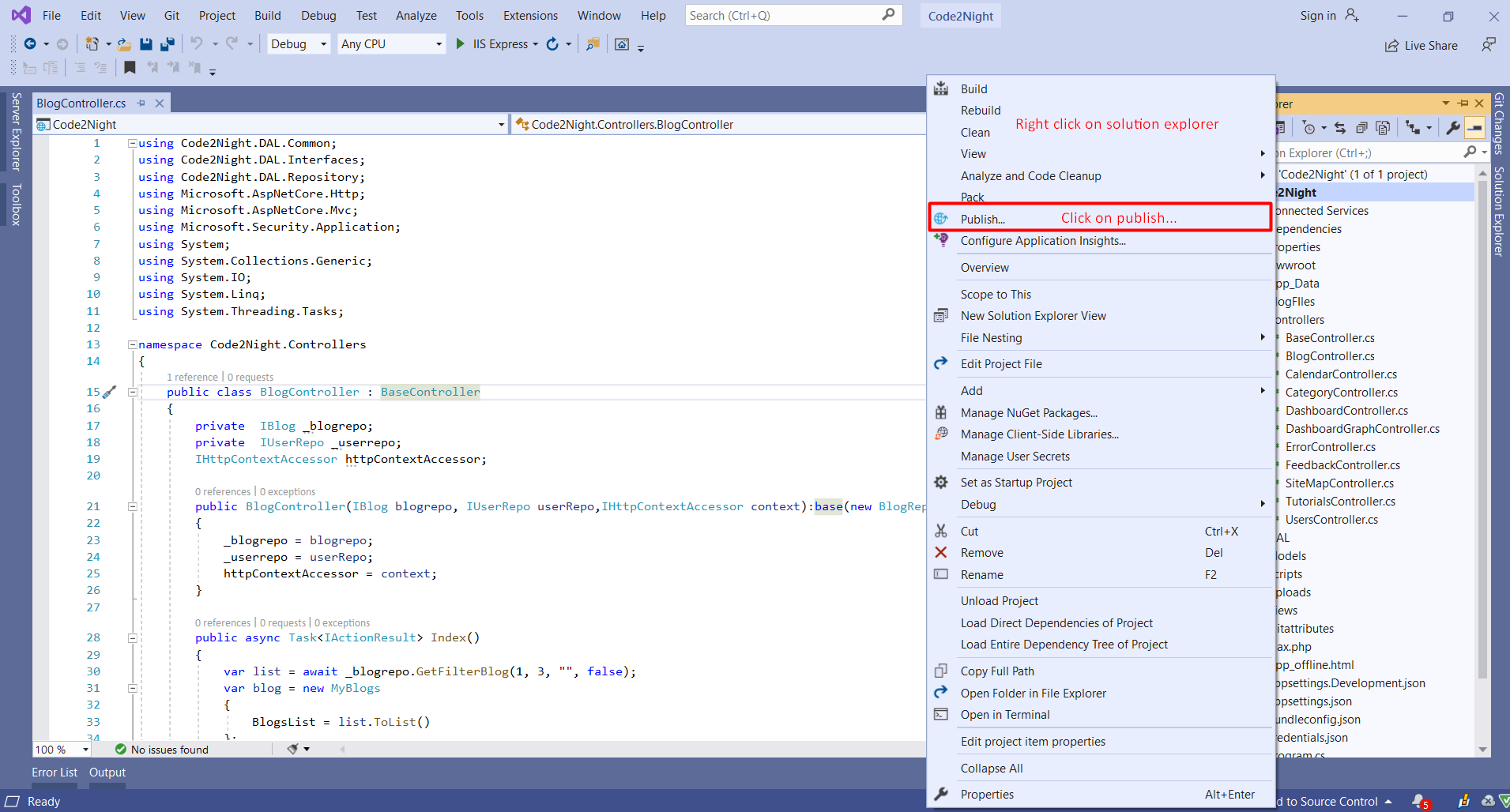
To start the publishing process, open your project in Visual Studio. Navigate to the Solution Explorer, right-click on your solution, and select Rebuild. This action compiles your project and ensures that there are no errors before publishing.
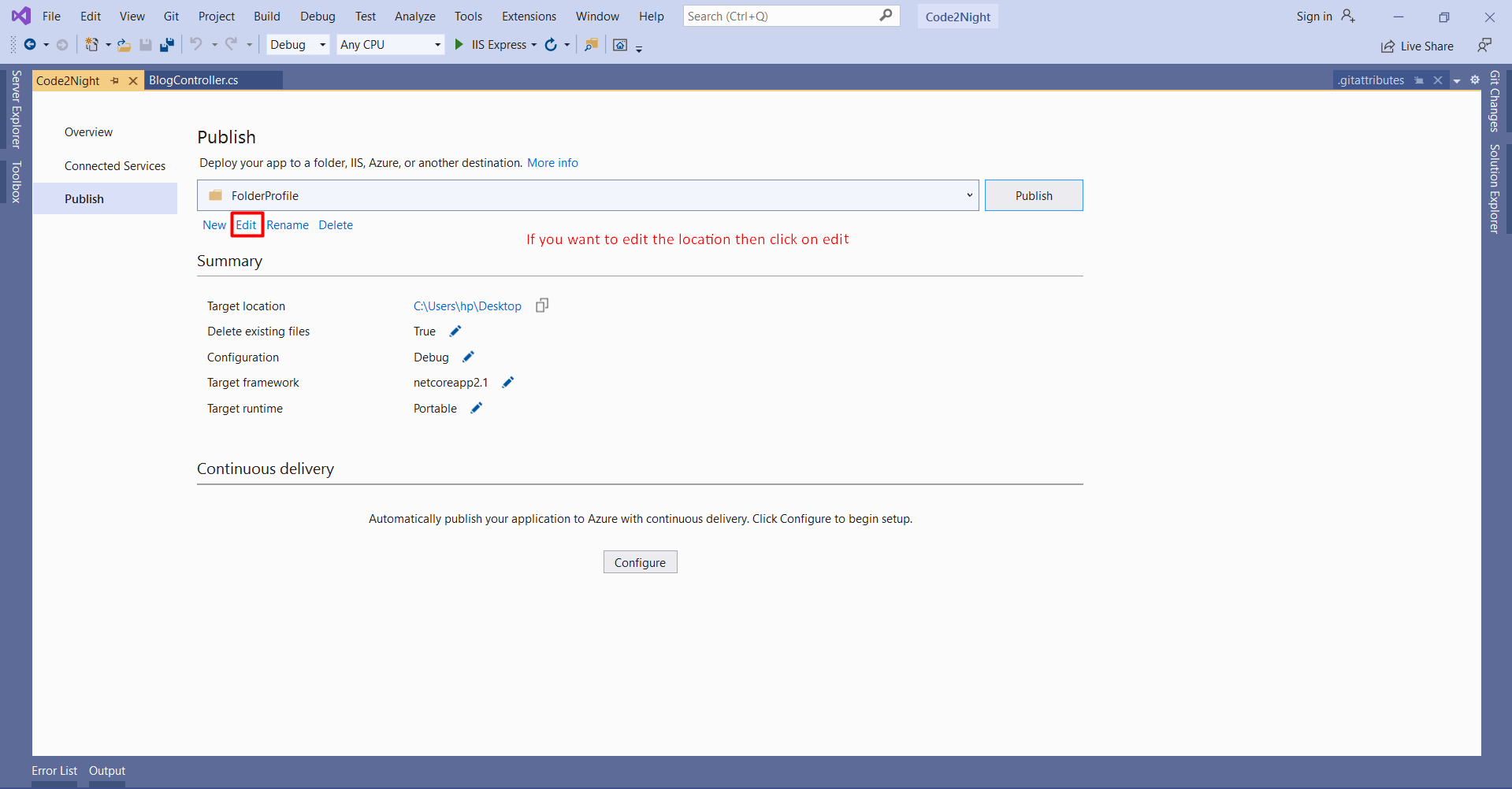
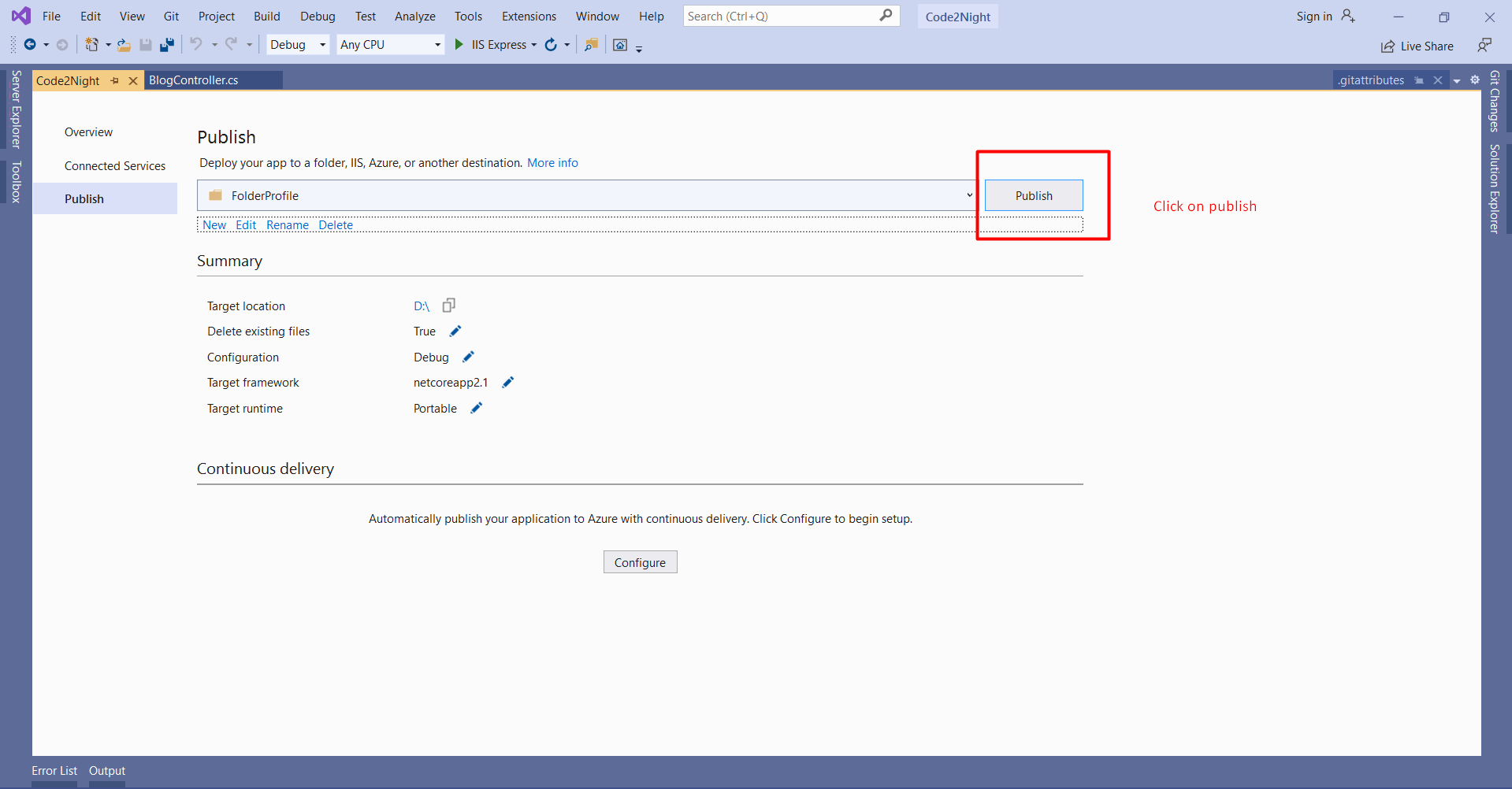
Next, right-click on the project in the Solution Explorer and select Publish. A new popup window will appear, allowing you to set the publish location. The publish location is essentially a folder on your local system where the compiled files will be stored for later uploading to the server. You can customize this location by clicking on Edit as shown in the image below.
Step 2: Change Publish Location
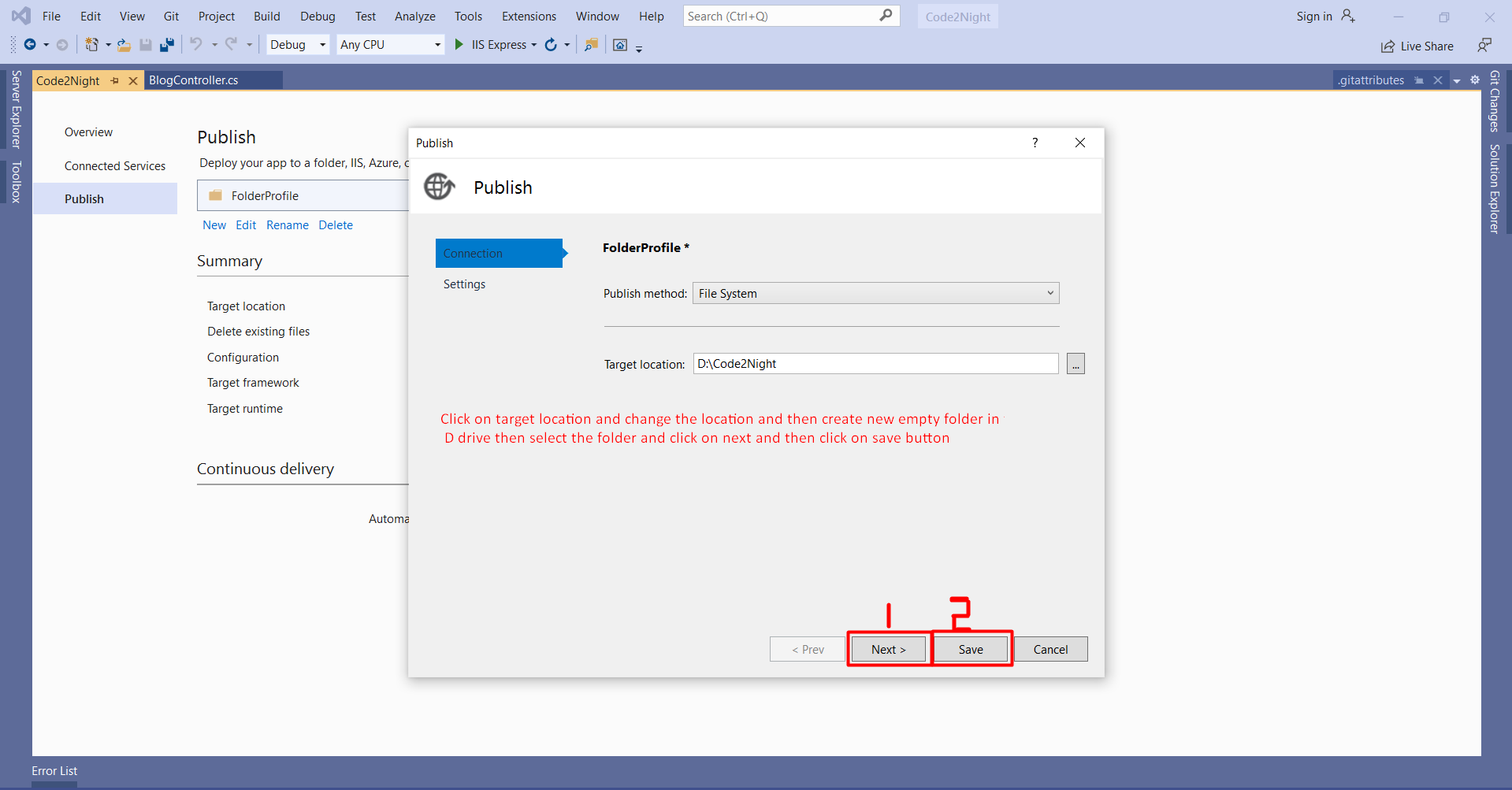
If you want to change the default publish location, click on the Edit button. A new popup window will open where you can specify the target location. Choose a new folder or create a new one by clicking on New Folder. Once you have selected or created your desired folder, click on Next and then on Save to apply the changes.
Step 3: Save and Publish
After setting the desired publish location, click on the Publish button to start the publishing process. This action will compile your project and save the output files to the specified folder. It is important to monitor the output window for any errors or warnings during this process, as they can indicate issues that need to be addressed before deployment.
Step 4: Check Final Files
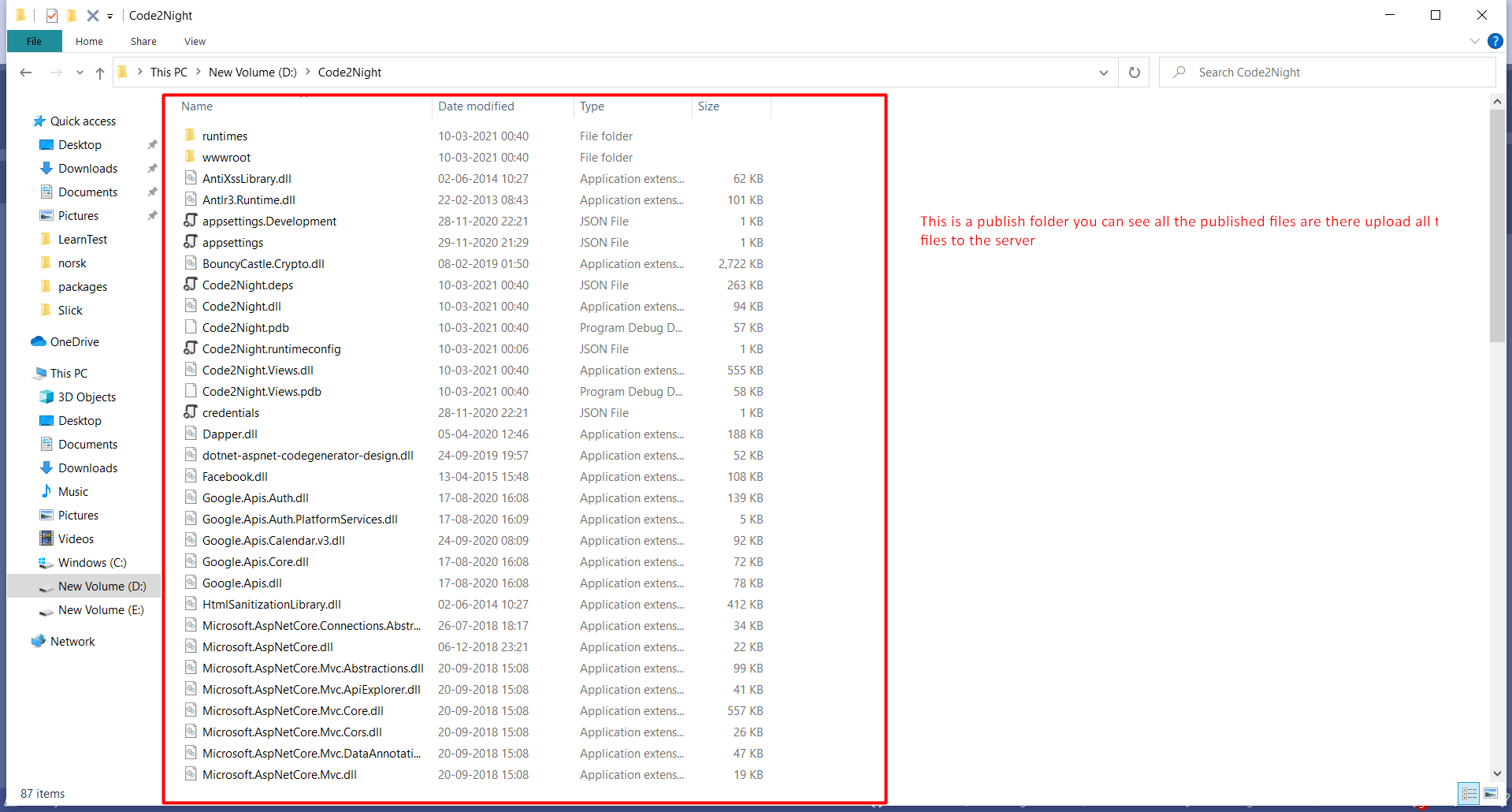
Once the publishing process is complete, navigate to the folder you specified in Step 2. You should see all the necessary files for your application, including DLLs, configuration files, and any static assets such as images or scripts. At this point, your files are ready to be uploaded to your server.
Uploading Files to Plesk
Once you have published your files to a local folder, the next step is to upload them to your server using Plesk. Plesk is a popular web hosting control panel that simplifies the management of websites and applications.
To upload your files, log in to your Plesk account and navigate to the File Manager. From there, you can upload the files directly from your local folder. Simply select the files you wish to upload and drag them into the File Manager interface or use the upload button provided. Ensure that you maintain the folder structure if your application relies on specific paths.
Testing Your Application
After uploading your files to Plesk, it is crucial to test your application to ensure that everything functions correctly in the live environment. Open a web browser and navigate to your domain to see if your application loads as expected. If you encounter any issues, check the following:
- File permissions: Ensure that the files have the correct permissions set for execution.
- Configuration settings: Verify that your application's configuration files are set up correctly for the production environment.
- Error logs: Review any error logs generated by your server to identify potential issues.
Edge Cases & Gotchas
While publishing to a local folder is generally straightforward, there are a few edge cases and gotchas to be aware of:
- Dependencies: Ensure that all necessary dependencies are included in the published folder. Missing dependencies can lead to runtime errors.
- Configuration Files: Be cautious with configuration files that may contain sensitive information. Use environment variables or secure storage solutions instead of hard-coding sensitive data.
- Versioning: Keep track of your application versions. When publishing updates, consider using versioning in your folder names to avoid confusion.
Performance & Best Practices
To ensure a smooth publishing process and optimal application performance, consider the following best practices:
- Optimize File Size: Use tools to minify and bundle your CSS and JavaScript files to reduce load times.
- Use a Staging Environment: Before deploying to production, test your application in a staging environment that mirrors your production setup.
- Automate Deployments: Consider using CI/CD pipelines to automate the deployment process, reducing human error and ensuring consistency.
- Backup Your Files: Always keep backups of your published files and database to prevent data loss.
Conclusion
In this article, we have explored the process of publishing a .NET project to a local folder and subsequently uploading it to a server using Plesk. By following the steps outlined, you can ensure that your application is correctly compiled, organized, and ready for deployment. Here are some key takeaways:
- Publishing a .NET project involves compiling your code and preparing files for deployment.
- Always verify your publish location and file structure before uploading to the server.
- Testing your application post-upload is crucial to ensure functionality.
- Adhering to best practices can enhance your deployment process and application performance.