
How to add a WhatsApp share button on a website
Understanding the WhatsApp Share Button
The WhatsApp share button is a simple yet powerful tool that enables users to share content from your website directly to their WhatsApp contacts. By integrating this feature, you enhance user experience and encourage content sharing, which can lead to increased traffic and engagement on your site. WhatsApp, being one of the most widely used messaging platforms globally, provides a unique opportunity to reach a diverse audience.
When users click the WhatsApp share button, a pre-filled message containing the link to your content is generated. This functionality not only saves time for users but also increases the likelihood of them sharing your content, as it requires minimal effort on their part.
Prerequisites
Before you start adding the WhatsApp share button to your website, ensure you have a basic understanding of HTML and CSS. Familiarity with linking external stylesheets will also be helpful. Additionally, you'll need access to your website's code to implement the necessary changes.
Adding the WhatsApp Share Button
To add the WhatsApp share button, you primarily need an anchor tag that links to the WhatsApp API. The following steps will guide you through the process:
First, include the Font Awesome library in your HTML to use its icons. Add the following line within the <head> section of your HTML:
<link rel="stylesheet" href="https://cdnjs.cloudflare.com/ajax/libs/font-awesome/4.7.0/css/font-awesome.min.css">Next, create the anchor tag for the WhatsApp share button. Replace the URL in the href attribute with the link you want to share:
<a class="whts" href="https://api.whatsapp.com/send?text=https://www.code2night.com/" data-action="share/whatsapp/share"> <i class="fa fa-whatsapp"></i> </a>This code creates a clickable WhatsApp icon that, when clicked, opens WhatsApp with the specified link. Users can then choose their contacts to share the link with.
Styling the WhatsApp Icon
To ensure that the WhatsApp button aligns with your website’s design, you can apply custom CSS styles. Below is an example of how to style the WhatsApp icon:
<style>
.fa-whatsapp {
    color: #fff;
    background: linear-gradient(#25d366,#25d366) 14% 84%/16% 16% no-repeat, radial-gradient(#25d366 60%,transparent 0);
}
a.whts {
    font-size: 38px;
    margin: 35px;
    vertical-align: top;
    position: relative;
    top: 2px;
}
</style>
This CSS will give your WhatsApp icon a distinctive look that matches WhatsApp's branding, making it easily recognizable to users.
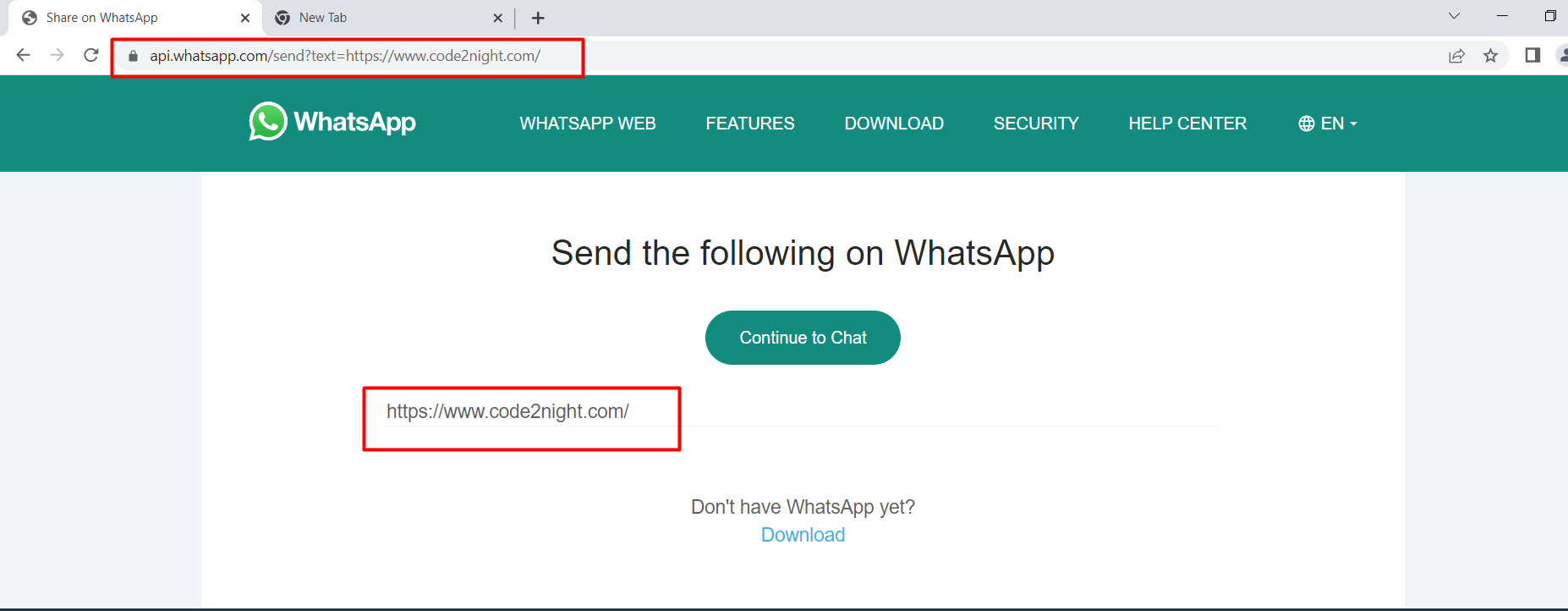
Testing the WhatsApp Share Button
Once you have added the button and styled it, it's crucial to test its functionality. Click on the share button to ensure that it opens WhatsApp correctly. On desktop, it will prompt you to open WhatsApp Web. If you are on a mobile device with WhatsApp installed, it will directly open the app.
Ensure that the link is correctly populated in the message field. This is essential for the user experience, as a broken link can discourage sharing. If you encounter any issues, double-check the URL format and the WhatsApp API link structure.
Edge Cases & Gotchas
While adding a WhatsApp share button is straightforward, there are some edge cases and potential issues to be aware of:
- URL Encoding: If your URL contains special characters (like spaces or symbols), ensure it is properly URL-encoded. For example, spaces should be replaced with %20.
- Mobile vs. Desktop Behavior: The sharing experience differs between mobile and desktop. On mobile, the WhatsApp app opens directly, while on desktop, users are redirected to WhatsApp Web. Make sure to consider this in your design.
- Browser Compatibility: Some browsers may handle the WhatsApp API differently. Test your implementation across multiple browsers to ensure consistent behavior.
Performance & Best Practices
To enhance the performance and usability of your WhatsApp share button, consider the following best practices:
- Use a Clean URL: Ensure the URL you are sharing is clean and straightforward. Avoid unnecessary parameters that may confuse users.
- Test on Multiple Devices: Always test the share button on various devices and browsers to ensure it works seamlessly everywhere.
- Track Clicks: Use analytics tools to track how often the share button is clicked. This data can help you understand user engagement and improve your content strategy.
- Positioning: Place the share button where it is easily accessible, such as at the end of an article or near the content that users are likely to share.
Conclusion
Adding a WhatsApp share button to your website can significantly enhance user engagement and make sharing content easier for your audience. By following the steps outlined in this tutorial, you can implement this feature effectively. Remember to test your implementation and monitor its performance to make any necessary adjustments.
Key Takeaways:
- WhatsApp share buttons facilitate easy content sharing, enhancing user engagement.
- Properly styling and positioning the button is crucial for usability.
- Testing across devices ensures a seamless user experience.
- Tracking analytics can provide insights into user behavior and content effectiveness.
