Integrating Google reCAPTCHA Validation in ASP.NET MVC
Integrating Google reCAPTCHA in ASP.NET MVC
Overview of Google reCAPTCHA
Google reCAPTCHA is a service designed to protect websites from spam and abuse. It uses advanced risk analysis techniques to tell humans and bots apart. By integrating reCAPTCHA, you can significantly reduce the risks of automated submissions, which can lead to data breaches, spam, and increased server load. This is particularly important for forms that collect sensitive information or are critical to the functionality of your web application.
There are different versions of reCAPTCHA, including reCAPTCHA v2, which presents a checkbox for users to click, and reCAPTCHA v3, which operates in the background and evaluates user interactions to determine if they are human. This flexibility allows developers to choose the version that best fits their user experience needs.
Prerequisites
Before you begin the integration process, ensure you have the following prerequisites:
- Basic understanding of ASP.NET MVC: Familiarity with MVC architecture will help you navigate the coding aspects of this tutorial.
- Visual Studio: Make sure you have Visual Studio installed on your system to create and manage your ASP.NET MVC project.
- Google reCAPTCHA API keys: You will need to obtain a site key and a secret key from the Google reCAPTCHA admin console.
Step 1: Get reCAPTCHA API Keys
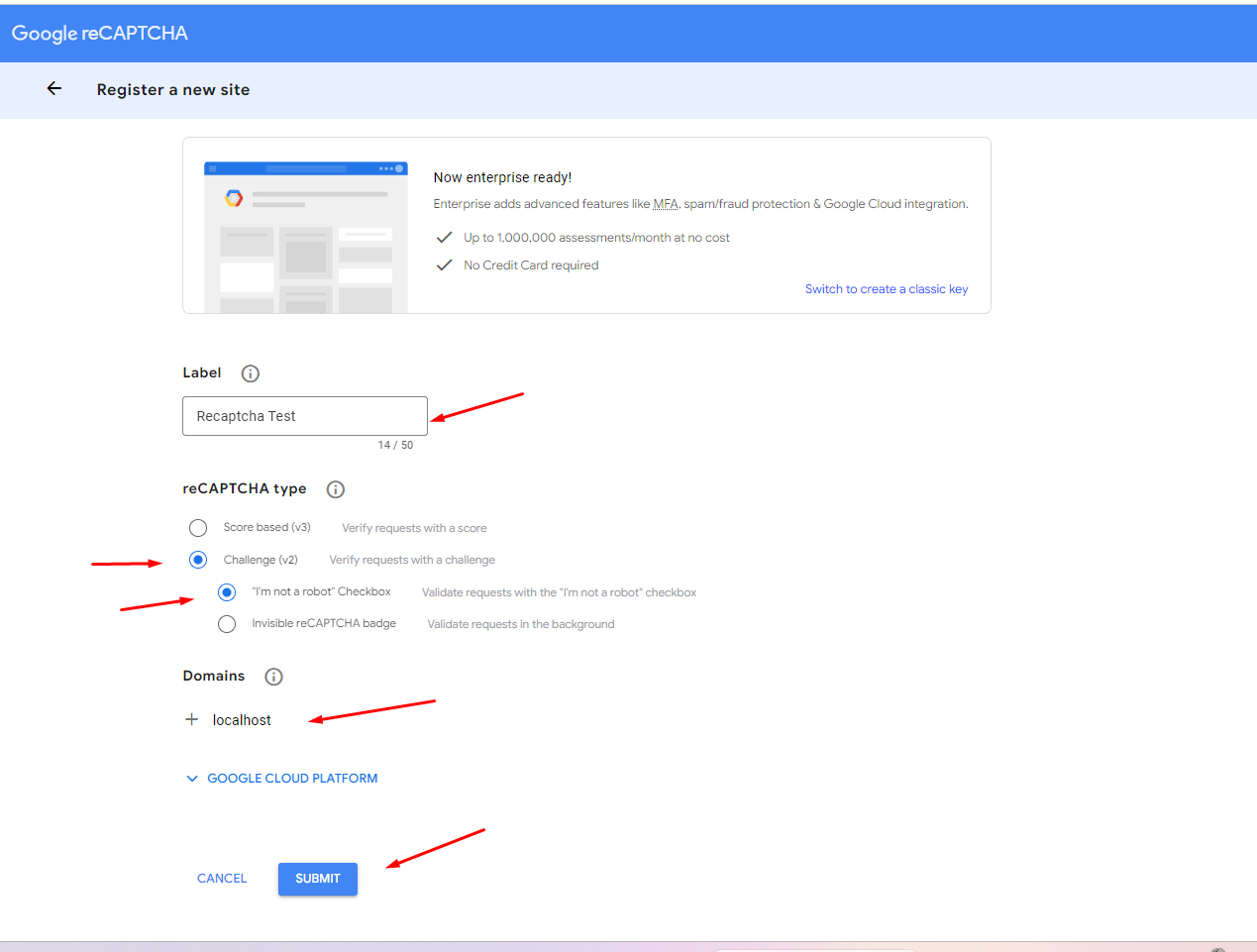
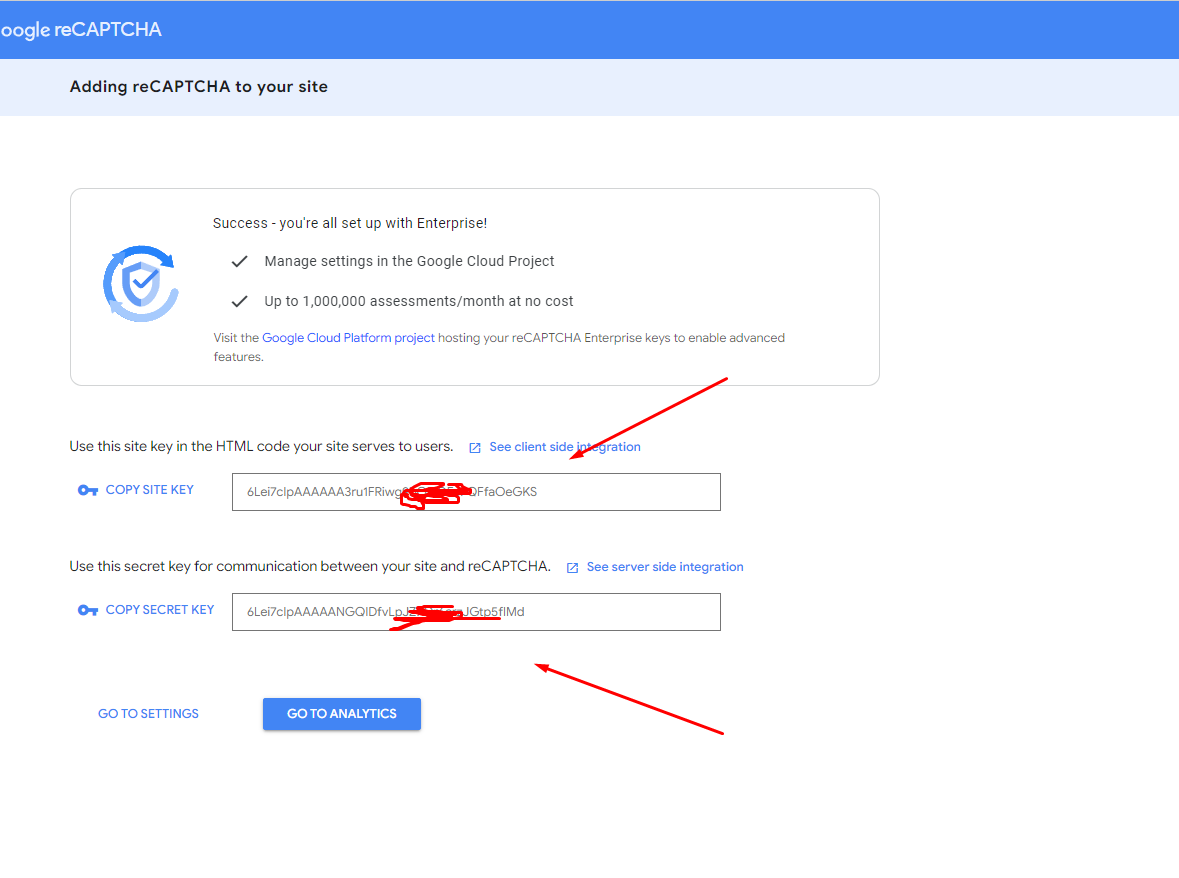
To start using reCAPTCHA, navigate to the reCAPTCHA admin console and register your site. You will need to provide some basic information, such as your domain name and the type of reCAPTCHA you wish to implement. Upon registration, you will receive two keys: a site key and a secret key.
The site key is used in your HTML to render the reCAPTCHA widget, while the secret key is used for server-side verification. Keep your secret key confidential and do not expose it in client-side code.
Step 2: Create an ASP.NET MVC Project
Open Visual Studio and create a new ASP.NET MVC project. Name it according to your preferences. You can choose either an empty project or a project with a sample template, depending on your needs. Ensure that the project is configured to use .NET Framework or .NET Core, depending on your requirements.
Step 3: Install Required Packages
Next, you will need to install some necessary packages via the NuGet Package Manager. The primary packages you need are:
- Microsoft.Ajax.Utilities: This package provides utilities for working with AJAX.
- Newtonsoft.Json: This is a popular library for handling JSON in .NET applications, which will be used for parsing the reCAPTCHA verification response.
Install-Package Microsoft.Ajax.Utilities Install-Package Newtonsoft.JsonStep 4: Controller Implementation
Create a controller (e.g., HomeController) with two actions: Index and Verify. The Index action will render the view with the reCAPTCHA widget, while the Verify action will handle the reCAPTCHA verification process.
using Microsoft.Ajax.Utilities; using Newtonsoft.Json.Linq; using System; using System.Net; using System.Web.Mvc; namespace Recaptcha.Controllers { public class HomeController : Controller { public ActionResult Index() { return View(); } [HttpPost] public ActionResult Verify() { // Verify reCAPTCHA var response = Request["g-recaptcha-response"]; var client = new WebClient(); var secretKey = "Your Secret Key"; // Replace with your actual secret key var result = client.DownloadString($"https://www.google.com/recaptcha/api/siteverify?secret={secretKey}&response={response}"); var obj = JObject.Parse(result); var status = (bool)obj.SelectToken("success"); if (!status) { ModelState.AddModelError("", "reCAPTCHA validation failed."); return View("Index"); // Return the view to display the error message } // Continue with your application's intended functionality return View("Index"); } public ActionResult About() { ViewBag.Message = "Your application description page."; return View(); } public ActionResult Contact() { ViewBag.Message = "Your contact page."; return View(); } } }Step 5: Index View
In the Index view, you will add the reCAPTCHA widget using the HTML provided by Google. Ensure you include the necessary JavaScript files and replace 'your_site_key' with your actual site key.
@{ ViewBag.Title = "Home Page"; } <main> <div class="row"> @using (Html.BeginForm("Verify", "Home")) { <!-- Your other form fields --> <div class="g-recaptcha" data-sitekey="your-site-key"></div> <br /> <input type="submit" value="Submit" /> @Html.ValidationSummary(true, "", new { @class = "text-danger" }) } </div> </main> <script src="https://www.google.com/recaptcha/api.js" async defer> </script>Make sure to replace 'your_site_key' in the View with your actual reCAPTCHA site key obtained from the Google reCAPTCHA admin console.
Step 6: Verify reCAPTCHA Response
In the Verify action of the controller, extract the reCAPTCHA response from the request and send it to Google's reCAPTCHA verification endpoint along with your secret key. This process ensures that the response is valid and that the user is indeed human.
var response = Request["g-recaptcha-response"]; var client = new WebClient(); var secretKey = "Your Secret Key"; var result = client.DownloadString($"https://www.google.com/recaptcha/api/siteverify?secret={secretKey}&response={response}"); var obj = JObject.Parse(result); var status = (bool)obj.SelectToken("success");Step 7: Handle Verification Result
After verifying the reCAPTCHA response, you can proceed with the intended action of your application. If the verification fails, display an error message to the user. If successful, continue with the functionality you want to implement, such as saving form data or redirecting to another page.
if (!status) { ModelState.AddModelError("", "reCAPTCHA validation failed."); return View("Index"); } // Proceed with application logic if successfulEdge Cases & Gotchas
While integrating Google reCAPTCHA is straightforward, there are some edge cases and common pitfalls to be aware of:
- Network Issues: If the user's device has network connectivity issues, the reCAPTCHA verification may fail. Implement proper error handling to inform users of connectivity problems.
- Multiple reCAPTCHA Widgets: If you have multiple reCAPTCHA widgets on a single page, ensure each has a unique data-sitekey attribute to avoid conflicts.
- JavaScript Disabled: If a user has JavaScript disabled, the reCAPTCHA will not function. Consider providing an alternative method for verification in such cases.
Performance & Best Practices
To ensure optimal performance when integrating reCAPTCHA, consider the following best practices:
- Use Asynchronous Loading: Load the reCAPTCHA script asynchronously to prevent blocking the rendering of your page. This can improve the overall user experience.
- Limit reCAPTCHA Usage: Only use reCAPTCHA on forms that require it. For instance, avoid using it on pages where user interaction is not critical.
- Monitor reCAPTCHA Metrics: Regularly check the reCAPTCHA admin console for metrics and analytics. This helps you understand how effective the reCAPTCHA is in reducing spam.
Conclusion
Integrating Google reCAPTCHA into your ASP.NET MVC application enhances security and protects against malicious bot traffic. By following the steps outlined in this article, you can effectively implement reCAPTCHA in your forms.
Key Takeaways:
- Google reCAPTCHA is essential for preventing automated submissions.
- Always keep your secret key confidential and secure.
- Implement proper error handling for various edge cases.
- Follow best practices to optimize performance and user experience.